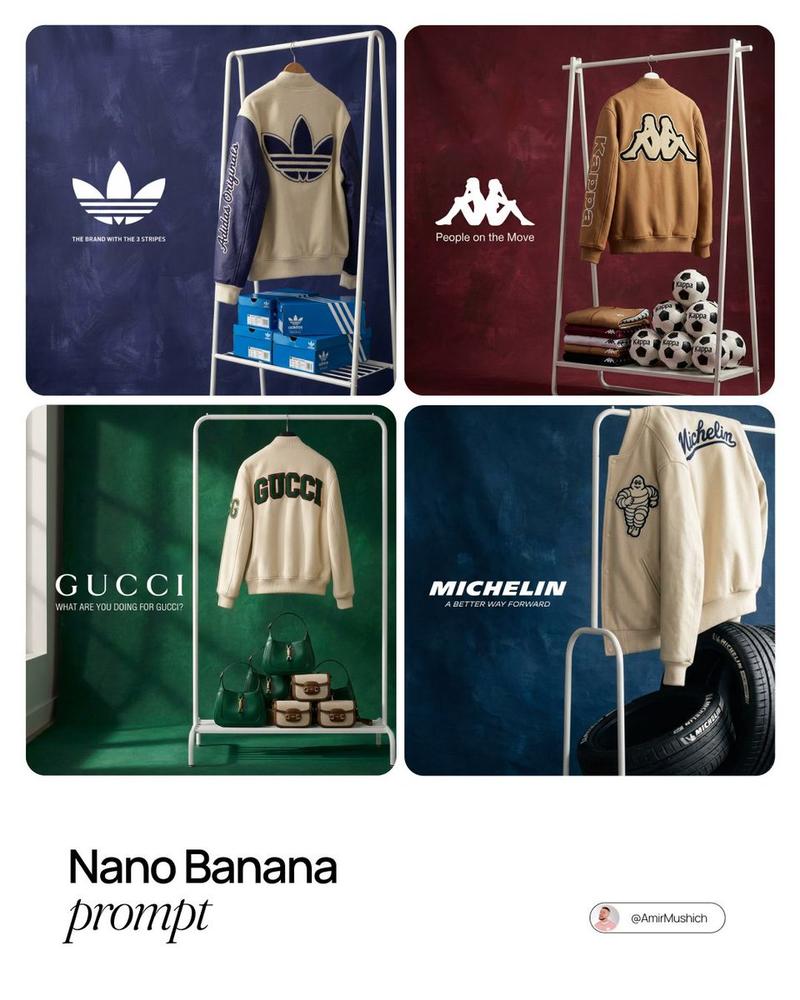
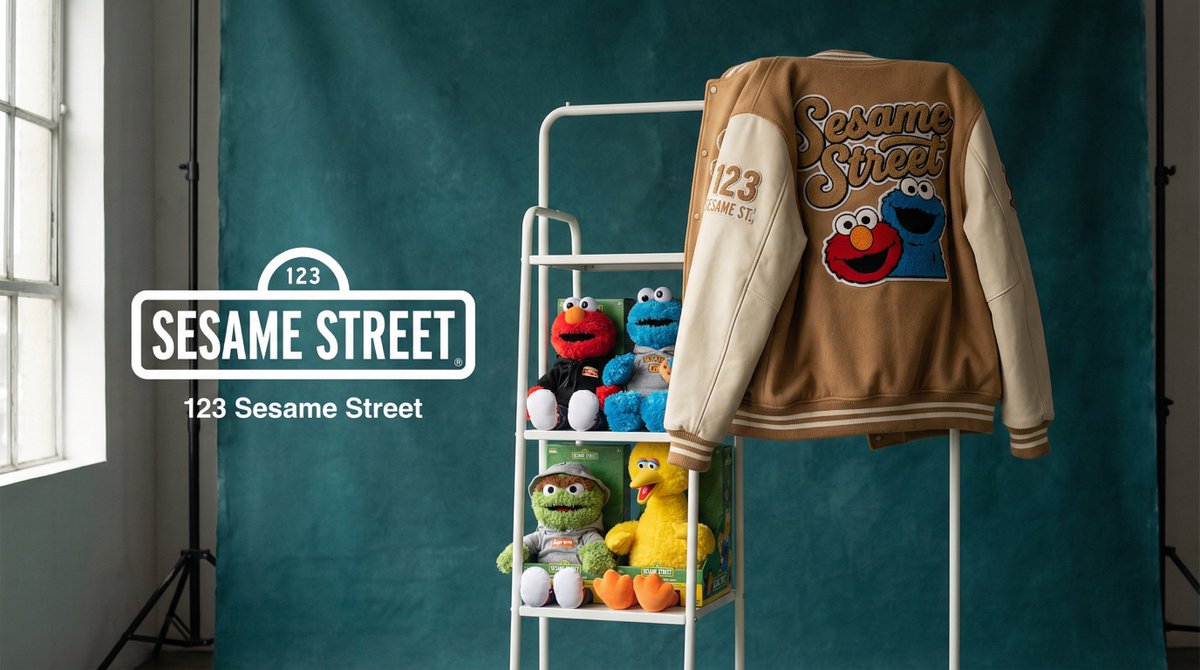
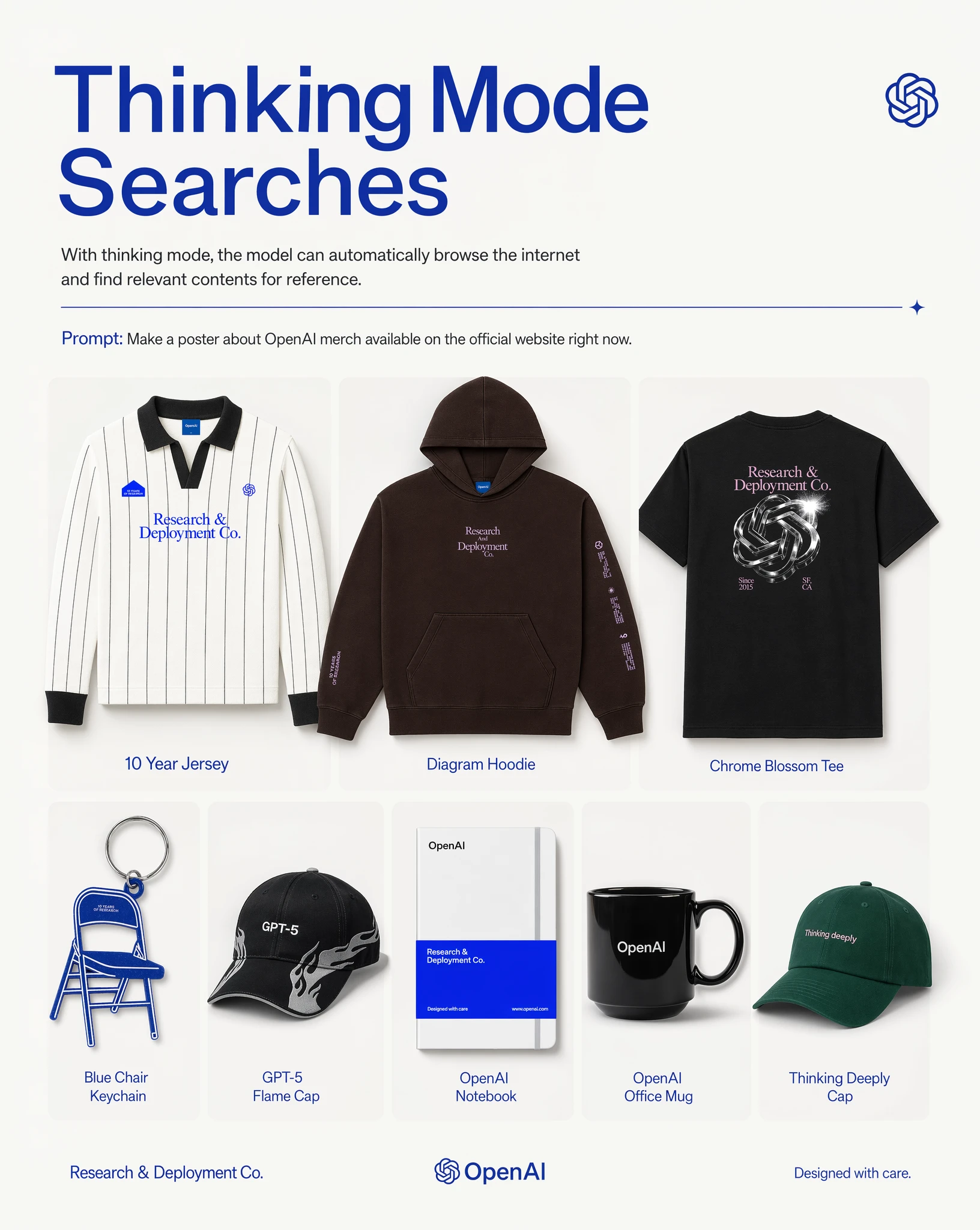
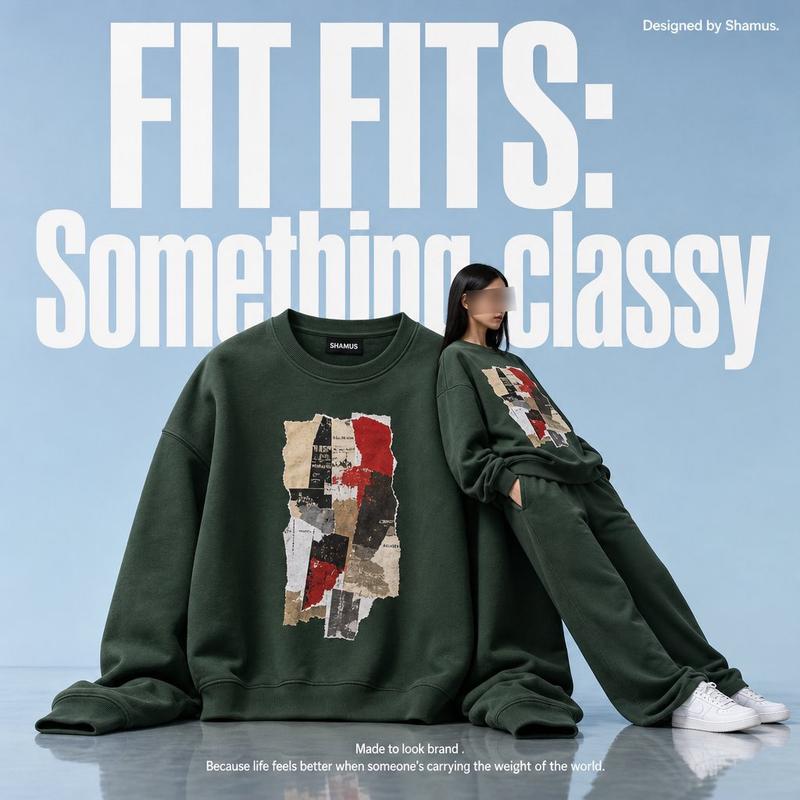
品牌周边陈列室摄影
Prompt
{argument name="brand name" default="[BRAND NAME]"}. Act as the creative director and still life photographer for a hypebeast fashion magazine.

TASK:
Create a premium showroom still life photograph for a limited merchandise drop by {argument name="brand name" default="[BRAND NAME]"}.

PHASE 1: AUTONOMOUS BRAND CURATION
Analyze {argument name="brand name" default="[BRAND NAME]"} and identify its industry, visual identity, and most recognizable physical product. For example, Spalding means basketballs, McDonald's means burger boxes, Visa means metal cards, Michelin means tires, Kappa means soccer balls or apparel.

Build the visual palette from the brand:
Background color: choose a deep, rich, textured studio color from the brand's secondary palette, such as navy, burgundy, teal, forest green, slate grey, or dark blue.
Merch color: choose a warm or neutral contrasting tone, such as cream, camel, orange, tan, or off-white, so the apparel pops against the backdrop.
Merch item: select a high-quality apparel piece that fits the brand's culture, such as a varsity letterman jacket, heavyweight hoodie, wool scarf, canvas tote, or premium sweatshirt.

PHASE 2: SET DESIGN, THE DISPLAY RACK
Use a simple modern white powder-coated metal rack or shelf unit as the main prop. It should stand cleanly in the frame and feel like a curated studio showroom display.

Arrange the scene like this:
Hanging item: place the chosen merch item on the rack or drape it casually over a hanger. Show clear tactile material detail, such as wool, felt, fleece, leather, embroidery, ribbed cuffs, or heavy cotton.
Stacked products: place multiple units of the brand's core physical product on the shelves or floor around the rack. Use stacks, pyramids, rows, or clean retail-style groupings depending on the product type.
Backdrop: use a hand-painted canvas backdrop in the selected deep background color. Make the brush texture, subtle uneven paint, and studio surface visible.

PHASE 3: PHYSICAL BRANDING AND TEXTURE
On the merch, add premium physical branding for {argument name="brand name" default="[BRAND NAME]"}. Use chenille patches, embroidered logos, stitched sleeve lettering, applique graphics, or high-quality screen print. The apparel must look like a real expensive garment from a limited drop.

On the products, make the {argument name="brand name" default="[BRAND NAME]"} logo visible and correctly integrated on the stacked core items. The products should feel real, not like generic placeholders.

PHASE 4: PHOTOGRAPHY AND LIGHTING
Shoot it as a high-end editorial still life photograph.
Lighting: soft directional window light from the side, with natural realistic shadows on the rack and rich highlights across fabric, packaging, and product textures.
Lens: 50mm or 85mm editorial product photography look. Keep the merch sharp and let the background fall off slightly.
Composition: refined, minimal, balanced, with enough negative space on the left for logo and slogan text.- Category
- Charts & Infographics
- Model
- GPT Image 2
- Creator
- PromptLab
- Source ID
- 27458
- Published
- Jul 2, 2026
Views0