15

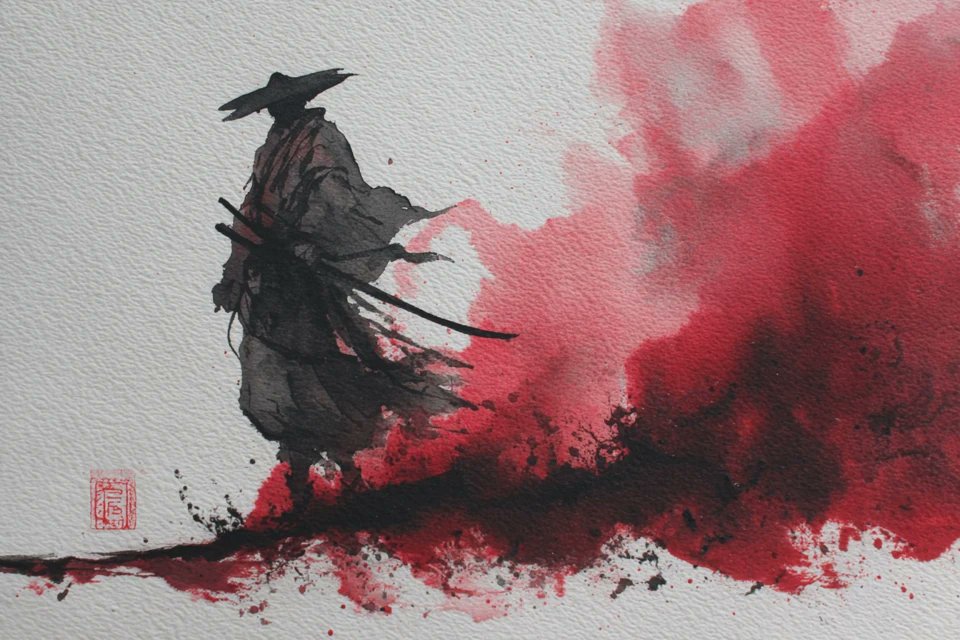
水墨武士画
Enlarge

Example images

水墨武士画

Prompt
A {argument name="warrior" default="lone samurai / ronin warrior"} rendered in {argument name="style" default="traditional Japanese sumi-e ink wash painting style"}, full-body dynamic pose, face mostly hidden in shadow, wearing flowing robes and straw hat / topknot hairstyle, carrying katana swords, dramatic motion as if mid-step or mid-draw. Composition built from bold black ink splashes, watercolor bleeds, expressive brush strokes, and scattered ink droplets on a {argument name="background" default="pure white paper background"}. Minimalist monochrome palette, high contrast black and gray tones, abstract edges dissolving into splatter, elegant negative space, raw gestural energy, feudal Japan aesthetic, calligraphy stamp signature in red at the bottom, museum-quality ink illustration, highly artistic, dramatic, textured rice paper feel.
Category
History & Classical
Model
GPT Image 2
Creator
Anissa
Views2
Source ID
27877
Published
Jul 7, 2026

Guide

About "水墨武士画"

What is this prompt for?

"水墨武士画" AI image prompt for GPT Image 2 (History & Classical). 一款传统的日本水墨画风格提示词,用于创作动态中的武士,展现极具表现力的墨迹飞溅与质感。 Copy it on Picva and recreate the look in one click.

The full copyable prompt and example visuals above are ready for AI image generation or one-click recreate in Picva.

How to use this prompt

  1. Step 1

    Open the prompt detail

    Review the example visuals, category, and full prompt text for "水墨武士画".

  2. Step 2

    Copy the prompt

    Copy the prompt body from this page, or load it directly in Studio.

  3. Step 3

    Pick a model (GPT Image 2)

    Prefer GPT Image 2. If you switch models, keep subject and composition and tweak style terms.

  4. Step 4

    Generate and export

    Recreate the look in Picva, or export into your workflow for editing and publishing.

FAQ

What is the "水墨武士画" prompt?
It is an AI image-generation prompt for GPT Image 2 in the History & Classical category. This page includes the full prompt text, example visuals, and a one-click recreate path in Picva.
How do I use this prompt to generate an image?
Copy the prompt from this page, or use Generate / Studio. Paste it into a compatible image model, or recreate the look in Picva with optional reference images.
Which model is this prompt for?
This page lists GPT Image 2. Most descriptive prompts also transfer to nearby image models such as GPT Image, Flux, or Midjourney with light style tweaks.
Can I use the result commercially?
You can usually copy the prompt for creation, but commercial use of the final image depends on the model terms, reference-image rights, and the generated content. Follow the source author and platform rules.