Slogan window poster: GPT Image 2 prompt
Prompt
[BRAND NAME]. Act as a Senior Editorial Designer and Typographer.

PHASE 1: TYPOGRAPHIC MASK (THE "WINDOW" EFFECT).

- Core Element: Use the most iconic slogan or the name of [BRAND NAME] as a massive, ultra-bold, heavy sans-serif typographic mask.

- Layout: The letters must be giant, filling the entire vertical frame from edge to edge with tight kerning.

- Concept: The text acts as a "cut-out" window. The background is solid white, and the photographic subject is visible ONLY through the letterforms.

PHASE 2: DYNAMIC SUBJECT LOGIC.

- Subject Selection:

- Detail: Ensure a high-contrast element (like a red shoe or a glowing headlight) is visible through one of the letters as a focal point.

PHASE 3: SOPHISTICATED MUTED PALETTE.

- Atmosphere: Use a "Refined Muted" color scheme.

- Tones: Soft slate blues, charcoal greys, and creamy off-whites for the photography inside the mask.

- Accent: Identify one sharp, saturated accent color belonging to [BRAND NAME] and apply it to a single key object visible through the text.

PHASE 4: PHOTOGRAPHY & LIGHTING.

- Lighting: Soft-box studio lighting. Diffused shadows and gentle highlights to create a cinematic, high-end editorial feel.

- Finish: Clean, matte texture with zero visual noise. High-definition photographic quality.

PHASE 5: MINIMALIST BRANDING.

- Accents: Add a tiny minimalist logo and a small vertical tagline in a clean, microscopic sans-serif font near the corners.

- Year: Include the year "2026" in a subtle, elegant font to mimic a limited-edition look.
- Category
- Photography & Realism
- Model
- GPT Image 2
- Creator
- AmirMušić
- Source ID
- 2028068337427603741
- Published
- Mar 1, 2026
Views0


![Nano Banana prompt Turning any [brand] into a duffle design Prompt below👇](https://cdn.pixshop.app/prompt-library/tweet-2002274024408191033/preview-0-1768140381034-zrq3yn1q.jpeg)
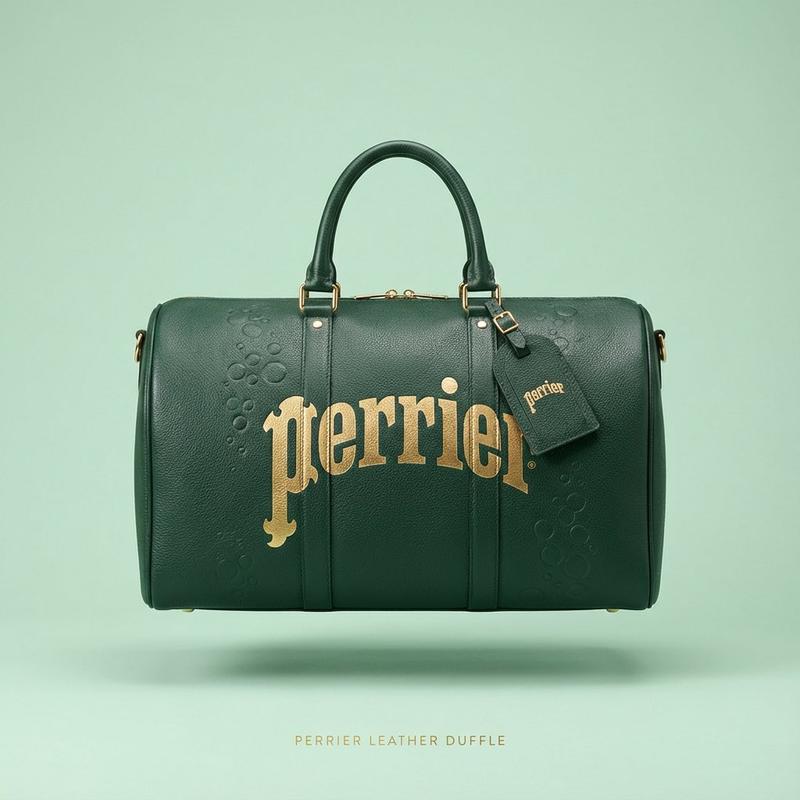



![Direction Type: [Direction Type] Brand Name: [Brand Name] Theme / Collection: [T](https://i.pixshop.app/storage/v1/render/image/public/prompt-source-media/promptsref/work-33117/image-1-bb4cc0dd65899d21.png?width=800&quality=75&resize=contain)