超写实 ML 开发者桌面
Prompt
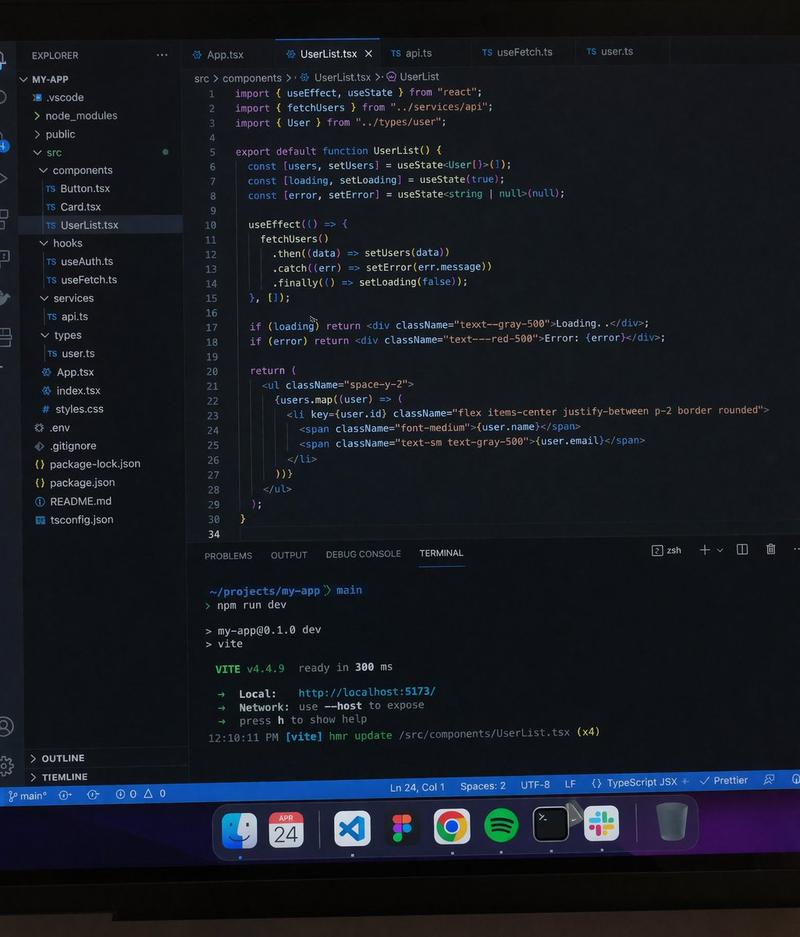
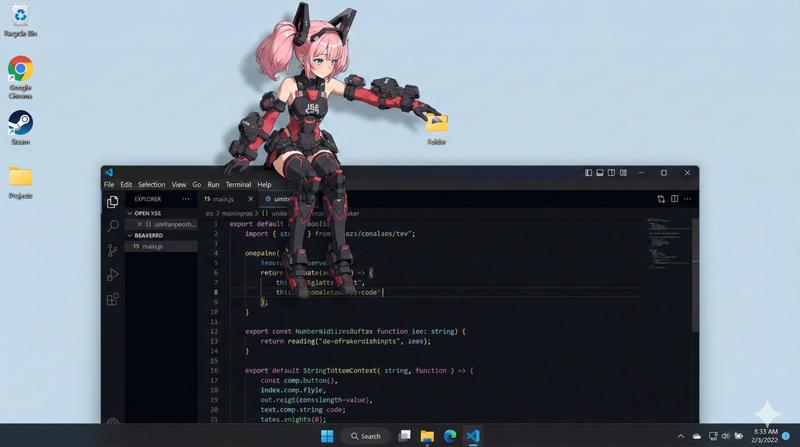
A photorealistic macOS desktop screenshot of a machine learning engineer’s workspace at night, shown straight-on with a dark blue macOS menu bar and the dock visible along the bottom. The desktop contains exactly 2 main application windows side by side. On the left, a large Visual Studio Code window in dark theme occupies about two-thirds of the screen. The VS Code project is named "VISIONCLASSIFIER" in the Explorer sidebar, with a realistic Python ML folder tree including exactly 11 visible top-level or expanded items: .venv, data, raw, processed, images, notebooks, src, utils, config.yaml, requirements.txt, README.md. Inside notebooks, show exactly 2 visible files: 01_data_exploration.ipynb and 02_model_training.ipynb. Inside src, show a realistic ML code structure with dataset.py, transforms.py, models, resnet.py, train, engine.py, trainer.py, utils.py. The editor area has exactly 4 tabs open: trainer.py, engine.py, resnet.py, config.yaml. The active tab is trainer.py. Display clean, believable Python training code for a ResNet image classification pipeline, including a class Trainer, methods train(self) and train_epoch(self, epoch: int) -> Dict[str, float], references to self.cfg.training.epochs, train_metrics, val_metrics, scheduler.step, save_checkpoint, self.model.train(), batch["image"], batch["label"], optimizer.zero_grad, criterion, loss.backward, optimizer.step, accuracy(outputs, targets, topk=(1,))[0]. Make the code sharp but naturally screen-like, with line numbers visible around lines 24 to 52. At the bottom of the VS Code window, the integrated terminal is open on the TERMINAL tab and shows realistic training logs for exactly 4 epochs in view: Epoch 12/50, Epoch 13/50, Epoch 14/50, Epoch 15/50, each with train and val lines listing Loss, Acc@1, and Acc@5, plus a final line saying a new best checkpoint was saved. Keep the numbers plausible for a successful training run, with top-1 accuracy around 0.88 to 0.91 and top-5 around 0.97 to 0.98. Include the usual VS Code status bar along the bottom with Python environment details. On the right, place exactly 1 dark-themed web browser window showing a local dashboard at localhost:8000 with the page title "VisionClassifier | Dashboard" and the app header "VisionClassifier" plus subtitle "Image Classification Model". The dashboard contains exactly 3 stacked sections. The first section is "Model Overview" with exactly 4 metric cards: Top-1 Accuracy 91.23%, Top-5 Accuracy 98.30%, Total Parameters 23.51M, Model ResNet-50. The second section is "Recent Training" with a dark line chart of accuracy over 50 epochs, showing exactly 2 colored curves labeled Train (Top-1) and Val (Top-1), both rising quickly and stabilizing around the low 90s. The third section is "Confusion Matrix" showing a 10x10 heatmap with a bright diagonal and axes labeled True Label and Predicted Label. Use subtle reflections, crisp typography, realistic UI spacing, and believable screen glow. The macOS top menu bar should show common menus like Code, File, Edit, Selection, View, Go, Run, Terminal, Window, Help on the left and system icons with the time reading Tue May 13 9:41 AM on the right. The dock should contain many recognizable app icons and feel authentic but not distracting. Overall style: ultra-realistic screenshot, professional developer workstation, polished dark mode interfaces, no stylization, no illustration, indistinguishable from a real screen capture.
- Category
- Charts & Infographics
- Model
- GPT Image 2
- Creator
- Filipe
- Source ID
- 15038
- Published
- Apr 22, 2026
Views1