12

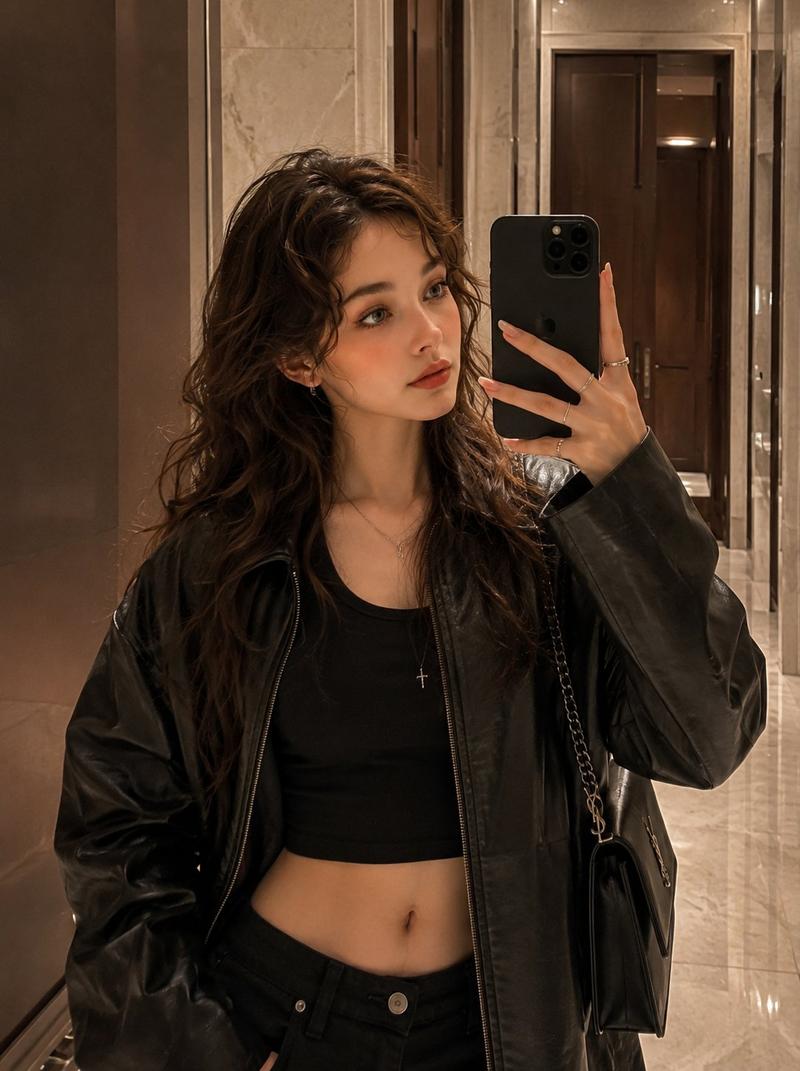
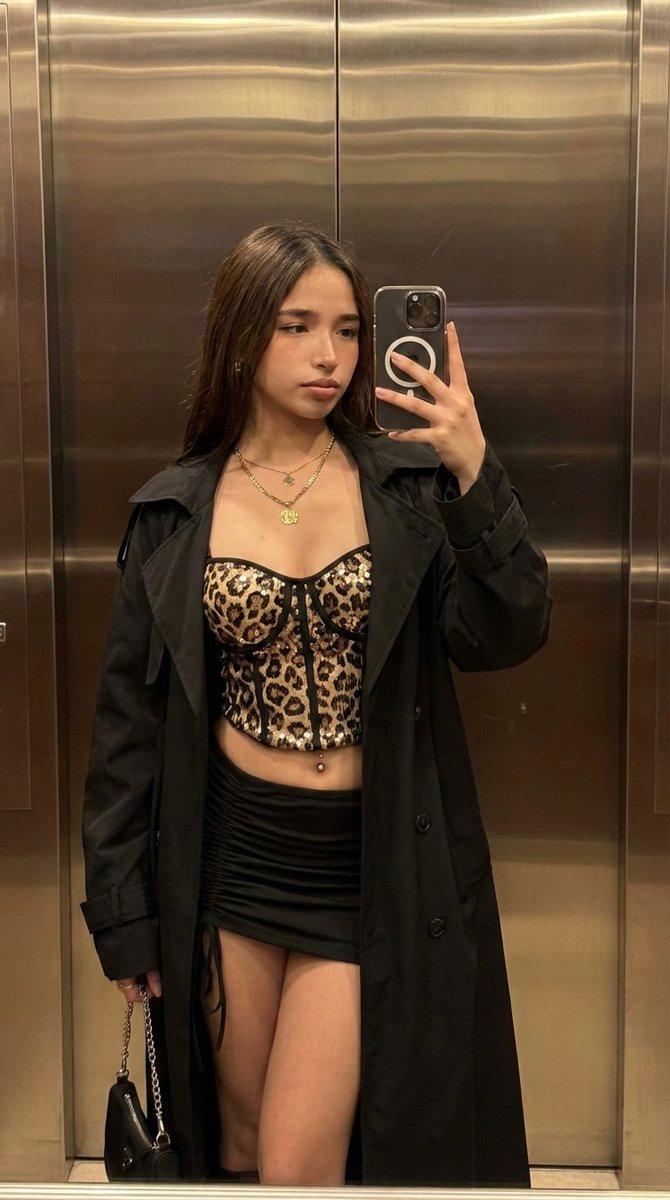
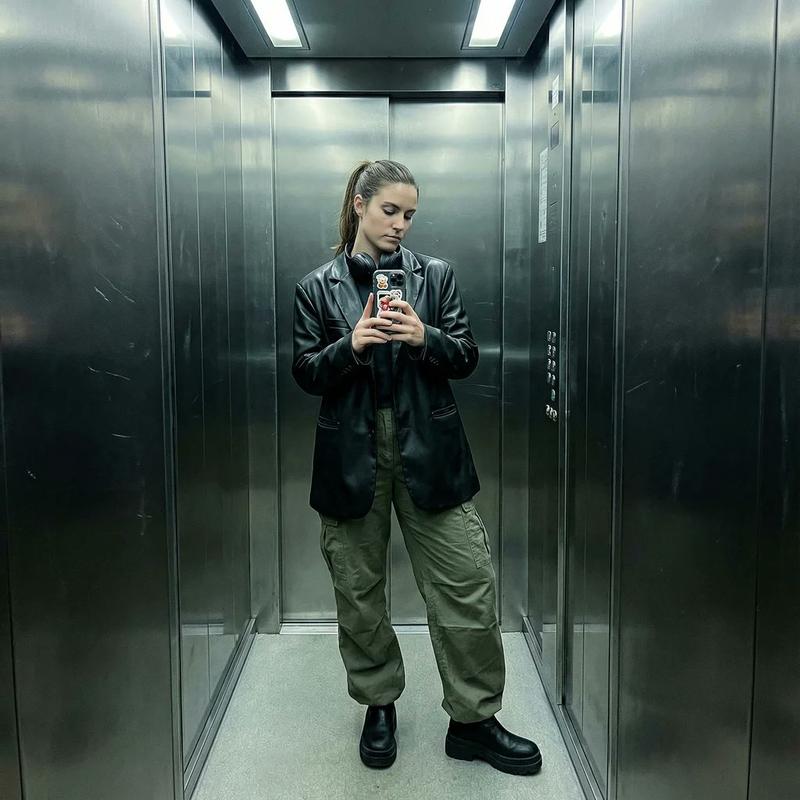
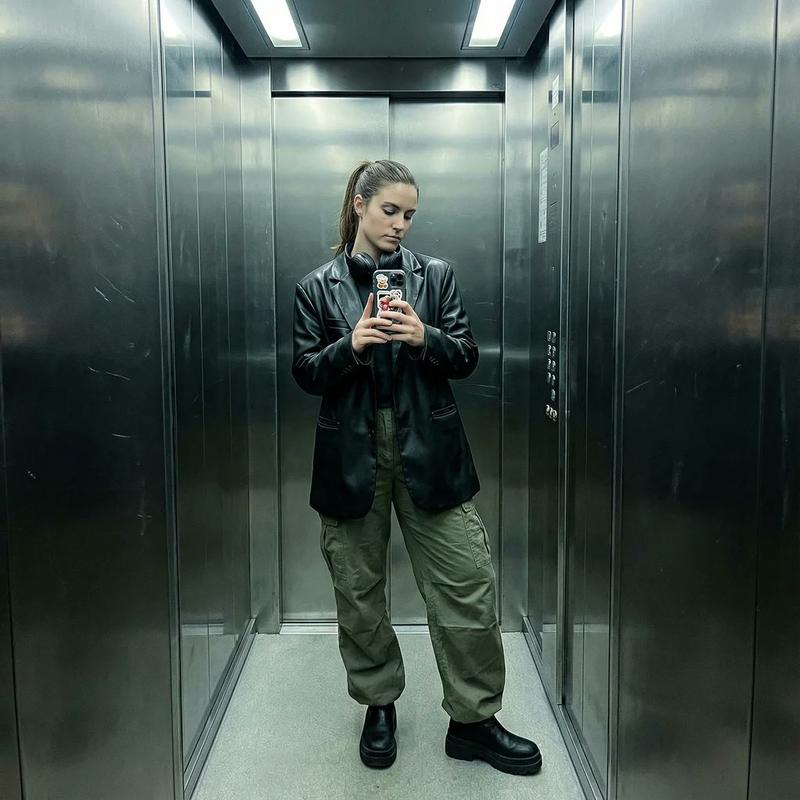
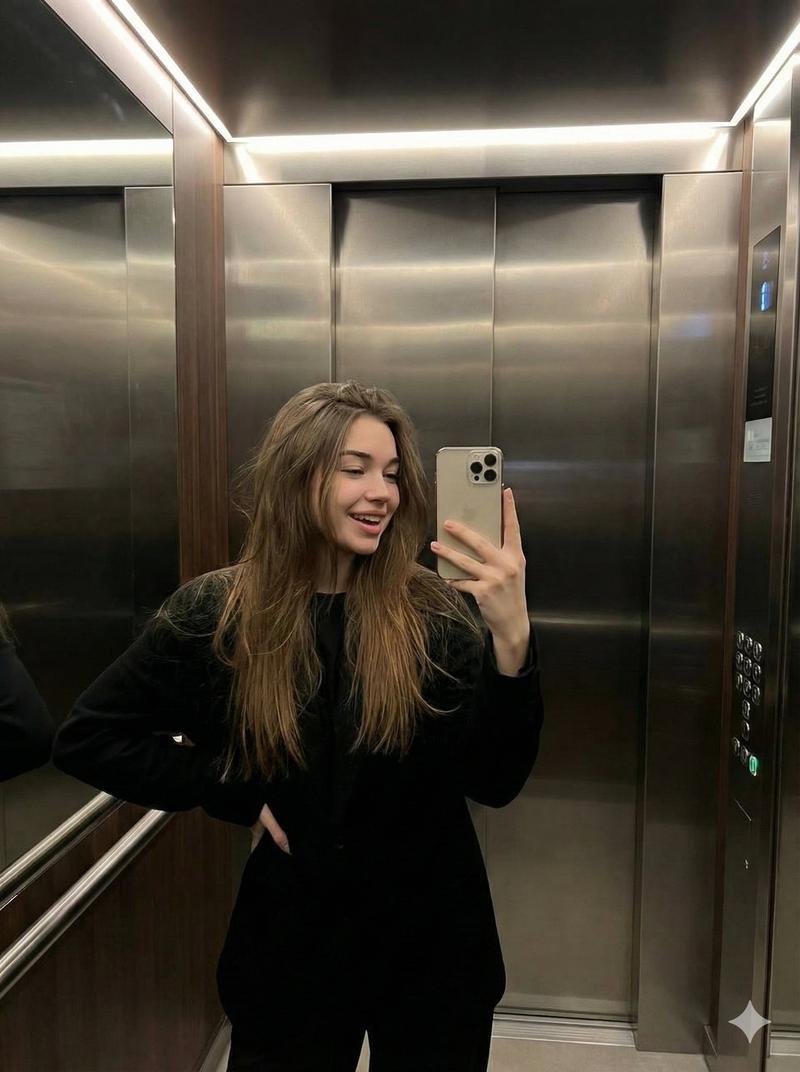
Hand-drawn doodle overlay on photo: GPT Image 2 prompt
Enlarge

Hand-drawn doodle overlay on photo: GPT Image 2 prompt

Prompt
Transform the uploaded image by keeping the subject exactly as they are—preserve their identity, pose, composition, and lighting without any distortion or alteration. Build on top of the original photo by adding expressive, hand-drawn doodles that interact playfully with the subject.

Let the illustrations respond to the scene, trace or exaggerate gestures, extend movement, highlight contours, or introduce imaginative elements that feel connected to what's happening in the frame. The doodles should feel intentional, as if they were sketched directly onto the image in a spontaneous yet thoughtful way.

Use a loose, imperfect drawing style with slightly uneven strokes, organic lines, and a casual, sketchbook-like vibe. Incorporate handwritten notes or captions around the image that match the mood or narrative—keep them witty, context-aware, and naturally playful rather than generic.

Make sure the added elements complement the photo instead of overpowering it. Aim for a visually balanced composition with a clean, high-resolution finish and colors that blend harmoniously with the original scene.
Category
Illustration & Art
Model
GPT Image 2
Creator
Jack
Views3
Source ID
2050977493784637699
Published
May 3, 2026

Guide

About "Hand-drawn doodle overlay on photo: GPT Image 2 prompt"

What is this prompt for?

"Hand-drawn doodle overlay on photo: GPT Image 2 prompt" AI image prompt for GPT Image 2 (Illustration & Art). Transform the uploaded image by keeping the subj…

The full copyable prompt and example visuals above are ready for AI image generation or one-click recreate in Picva.

How to use this prompt

  1. Step 1

    Open the prompt detail

    Review the example visuals, category, and full prompt text for "Hand-drawn doodle overlay on photo: GPT Image 2 prompt".

  2. Step 2

    Copy the prompt

    Copy the prompt body from this page, or load it directly in Studio.

  3. Step 3

    Pick a model (GPT Image 2)

    Prefer GPT Image 2. If you switch models, keep subject and composition and tweak style terms.

  4. Step 4

    Generate and export

    Recreate the look in Picva, or export into your workflow for editing and publishing.

FAQ

What is the "Hand-drawn doodle overlay on photo: GPT Image 2 prompt" prompt?
It is an AI image-generation prompt for GPT Image 2 in the Illustration & Art category. This page includes the full prompt text, example visuals, and a one-click recreate path in Picva.
How do I use this prompt to generate an image?
Copy the prompt from this page, or use Generate / Studio. Paste it into a compatible image model, or recreate the look in Picva with optional reference images.
Which model is this prompt for?
This page lists GPT Image 2. Most descriptive prompts also transfer to nearby image models such as GPT Image, Flux, or Midjourney with light style tweaks.
Can I use the result commercially?
You can usually copy the prompt for creation, but commercial use of the final image depends on the model terms, reference-image rights, and the generated content. Follow the source author and platform rules.