19

Storyboard Grid Template
Enlarge

Storyboard Grid Template

Prompt
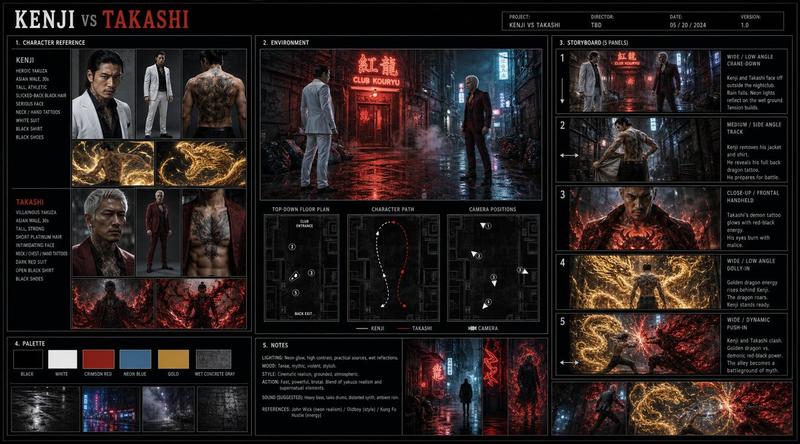
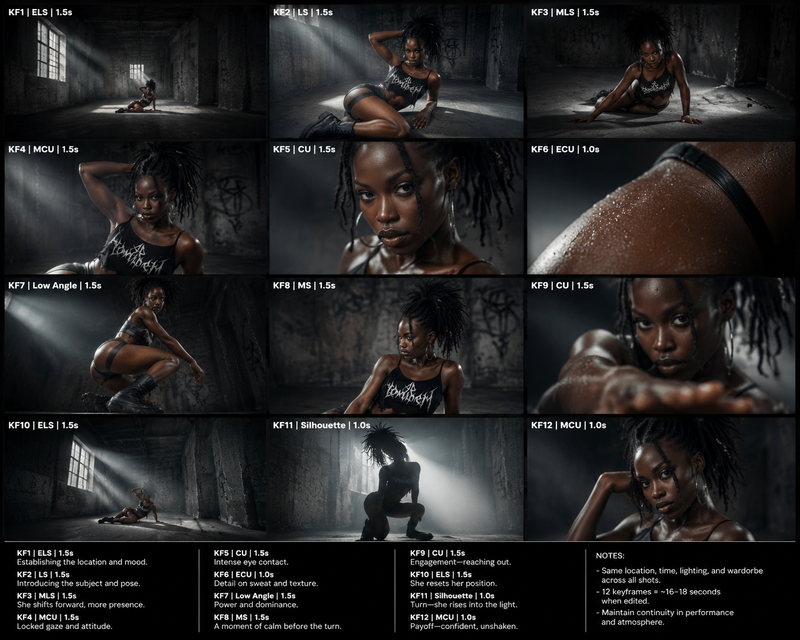
Based on the content【 *****】, create a storyboard image in 16:9 ratio, 4K resolution.
1️⃣ Basic Setup
Main Title + Subtitle
Aspect Ratio
Layout Design (3-column × 9-scene storyboard grid)
2️⃣ Style Direction
Director-inspired visual style
Visual keywords (for example: Ridley Scott / low-saturation atmospheric sci-fi)
3️⃣ Storyboard Details
For each scene, clearly describe:
Camera shot
Character action
Visual progression / scene transition
Sound effects / audio cues
4️⃣ Visual Guidelines
Color palette and tone
Cinematic language and lighting style
(example: desaturated earthy tones + strong rim lighting)
5️⃣ Bottom Information Section
Character profiles
Overall mood / tone
Audio timeline / sound design notes
Technical specifications
#AIArt #AIFilm #AIStoryboard
Category
Comparison Examples
Model
GPT Image 2
Creator
EvoLinkAI
Views4
Source ID
comparison-86

Guide

About "Storyboard Grid Template"

What is this prompt for?

"Storyboard Grid Template" AI image prompt for GPT Image 2 (Comparison Examples). Based on the content【 *****】, create a storyboard image in 16:9 ratio, 4K res…

The full copyable prompt and example visuals above are ready for AI image generation or one-click recreate in Picva.

How to use this prompt

  1. Step 1

    Open the prompt detail

    Review the example visuals, category, and full prompt text for "Storyboard Grid Template".

  2. Step 2

    Copy the prompt

    Copy the prompt body from this page, or load it directly in Studio.

  3. Step 3

    Pick a model (GPT Image 2)

    Prefer GPT Image 2. If you switch models, keep subject and composition and tweak style terms.

  4. Step 4

    Generate and export

    Recreate the look in Picva, or export into your workflow for editing and publishing.

FAQ

What is the "Storyboard Grid Template" prompt?
It is an AI image-generation prompt for GPT Image 2 in the Comparison Examples category. This page includes the full prompt text, example visuals, and a one-click recreate path in Picva.
How do I use this prompt to generate an image?
Copy the prompt from this page, or use Generate / Studio. Paste it into a compatible image model, or recreate the look in Picva with optional reference images.
Which model is this prompt for?
This page lists GPT Image 2. Most descriptive prompts also transfer to nearby image models such as GPT Image, Flux, or Midjourney with light style tweaks.
Can I use the result commercially?
You can usually copy the prompt for creation, but commercial use of the final image depends on the model terms, reference-image rights, and the generated content. Follow the source author and platform rules.