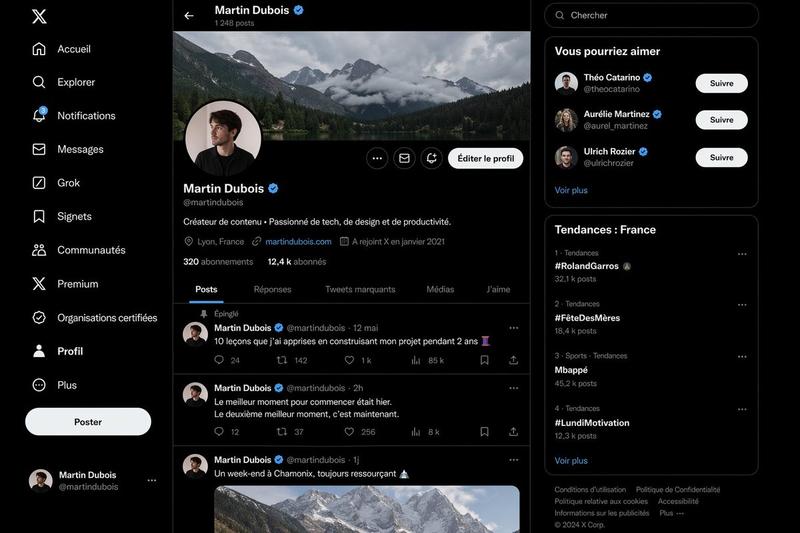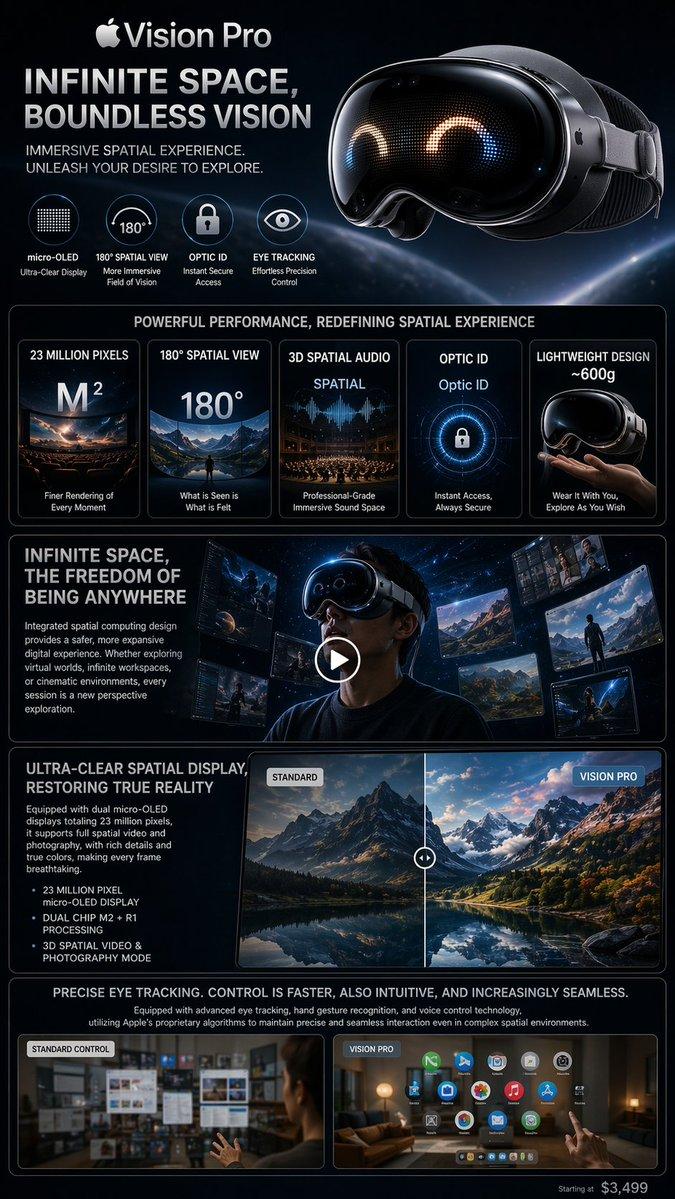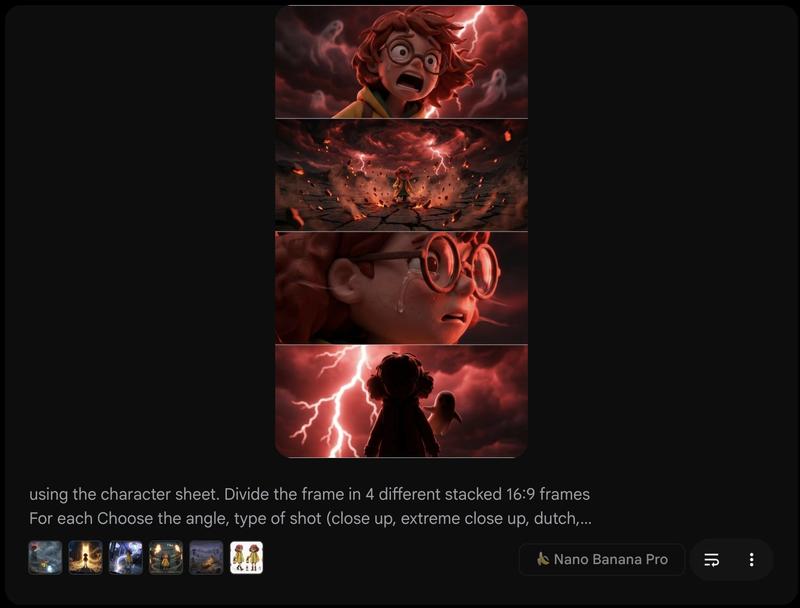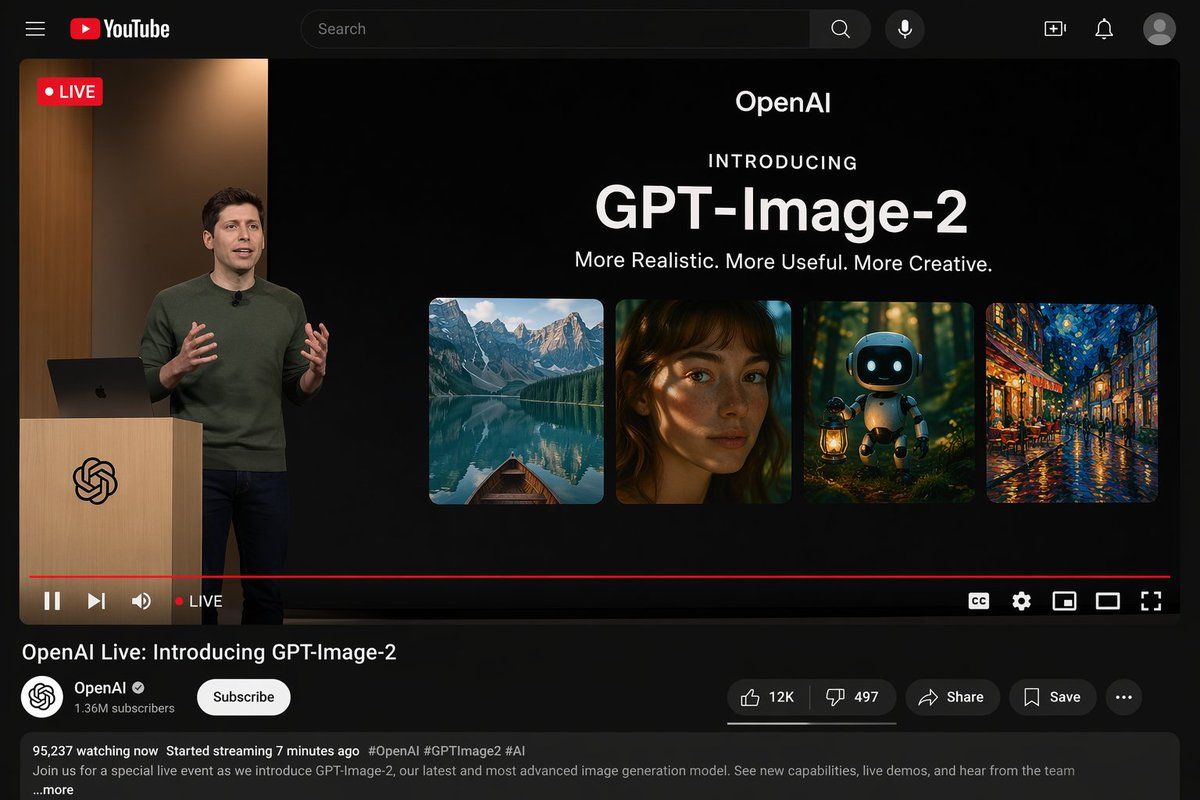
YouTube 直播演示界面模型
Prompt
{"type": "YouTube desktop dark mode UI mockup", "header": {"logo": "YouTube", "search_bar": "Search", "icons_count": 5, "icons": ["search", "mic", "create", "notifications", "profile"]}, "video_player": {"top_left_badge": "LIVE", "left_side": {"subject": "{argument name=\"presenter description\" default=\"man in green sweater at wooden podium\"}", "podium_logo": "OpenAI"}, "right_side_presentation": {"text_elements": ["OpenAI", "INTRODUCING", "{argument name=\"product name\" default=\"GPT-Image-2\"}", "{argument name=\"tagline\" default=\"More Realistic. More Useful. More Creative.\"}"], "sample_images_count": 4, "sample_images": ["mountain lake with boat", "woman portrait with dappled light", "cute robot with lantern in forest", "starry night cafe painting"]}, "bottom_controls_count": 10, "bottom_controls": ["pause", "next", "volume", "LIVE", "red progress bar", "CC", "settings", "miniplayer", "theater mode", "fullscreen"]}, "video_details": {"title": "{argument name=\"video title\" default=\"OpenAI Live: Introducing GPT-Image-2\"}", "channel": {"name": "{argument name=\"channel name\" default=\"OpenAI\"}", "verified": true, "subscribers": "1.36M", "button": "Subscribe"}, "action_buttons_count": 5, "action_buttons": ["Like 12K", "Dislike 497", "Share", "Save", "More"], "description_box": {"stats": "95,237 watching now Started streaming 7 minutes ago", "tags": "#OpenAI #GPTImage2 #AI", "text": "Join us for a special live event as we introduce GPT-Image-2, our latest and most advanced image generation model. See new capabilities, live demos, and hear from the team ...more"}}}- Category
- UI & Interfaces
- Model
- GPT Image 2
- Creator
- Vi
- Source ID
- 13824
- Published
- Apr 16, 2026
Views3