双语提示词对比展示库
Prompt
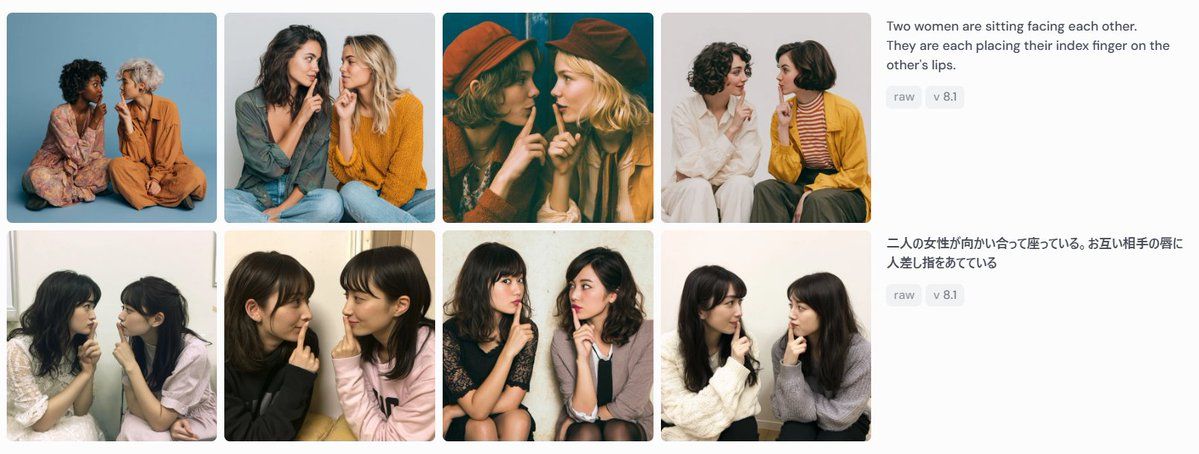
Goal: Create a wide screenshot-style comparison panel showing image-generation results for the same prompt in two languages.

Canvas: Use a horizontal 1199×461 px composition on a very light gray/off-white background, like a social media screenshot or web gallery capture.

Layout: Arrange the left 75% as a 2-row by 4-column gallery of exactly 8 rounded-corner photo cards, with narrow white gutters between cards. Each card is a square-ish portrait photograph of two women sitting close together, facing each other or angled inward, each placing one index finger on the other person's lips in a mutual “shh” gesture. On the right 25%, place two stacked prompt description blocks aligned with the two gallery rows.

Gallery details: Include exactly 8 distinct generated-photo cards:
1. Top-left: two women seated on the floor against a blue studio backdrop, one in a floral dress, one in an orange outfit.
2. Top-second: two women in casual sweaters, one dark-haired and one blonde, seated close together against a pale gray background.
3. Top-third: warm cinematic dark teal/orange image, both women wearing hats, faces partially obscured by large soft blur rectangles.
4. Top-fourth: two women on a white background, one in white clothing and one in a mustard cardigan with striped shirt.
5. Bottom-left: two young women seated indoors near a window, soft casual snapshot lighting.
6. Bottom-second: two young women in black and pale pink tops, close-up casual indoor portrait.
7. Bottom-third: two young women seated on chairs, one in a dark dress and one in a light cardigan, against a plain wall.
8. Bottom-fourth: two young women in white and gray sweaters, seated indoors against a light wall.

Face treatment: All visible faces in the 8 cards should be anonymized with soft rectangular mosaic/blur blocks over the face area, matching the screenshot-like privacy masking.

Right-side text content: At the top right, show the English prompt text: “{argument name="English prompt text" default="Two women are sitting facing each other. They are each placing their index finger on the other's lips."}” Under it, place two small rounded gray tags reading “raw” and “v 8.1”. Below, aligned with the second row, show the Japanese prompt text: “{argument name="Japanese prompt text" default="二人の女性が向かい合って座っている。お互い相手の唇に人差し指をあてている"}” Under it, place two matching gray tags reading “raw” and “v 8.1”.

Visual style: Photorealistic generated-image thumbnails, varied lighting and wardrobes, clean UI spacing, rounded image corners, sans-serif interface text in dark gray, small pale-gray pill tags. The overall image should look like a captured comparison grid demonstrating prompt-following consistency, not a polished poster.

Constraints: Use exactly 8 photo cards, exactly 2 text blocks, and exactly 4 pill tags total. Do not add logos, watermarks, browser chrome, captions inside the photo cards, or extra UI elements.- Category
- Charts & Infographics
- Model
- GPT Image 2
- Creator
- たねもみ 2.0 / Tanemomi Ver2.0
- Source ID
- 20591
- Published
- May 15, 2026
Views5