18

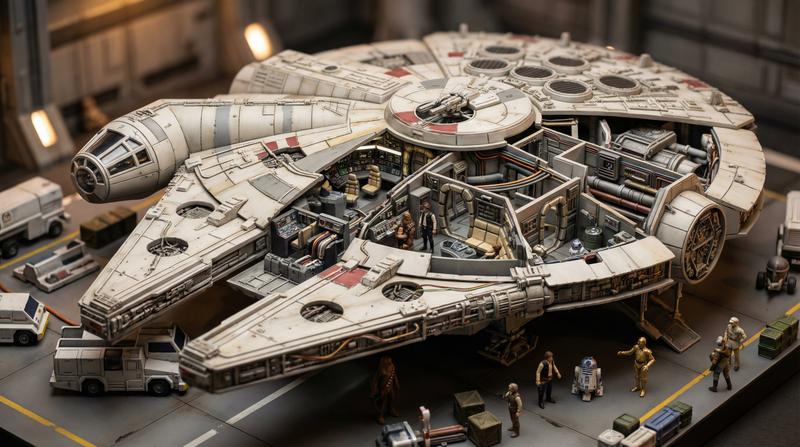
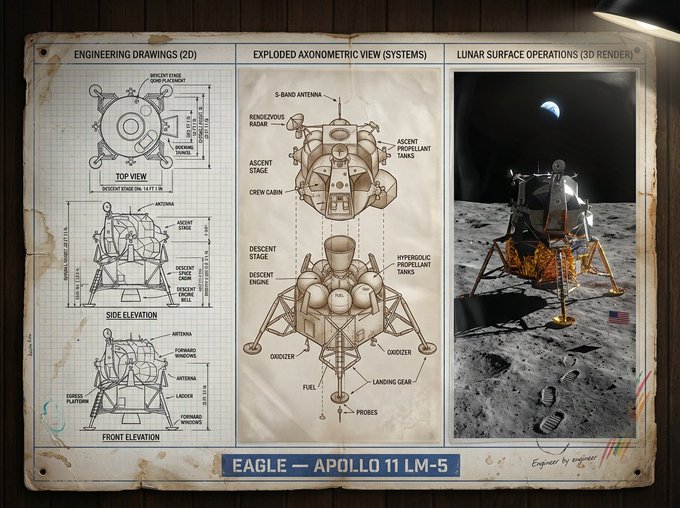
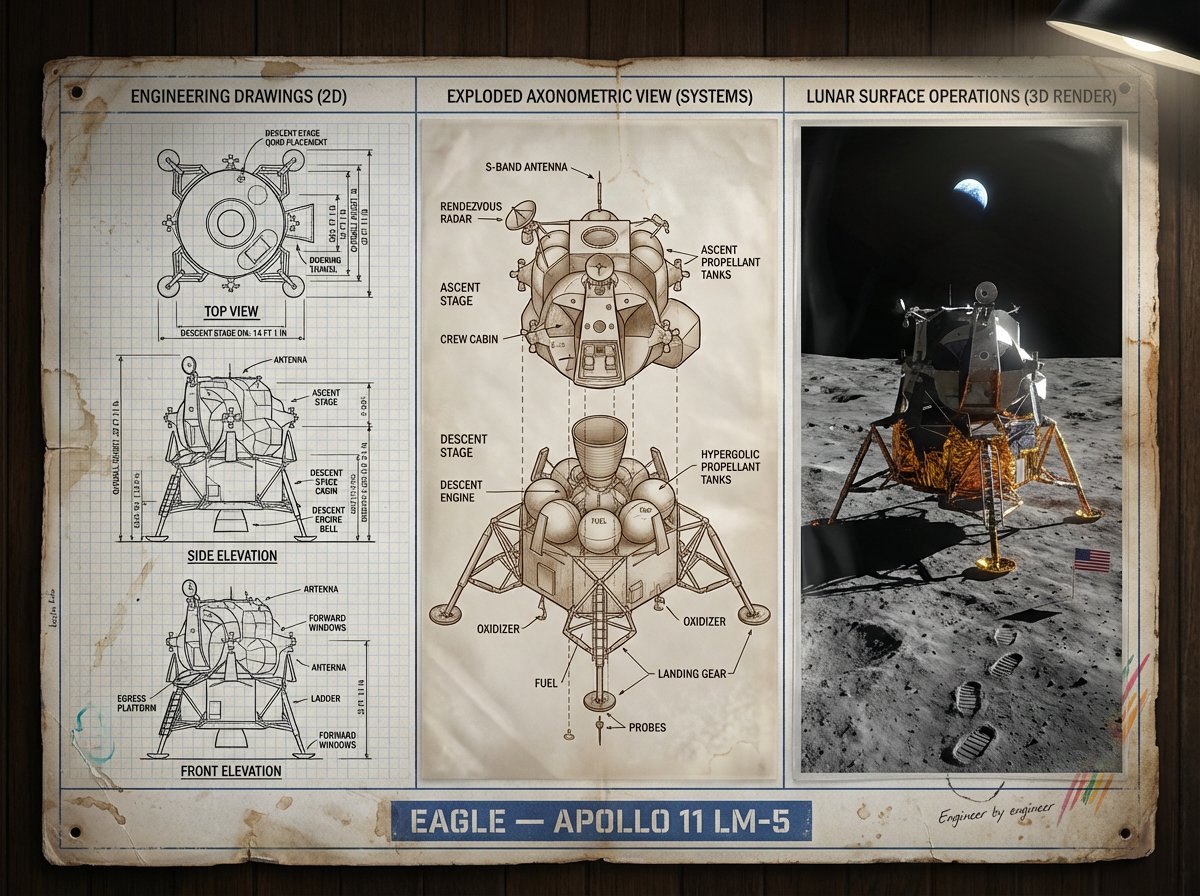
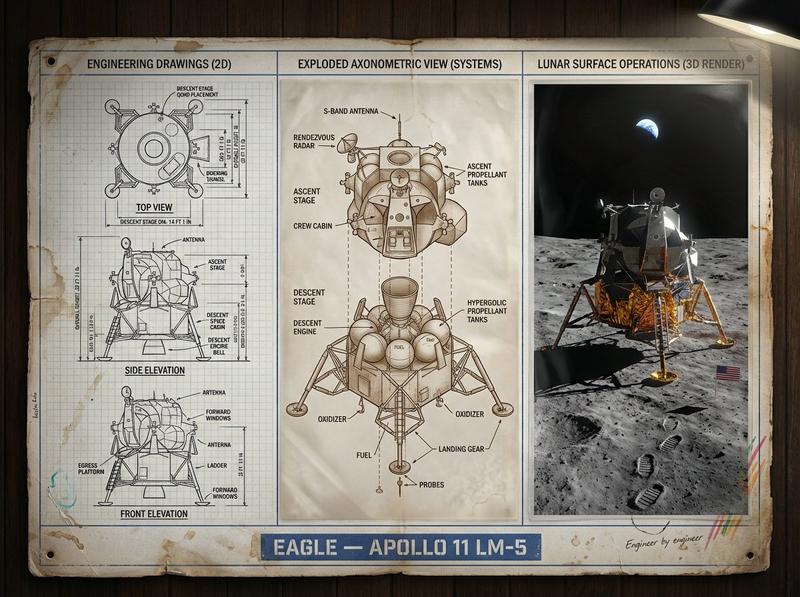
太空任务技术文物
Enlarge

太空任务技术文物

Prompt
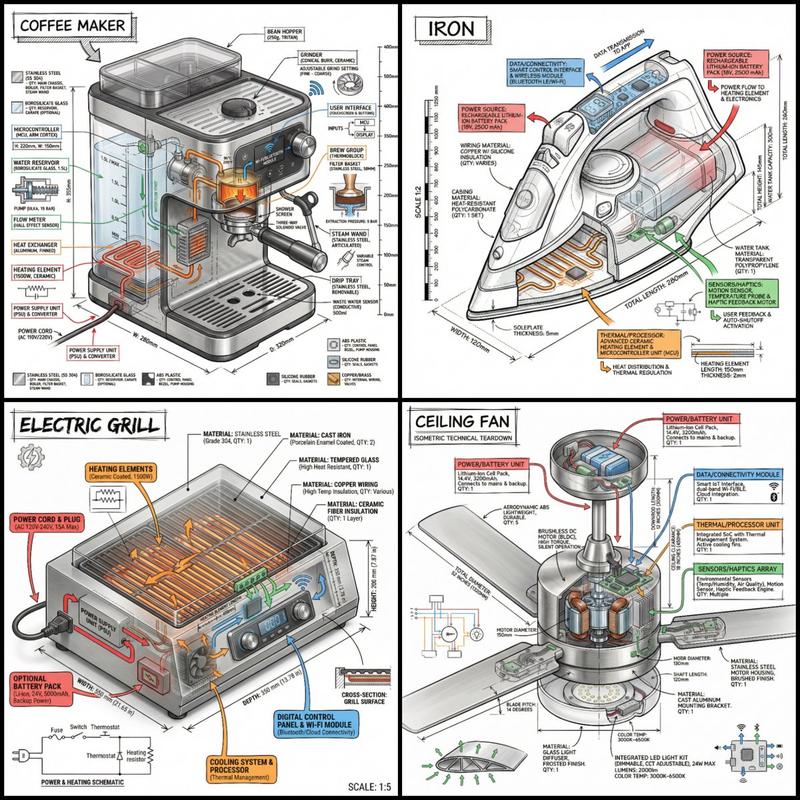
16:9, do this for 4 famous space missions: void main() { string[] subjects = {"{argument name="subject one" default="[SUB_1]"}", "{argument name="subject two" default="[SUB_2]"}", "[SUB_3]", "[SUB_4]"}; // Setup Materials vec3 bg_mat = pure_black_matte(); vec3 ui_ink = unlit_metallic_gold(depth: 0.0); vec3 sculpture_mat = pbr_metal(brass, chrome) + refractive_glass(IOR: 1.5); // Setup Viewports (2x2 Grid) vec4 canvas = clear(bg_mat); for(int i=0; i<4; i++) { vec2 quadrant = get_grid_cell(i, columns: 2); // Render 3D Centerpiece mat4 reliquary = build_intricate_model(subjects[i], sculpture_mat); render_to_cell(quadrant, reliquary, lighting: museum_spotlight); // Render 2D UI Overlays vec3 wireframe = generate_blueprint(subjects[i]); vec3 text_data = infer_specs_and_quotes(subjects[i]); draw_hud(quadrant, wireframe + text_data, material: ui_ink); } // Add Global Text draw_hud(header, "{argument name="mission theme" default="[THEME]"} CORES", material: ui_ink); fragColor = canvas; }
Category
Charts & Infographics
Model
GPT Image 2
Creator
Gadgetify
Views3
Source ID
21090
Published
May 17, 2026

Guide

About "太空任务技术文物"

What is this prompt for?

"太空任务技术文物" AI image prompt for GPT Image 2 (Charts & Infographics). 一个基于创意代码的模板,用于将太空任务生成为 2x2 网格的博物馆文物可视化效果,并带有 HUD 叠加层。 Copy it on Picva and recreate the loo…

The full copyable prompt and example visuals above are ready for AI image generation or one-click recreate in Picva.

How to use this prompt

  1. Step 1

    Open the prompt detail

    Review the example visuals, category, and full prompt text for "太空任务技术文物".

  2. Step 2

    Copy the prompt

    Copy the prompt body from this page, or load it directly in Studio.

  3. Step 3

    Pick a model (GPT Image 2)

    Prefer GPT Image 2. If you switch models, keep subject and composition and tweak style terms.

  4. Step 4

    Generate and export

    Recreate the look in Picva, or export into your workflow for editing and publishing.

FAQ

What is the "太空任务技术文物" prompt?
It is an AI image-generation prompt for GPT Image 2 in the Charts & Infographics category. This page includes the full prompt text, example visuals, and a one-click recreate path in Picva.
How do I use this prompt to generate an image?
Copy the prompt from this page, or use Generate / Studio. Paste it into a compatible image model, or recreate the look in Picva with optional reference images.
Which model is this prompt for?
This page lists GPT Image 2. Most descriptive prompts also transfer to nearby image models such as GPT Image, Flux, or Midjourney with light style tweaks.
Can I use the result commercially?
You can usually copy the prompt for creation, but commercial use of the final image depends on the model terms, reference-image rights, and the generated content. Follow the source author and platform rules.