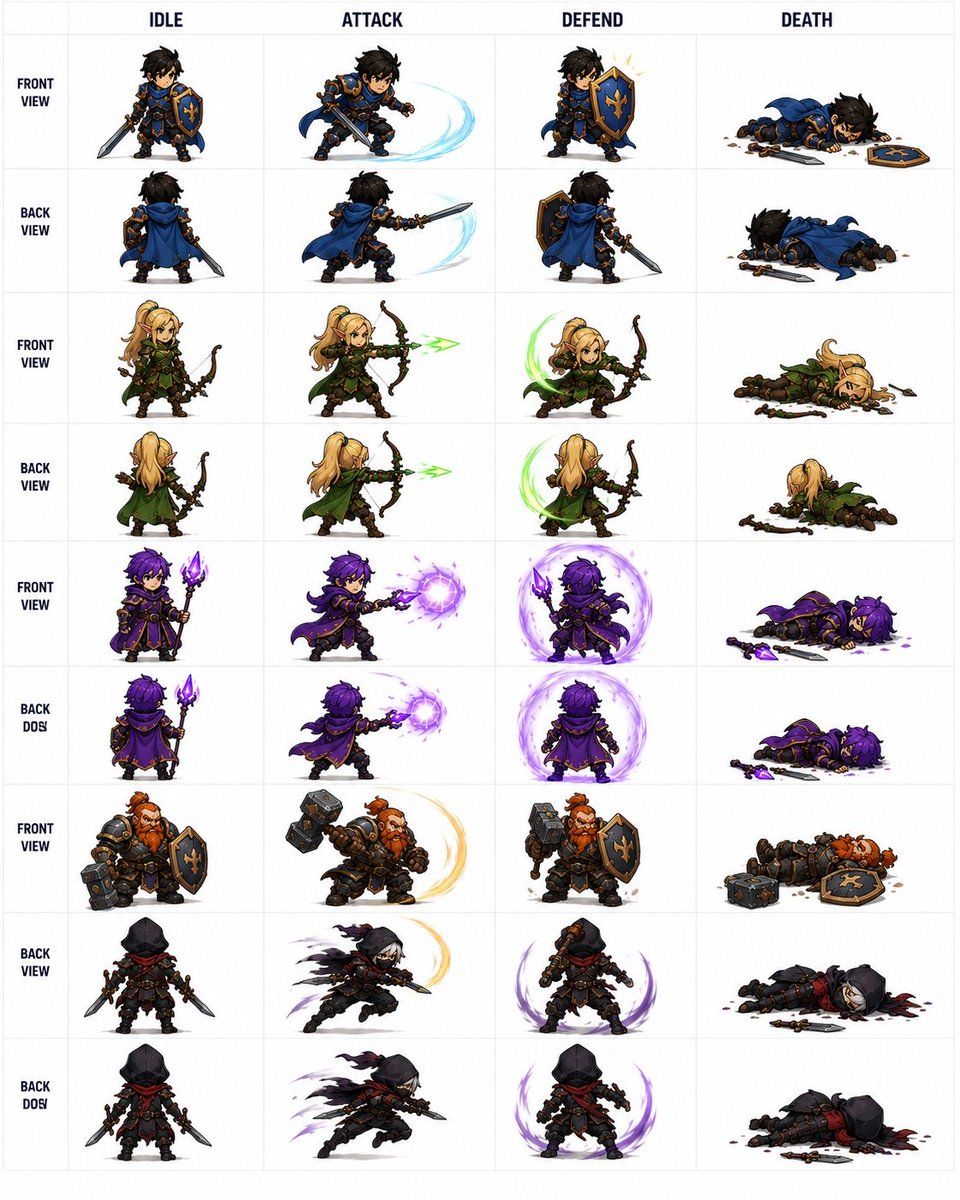
奇幻自动战斗游戏精灵图集
Prompt
Goal: Create a clean fantasy auto-battler character spritesheet showing combat animations for a small party, suitable for turning into 2D game assets.

Canvas: Square white canvas with a faint light-gray grid, like a production sprite sheet. Use crisp high-resolution chibi fantasy game art with transparent-looking white cell backgrounds, strong silhouettes, dark outlines, painterly shading, and dynamic slash/magic effects.

Layout: Make a table with 4 animation columns and 9 character/view rows. The 4 column headers across the top must read exactly: IDLE, ATTACK, DEFEND, DEATH. Put small bold row labels along the left side. Each cell contains one full-body chibi sprite centered in the cell, with no cropping. Keep consistent scale across all sprites.

Rows and visible count: Include exactly 36 discrete sprites total, arranged as 9 rows × 4 columns. The rows are:
1. FRONT VIEW: {argument name="blue knight character" default="a dark-haired human knight in blue-and-gold armor with a blue cape, sword, and blue shield with gold fleur-de-lis"}.
2. BACK VIEW: the same blue knight seen from behind.
3. FRONT VIEW: {argument name="elf archer character" default="a blonde female elf ranger in green leather armor and cloak, carrying a wooden bow"}.
4. BACK VIEW: the same elf archer seen from behind.
5. FRONT VIEW: {argument name="purple mage character" default="a purple-haired mage in dark purple robes holding a glowing violet crystal staff"}.
6. BACK DOS: the same purple mage seen from behind; preserve the slightly mistaken row label text as BACK DOS.
7. FRONT VIEW: {argument name="dwarf warrior character" default="a stocky red-bearded dwarf warrior in heavy black-and-bronze armor with a huge hammer and blue shield"}.
8. BACK VIEW: {argument name="hooded rogue character" default="a black-hooded rogue in dark armor with a red scarf, dual daggers, and tattered cape"}.
9. BACK DOS: the same hooded rogue in an alternate rear/action row; preserve the slightly mistaken row label text as BACK DOS.

Animation details by column: In IDLE, each character stands in a ready pose with weapon visible. In ATTACK, show the character lunging or striking: blue knight sword slash with pale cyan arc, elf firing a green arrow, mage casting a violet magic orb, dwarf swinging hammer with golden arc, rogue dashing with blades and purple motion trails. In DEFEND, show defensive poses: knight raising shield with a small spark, elf bracing with a green circular energy arc, mage surrounded by a violet protective aura, dwarf bracing with hammer and shield, rogue crouching with purple crescent guard effects. In DEATH, each character lies defeated on the ground with dropped weapons and scattered debris; include the knight shield and sword dropped, the elf bow dropped, the mage staff/crystal dropped with purple residue, the dwarf hammer and shield dropped, and the rogue daggers dropped with small dark-red marks.

Visual style: Cute but detailed chibi proportions, fantasy RPG / mobile auto-battler style, three-quarter perspective, expressive poses, saturated colors, clean readable silhouettes, consistent lighting, no background scenery beyond the grid.

Constraints: Use exactly the 4 labeled columns, exactly the 9 labeled rows, and exactly 36 sprite poses. Do not add extra characters, UI buttons, stats, logos, watermarks, or scenery. Keep all text in English and make the table easy to read.- Category
- Charts & Infographics
- Model
- GPT Image 2
- Creator
- Givros
- Source ID
- 21166
- Published
- May 17, 2026
Views5


![[STYLE] Monochrome grayscale illustration, 3D-rendered character, clean instruct](https://i.pixshop.app/storage/v1/render/image/public/prompt-source-media/promptsref/work-2376/image-1-4f73adfaa9808d14.png?width=800&quality=75&resize=contain)