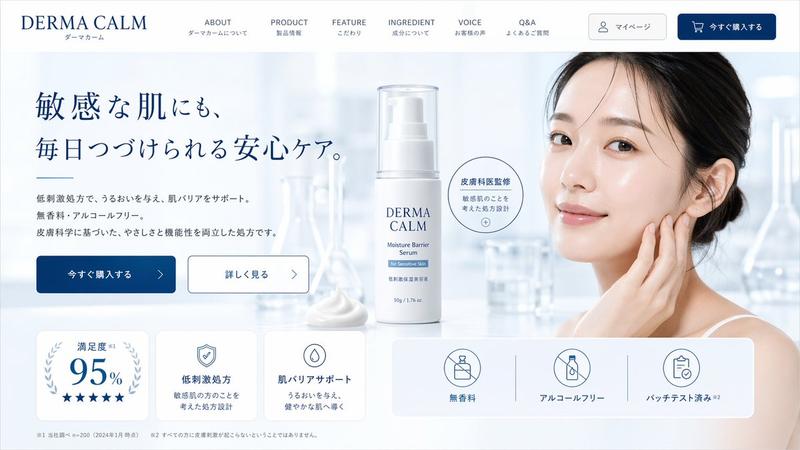
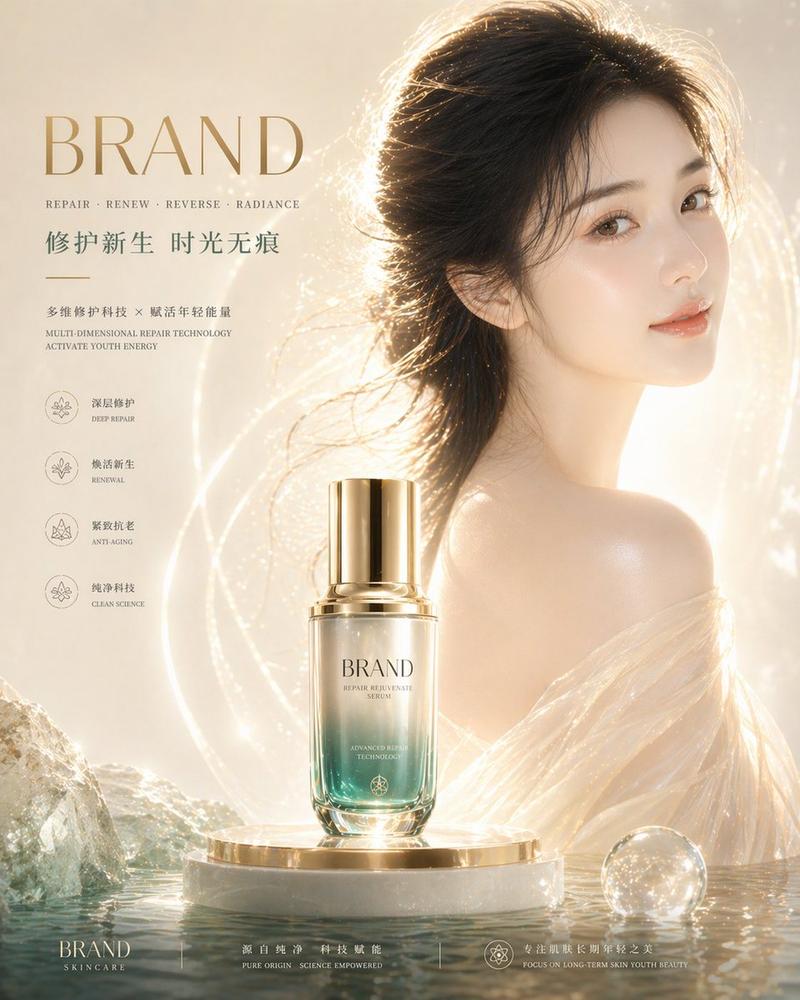
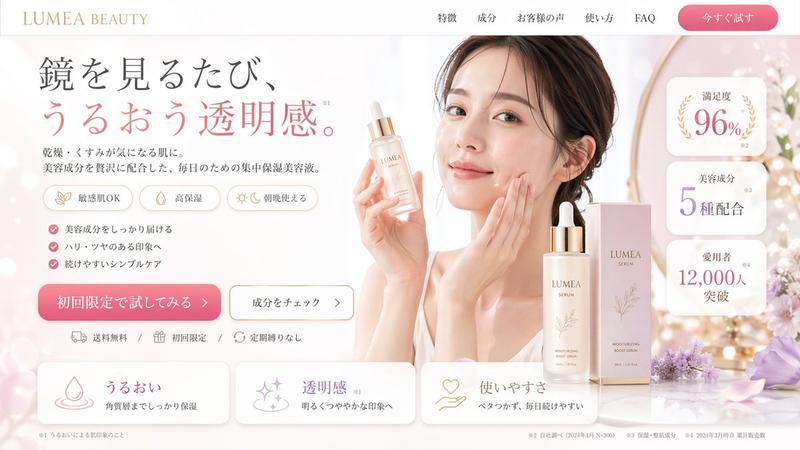
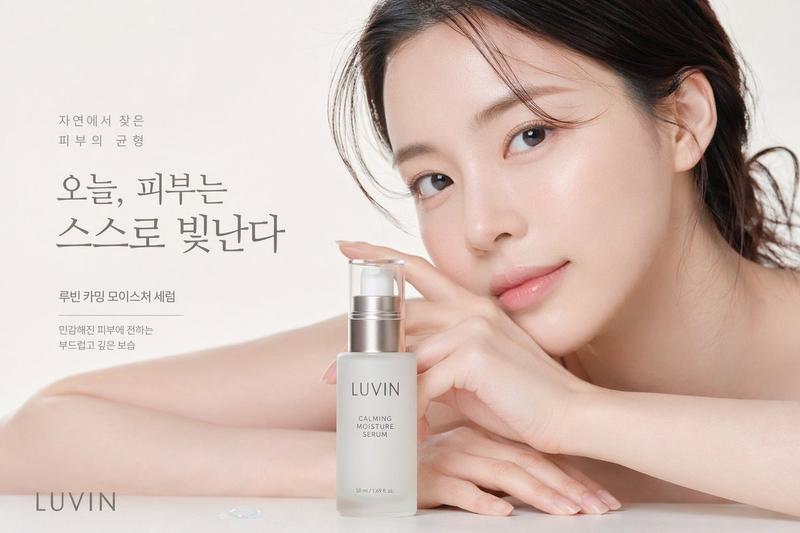
日系防晒霜美妆广告横幅
Prompt
Goal: Create a bright Japanese skincare advertising banner for a daily-use sunscreen, with an airy luxury cosmetic feel and soft morning sunlight.

Canvas: Wide horizontal web banner, 1200×675 px, 16:9 aspect ratio. Use a very pale blue-white color palette, high-key lighting, soft shadows, and a clean minimalist Japanese beauty-ad aesthetic.

Layout: Split the composition into three main zones: left product hero, center typography and feature icons, right lifestyle model. On the left, place one tall transparent cylindrical pump bottle standing on a glossy reflective surface, occupying about 25% of the width. In the center, place large handwritten Japanese headline text in soft blue. On the right, show a young woman in a white camisole near a bright window, cropped from chest upward, turned slightly toward the camera; her face is covered by a large opaque beige square privacy block, while hair, ear, neck, shoulders, and upper chest remain visible. Background should be a sunlit white room with blurred window frames and a hint of green plant on the far right.

Product details: The bottle is clear glass/plastic with a frosted white sunscreen liquid inside, a shiny silver cylindrical cap, and delicate blue label typography. The bottle label should include: “SPF 50+”, “PA++++”, “UV PROTECTION SUNSCREEN”, “Daily Use UV Protector”, and “50mL / 1.69 FL.OZ.” Add a tiny sun icon above the SPF text.

Text content: At the top left, add small Japanese copy “紫外線から、肌をもっと美しく。” with a small English subtitle “Daily use sunscreen” beneath it. Center headline: {argument name="headline text" default="やさしく、つよく。"}. Bottom-center SPF claim: “SPF 50+ PA++++” in large blue text, plus a thin outlined rectangular label reading “国内最高基準値*”. Add a very small footnote below in pale blue, visually present but not overly legible.

Feature icons: Include exactly 3 small line icons beneath the headline, evenly spaced with thin vertical dividers: 1) sun icon with “UV” and Japanese label “強力UVカット”, 2) water droplet icon with label “うるおい 保湿ケア”, 3) sparkle icon with label “透明感 トーンアップ”. Use simple blue line art.

Model details: The model has {argument name="hair color" default="soft brown"} hair tied loosely up with wispy strands near the ear and neck, fair luminous skin, delicate shoulder line, and a white camisole strap. Her face must be obscured by a perfectly rectangular solid beige overlay, roughly from forehead to chin and spanning most of the face area, color close to warm gray-beige.

Visual style: Photorealistic product-ad composite, soft bloom, gentle lens flare, cool blue shadows, natural daylight, glossy reflection under bottle, lots of negative space, refined Japanese cosmetics branding. Keep all typography light blue, thin, elegant, and clean. Avoid clutter, extra products, additional people, logos, watermarks, or harsh contrast.- Category
- Charts & Infographics
- Model
- GPT Image 2
- Creator
- チヒロ/ほっこりAIスタジオ🎨
- Source ID
- 21777
- Published
- May 20, 2026
Views5