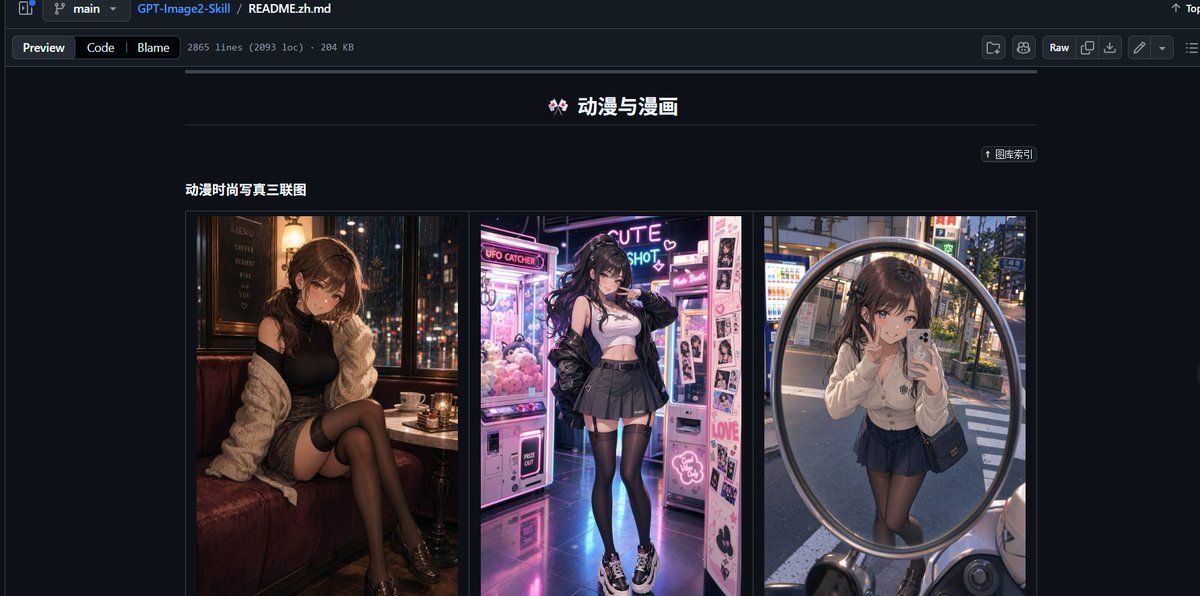
GitHub README 动漫图库截图
Prompt
Goal: Create a realistic desktop browser screenshot of a GitHub repository README page in dark mode, showcasing an image-prompt collection. The page should look like GitHub’s file preview interface, with the repository path and README file visible at the top.

Canvas: Wide 16:9 screenshot, approximately 1200×565 px, dark navy/black GitHub UI, sharp interface details, no browser address bar.

Top interface: Show a GitHub-style header and breadcrumb bar with branch selector “main”, repository name “GPT-Image2-Skill”, and file path “README.zh.md”. Under it, include tabs/buttons “Preview”, “Code”, and “Blame”, plus small metadata text reading approximately “2865 lines (2093 loc) · 204 KB”. On the right side include typical GitHub controls such as “Raw” and small icon buttons.

Main README content: Center the content column on a dark background. At the top of the visible README section, place a centered Chinese title with a small decorative emoji: “🎀 动漫与漫画”. Beneath it, draw a thin horizontal divider line. On the upper right of the content area, include a small pill-shaped link button labeled “↑ 图库索引”.

Section: Below the divider, add a bold subsection title on the left: “动漫时尚写真三联图”. Under this title, create one bordered gallery row containing exactly 3 vertical image panels placed side by side with narrow gaps:
1. Left panel: anime-fashion style portrait of a young woman sitting in a cozy dim café booth at night, warm lamps, city lights outside the window, black outfit, cream cardigan, black stockings, moody cinematic lighting; face intentionally blurred or pixelated.
2. Center panel: anime-fashion style full-body portrait of a young woman in a neon arcade or photo booth area, pink and purple glowing claw machines and sticker photo machines, white crop top, black jacket, pleated skirt, thigh-high stockings, chunky sneakers; face intentionally blurred or pixelated.
3. Right panel: anime-fashion style mirror selfie reflected in a large round convex street mirror in an urban Japanese street, vending machines and evening city background, cream cardigan, dark pleated skirt, black stockings, small shoulder bag; face intentionally blurred or pixelated.

Visual style: Highly realistic GitHub dark-mode screenshot combined with vivid anime-fashion thumbnail imagery. Use crisp UI typography, thin borders, muted gray separators, and a dark navy page background. Keep the thumbnails colorful and glossy while the surrounding GitHub interface remains subdued.

Text constraints: Preserve the visible Chinese labels exactly where shown: “动漫与漫画”, “图库索引”, and “动漫时尚写真三联图”. Do not add extra README sections, comments, watermarks, or unrelated text. The final image should resemble a social media screenshot demonstrating a repository’s built-in prompt presets.
- Category
- Charts & Infographics
- Model
- GPT Image 2
- Creator
- Heliocore.C6
- Source ID
- 23217
- Published
- May 29, 2026
Views6