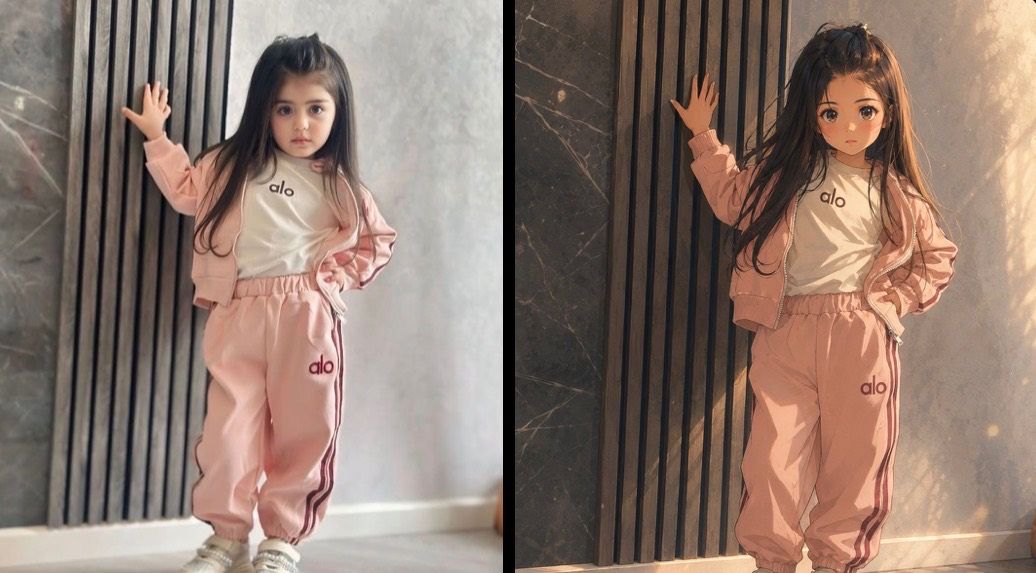
电影感动漫风格照片对比
Prompt
Goal: Create a side-by-side comparison image showing a realistic reference-style photo on the left and a luxurious cinematic Japanese anime transformation on the right, featuring the same child pose, outfit, background, and framing.

Canvas: Wide horizontal 2-panel layout, approximately 1036×573 pixels, with a clean vertical split down the center. No captions, no labels, no watermark.

Layout: Use exactly 2 panels. Left panel: soft, slightly blurry phone-photo realism. Right panel: polished cinematic anime film still. Keep the same full-body composition in both panels: a young girl standing indoors against a wall, one hand raised and touching vertical black wooden slats, the other hand resting on her hip, body facing forward, camera at a slightly low child-height angle.

Subject details: The character is {argument name="character description" default="a young girl with very long dark brown hair and a deliberately blurred square face for privacy"}. Preserve the pose precisely: left arm raised with palm on the wall slats, right hand on hip, feet close together, relaxed confident stance. Hair should fall past the shoulders and become more dramatic and wind-swept in the anime panel.

Outfit: Show exactly 4 visible clothing pieces: 1 pale pink zip hoodie, 1 white T-shirt with the small text “alo” on the chest, 1 pair of pale pink jogger sweatpants with the small text “alo” near the pocket and dark side stripes, and 1 pair of light sneakers. Use {argument name="outfit color" default="pale blush pink"} as the main tracksuit color. Keep the same clothing design in both panels.

Environment: Indoor modern wall with exactly 3 main visible background surfaces: dark marble panel on the far left, vertical black wooden slat panel behind the raised hand, and gray plaster/concrete wall to the right. Include a light floor and a thin baseboard. In the right anime panel, enhance the environment with warm golden sunlight, soft dust particles, stronger shadows, painterly marble texture, and cinematic depth.

Visual style: Left panel should resemble the original casual photo: natural lighting, muted gray tones, slight lens softness, realistic proportions. Right panel should look like a high-end Japanese anime movie still: detailed line art, refined cel shading, warm rim light from the upper right, volumetric glow, realistic fabric folds, expressive hair strands, polished cinematic color grading, and dramatic but faithful composition.

Text content: Preserve exactly 3 visible text marks: “alo” on the left-panel shirt, “alo” on the left-panel pants, and “alo” on the right-panel shirt/pants area as small brand-like markings; keep them subtle and not oversized.

Constraints: Maintain identical framing, pose, body proportions, outfit, wall placement, camera angle, and object positions between the two panels. Do not add extra people, props, captions, logos beyond the small “alo” markings, or decorative borders. Keep the face obscured with a smooth square blur in both panels.- Category
- Brand & Logos
- Model
- GPT Image 2
- Creator
- طالب
- Source ID
- 26279
- Published
- Jun 19, 2026
Views5
![[Character] in his iconic pose, [Universe Name], standing on a shattered rock ba](https://whqgdndlpxjbwosvipip.supabase.co/storage/v1/render/image/public/prompt-source-media/promptsref/work-43965/image-1-c1a7c6acb20a7434.png?width=800&quality=75&resize=contain)