20

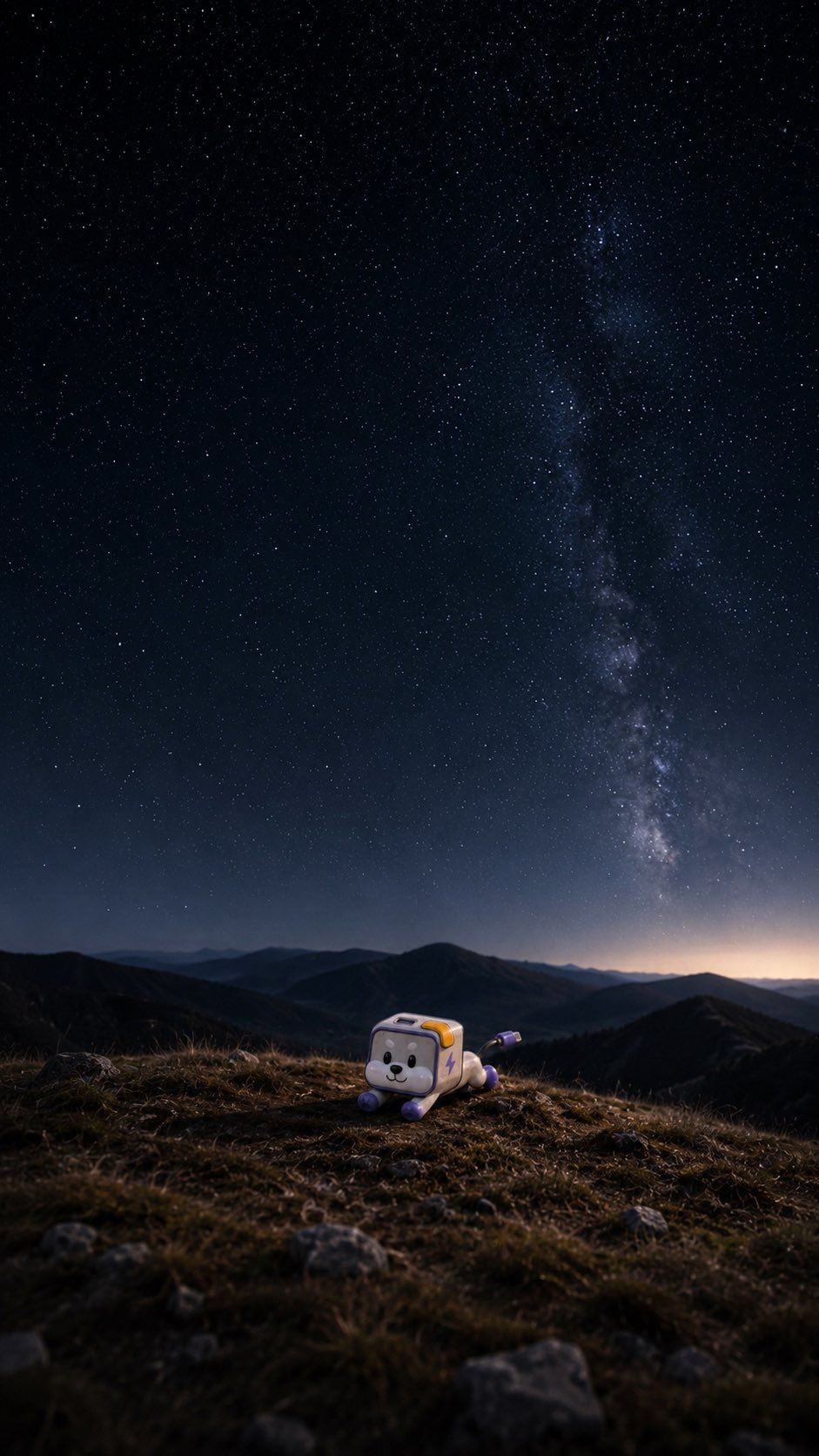
角色玩具夜空壁纸
Enlarge

角色玩具夜空壁纸

Prompt
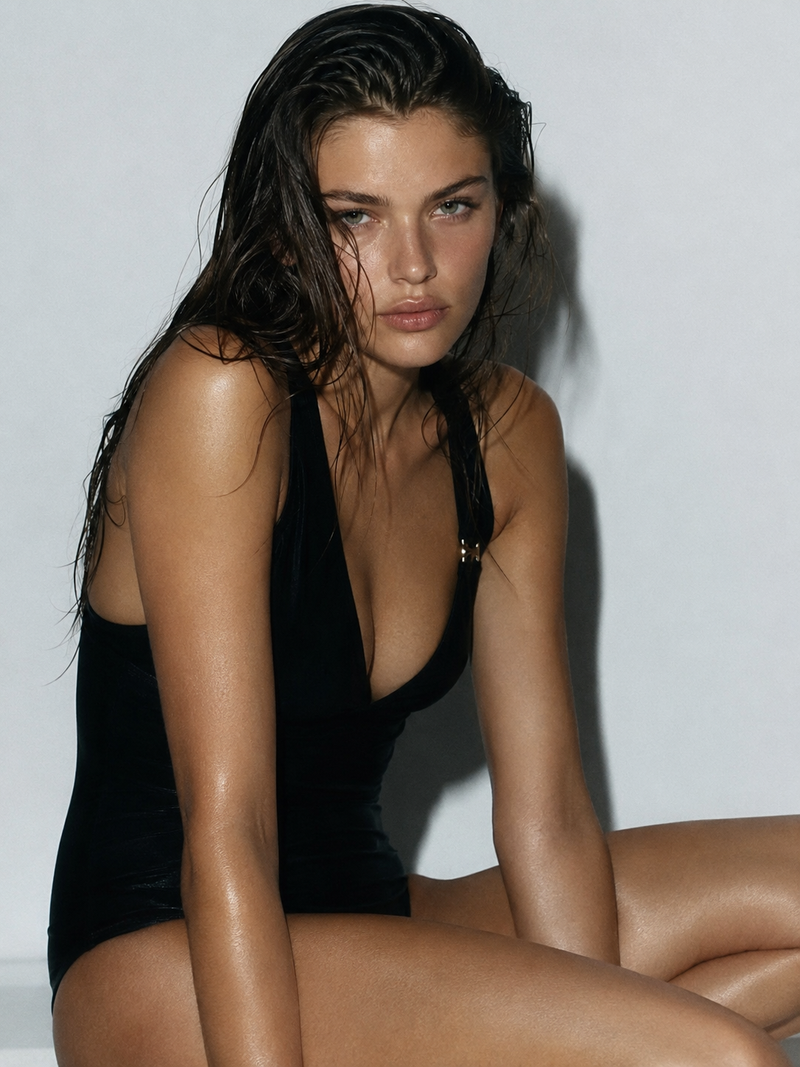
Using the provided reference image as the character base, transform the flat LINE-sticker-style character into a small cute 3D figurine/toy while preserving its key design details and colors. Place it near the bottom center of a vertical smartphone wallpaper composition, sitting on a dark grassy mountain ridge with rocks in the foreground. Add a vast realistic night landscape behind it: layered mountain silhouettes on the horizon, a deep navy star-filled sky, and one prominent vertical Milky Way band rising through the right side of the sky. Use cinematic low-light photography, subtle depth of field, realistic ground texture, soft moon/starlight, and a calm adventurous mood. Canvas should be {argument name="wallpaper size" default="9:16 vertical smartphone wallpaper"}. Keep the character small relative to the landscape, readable but not dominating the scene. Do not add text, logos, borders, or extra characters.
Category
Brand & Logos
Model
GPT Image 2
Views4
Source ID
27385
Published
Jul 1, 2026

Guide

About "角色玩具夜空壁纸"

What is this prompt for?

"角色玩具夜空壁纸" AI image prompt for GPT Image 2 (Brand & Logos). 将参考吉祥物转化为放置在写实山脉夜景中的小型 3D 玩具,从而创作出电影感竖屏壁纸。 Copy it on Picva and recreate the look in one click.

The full copyable prompt and example visuals above are ready for AI image generation or one-click recreate in Picva.

How to use this prompt

  1. Step 1

    Open the prompt detail

    Review the example visuals, category, and full prompt text for "角色玩具夜空壁纸".

  2. Step 2

    Copy the prompt

    Copy the prompt body from this page, or load it directly in Studio.

  3. Step 3

    Pick a model (GPT Image 2)

    Prefer GPT Image 2. If you switch models, keep subject and composition and tweak style terms.

  4. Step 4

    Generate and export

    Recreate the look in Picva, or export into your workflow for editing and publishing.

FAQ

What is the "角色玩具夜空壁纸" prompt?
It is an AI image-generation prompt for GPT Image 2 in the Brand & Logos category. This page includes the full prompt text, example visuals, and a one-click recreate path in Picva.
How do I use this prompt to generate an image?
Copy the prompt from this page, or use Generate / Studio. Paste it into a compatible image model, or recreate the look in Picva with optional reference images.
Which model is this prompt for?
This page lists GPT Image 2. Most descriptive prompts also transfer to nearby image models such as GPT Image, Flux, or Midjourney with light style tweaks.
Can I use the result commercially?
You can usually copy the prompt for creation, but commercial use of the final image depends on the model terms, reference-image rights, and the generated content. Follow the source author and platform rules.