13

可爱角色设定表
Enlarge

可爱角色设定表

Prompt
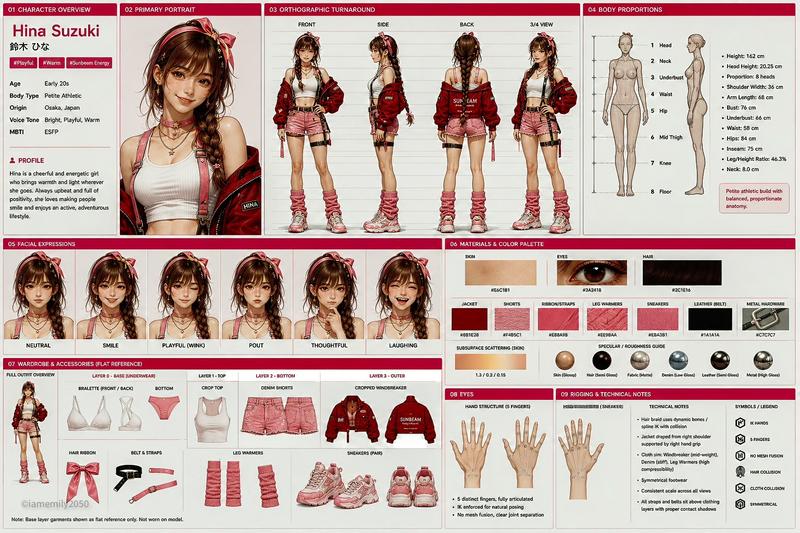
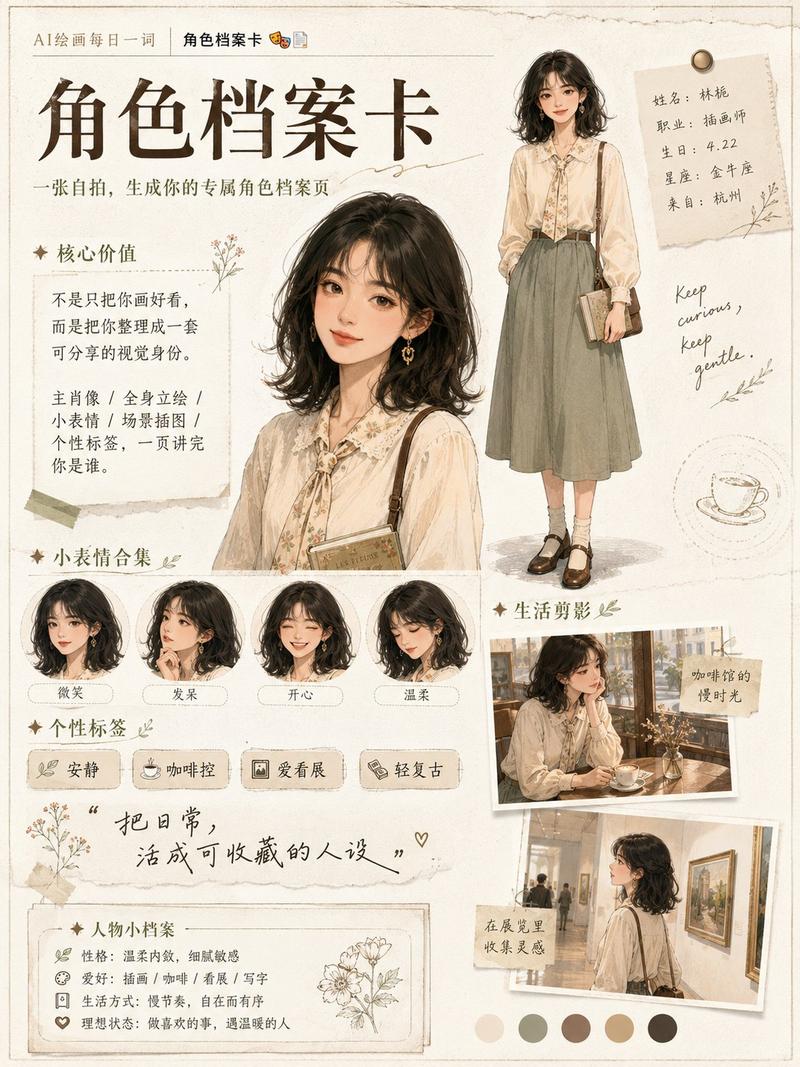
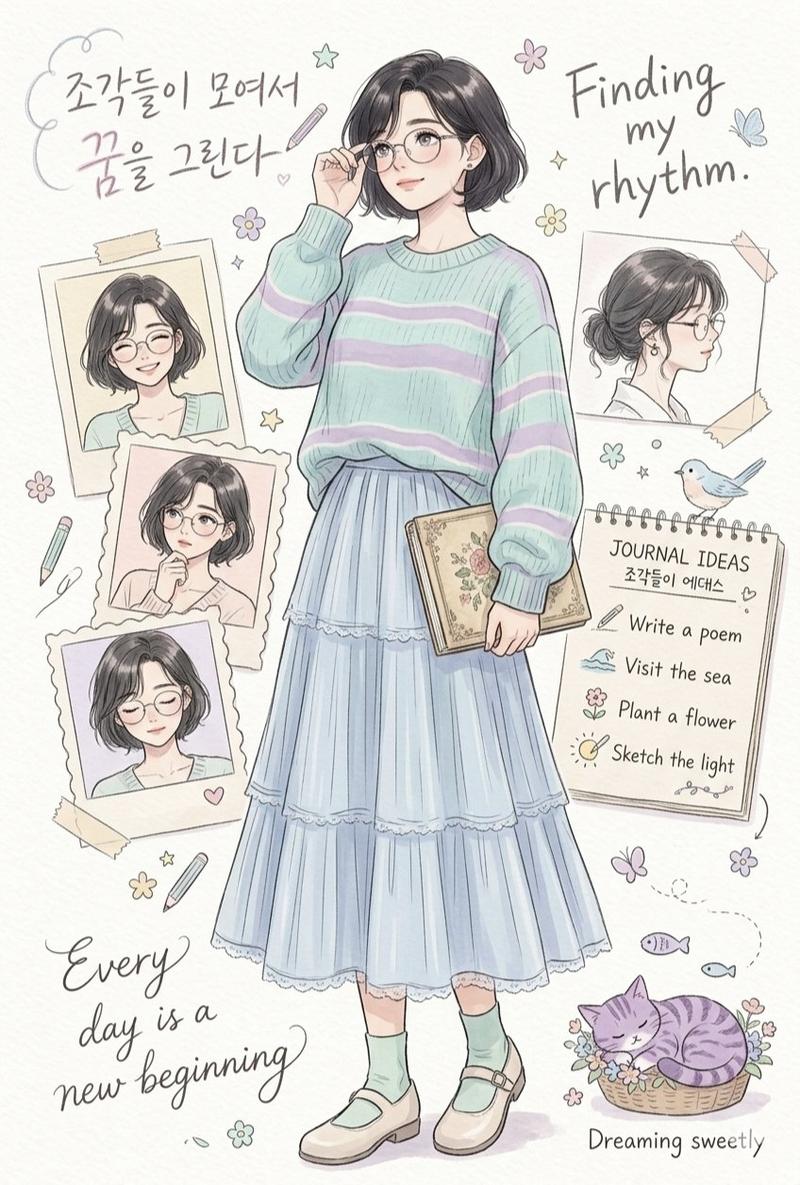
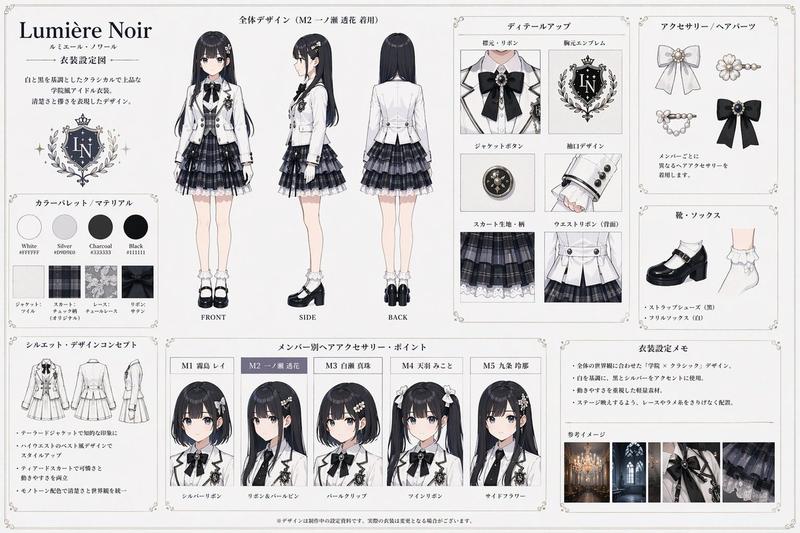
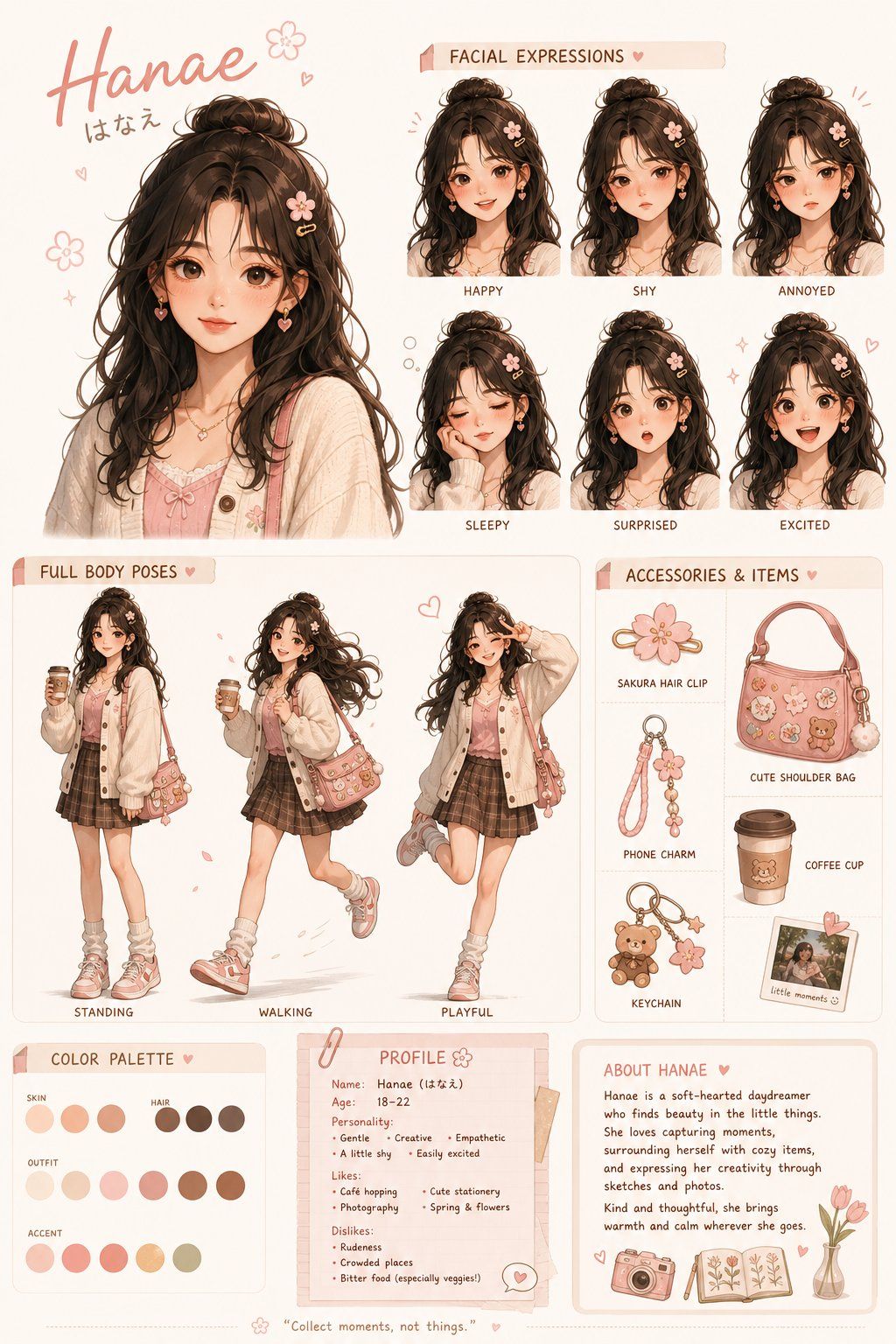
Create a cute female character design sheet inspired by the uploaded image.

Style: warm, soft, semi-realistic cartoon illustration with a cozy Japanese kawaii vibe (pastel tones, smooth shading, clean lineart).

Make it a clean character concept poster layout including:

One large main female portrait (front view, detailed)

Facial expression set (happy, shy, annoyed, sleepy, surprised, excited)

2–3 full-body poses (standing, walking/running, playful pose)

Small accessory/object icons that match her personality (hair clip, cute bag, phone charm, coffee cup, keychain)

A simple color palette section (skin, hair, outfit, accent colors)

A profile info box with: name, age range, personality traits, likes/dislikes, short description

Overall look should feel charming, cozy, feminine, and professionally arranged like an animation character design sheet.
High quality, clean background, soft lighting.
Category
Characters & People
Model
GPT Image 2
Views4
Source ID
372

Guide

About "可爱角色设定表"

What is this prompt for?

"可爱角色设定表" AI image prompt for GPT Image 2 (Characters & People). Create a cute female character design sheet inspired by the uploaded image. Style: warm, soft,…

The full copyable prompt and example visuals above are ready for AI image generation or one-click recreate in Picva.

How to use this prompt

  1. Step 1

    Open the prompt detail

    Review the example visuals, category, and full prompt text for "可爱角色设定表".

  2. Step 2

    Copy the prompt

    Copy the prompt body from this page, or load it directly in Studio.

  3. Step 3

    Pick a model (GPT Image 2)

    Prefer GPT Image 2. If you switch models, keep subject and composition and tweak style terms.

  4. Step 4

    Generate and export

    Recreate the look in Picva, or export into your workflow for editing and publishing.

FAQ

What is the "可爱角色设定表" prompt?
It is an AI image-generation prompt for GPT Image 2 in the Characters & People category. This page includes the full prompt text, example visuals, and a one-click recreate path in Picva.
How do I use this prompt to generate an image?
Copy the prompt from this page, or use Generate / Studio. Paste it into a compatible image model, or recreate the look in Picva with optional reference images.
Which model is this prompt for?
This page lists GPT Image 2. Most descriptive prompts also transfer to nearby image models such as GPT Image, Flux, or Midjourney with light style tweaks.
Can I use the result commercially?
You can usually copy the prompt for creation, but commercial use of the final image depends on the model terms, reference-image rights, and the generated content. Follow the source author and platform rules.