16

Skeletal System Poster
Enlarge

Skeletal System Poster

Prompt
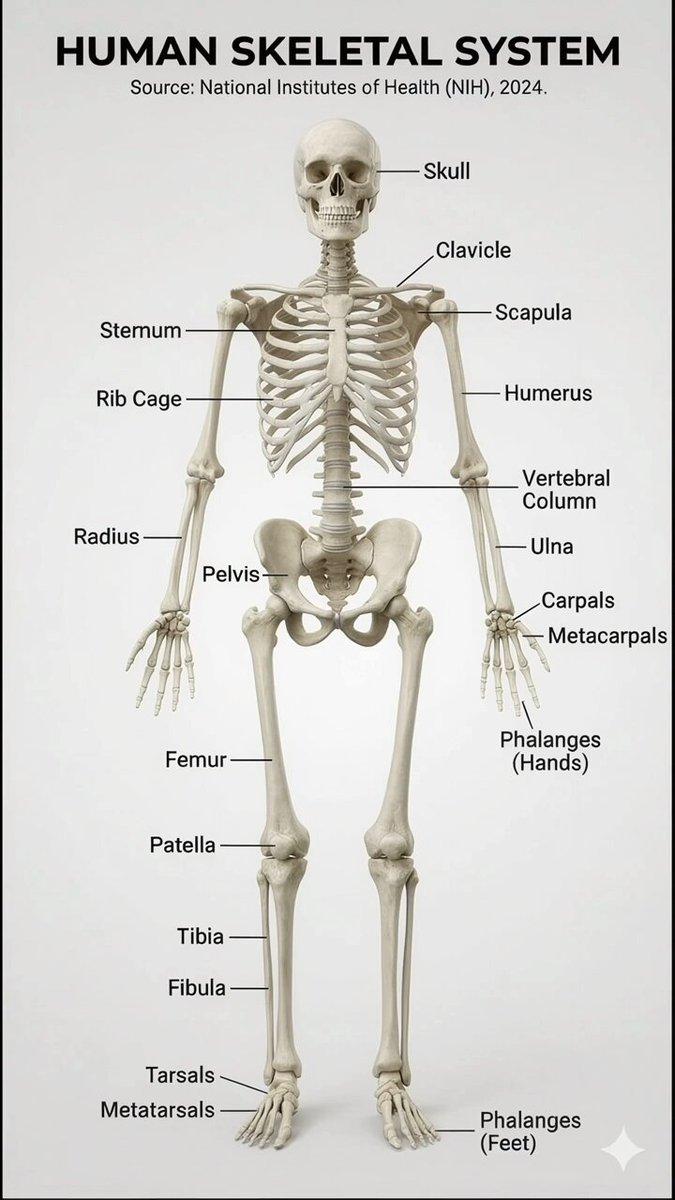
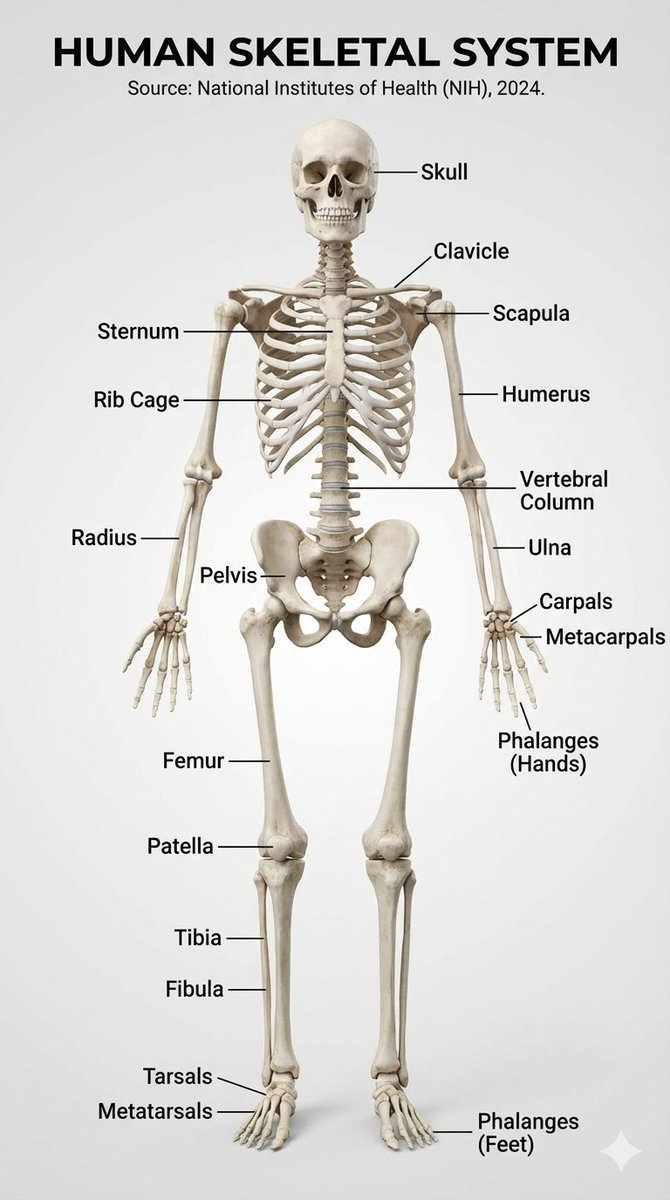
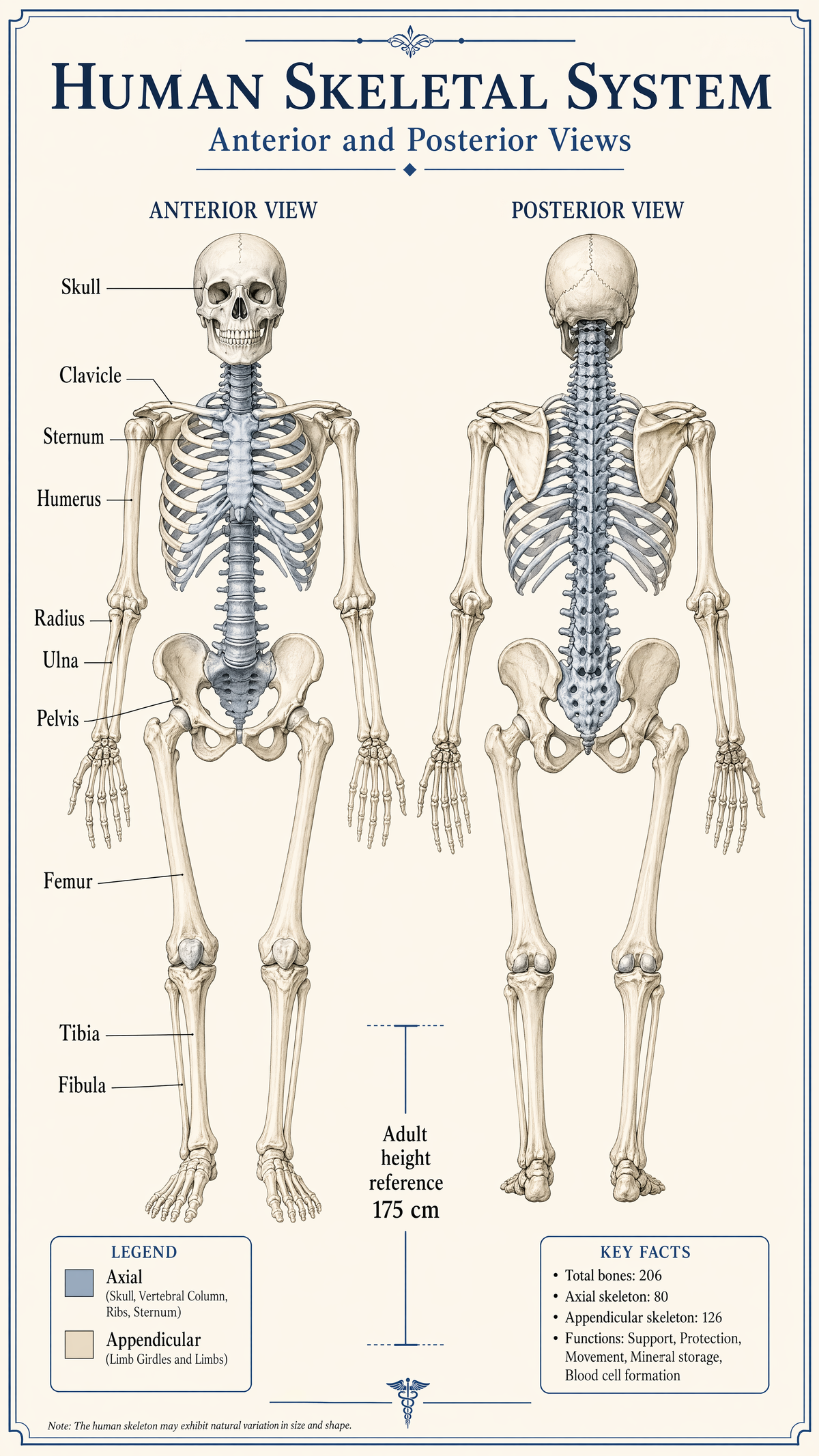
Create a clean educational anatomy poster showing the human skeletal system in anterior and posterior views on a pale cream background. Use a refined academic wall-chart style with precise bone linework, cool gray and ivory bone shading, charcoal labels, and subtle blue accent rules. Include a centered title with crisp in-image text "Human Skeletal System" and subtitle "Anterior and Posterior Views". Label key structures such as "Skull", "Clavicle", "Sternum", "Humerus", "Radius", "Ulna", "Pelvis", "Femur", "Tibia", and "Fibula". Add a compact scale note reading "Adult height reference 175 cm" and a small legend with "Axial" and "Appendicular". Keep the composition symmetrical, scientifically accurate in appearance, suitable for a classroom wall chart, non-gory, clean, precise, and publication-quality.
Category
Charts & Infographics
Model
GPT Image 2
Creator
wuyoscar
Views3
Source ID
123

Guide

About "Skeletal System Poster"

What is this prompt for?

"Skeletal System Poster" AI image prompt for GPT Image 2 (Charts & Infographics). Create a clean educational anatomy poster showing the human skeletal system i…

The full copyable prompt and example visuals above are ready for AI image generation or one-click recreate in Picva.

How to use this prompt

  1. Step 1

    Open the prompt detail

    Review the example visuals, category, and full prompt text for "Skeletal System Poster".

  2. Step 2

    Copy the prompt

    Copy the prompt body from this page, or load it directly in Studio.

  3. Step 3

    Pick a model (GPT Image 2)

    Prefer GPT Image 2. If you switch models, keep subject and composition and tweak style terms.

  4. Step 4

    Generate and export

    Recreate the look in Picva, or export into your workflow for editing and publishing.

FAQ

What is the "Skeletal System Poster" prompt?
It is an AI image-generation prompt for GPT Image 2 in the Charts & Infographics category. This page includes the full prompt text, example visuals, and a one-click recreate path in Picva.
How do I use this prompt to generate an image?
Copy the prompt from this page, or use Generate / Studio. Paste it into a compatible image model, or recreate the look in Picva with optional reference images.
Which model is this prompt for?
This page lists GPT Image 2. Most descriptive prompts also transfer to nearby image models such as GPT Image, Flux, or Midjourney with light style tweaks.
Can I use the result commercially?
You can usually copy the prompt for creation, but commercial use of the final image depends on the model terms, reference-image rights, and the generated content. Follow the source author and platform rules.