18

错视画风格速写绘图
Enlarge

错视画风格速写绘图

Prompt
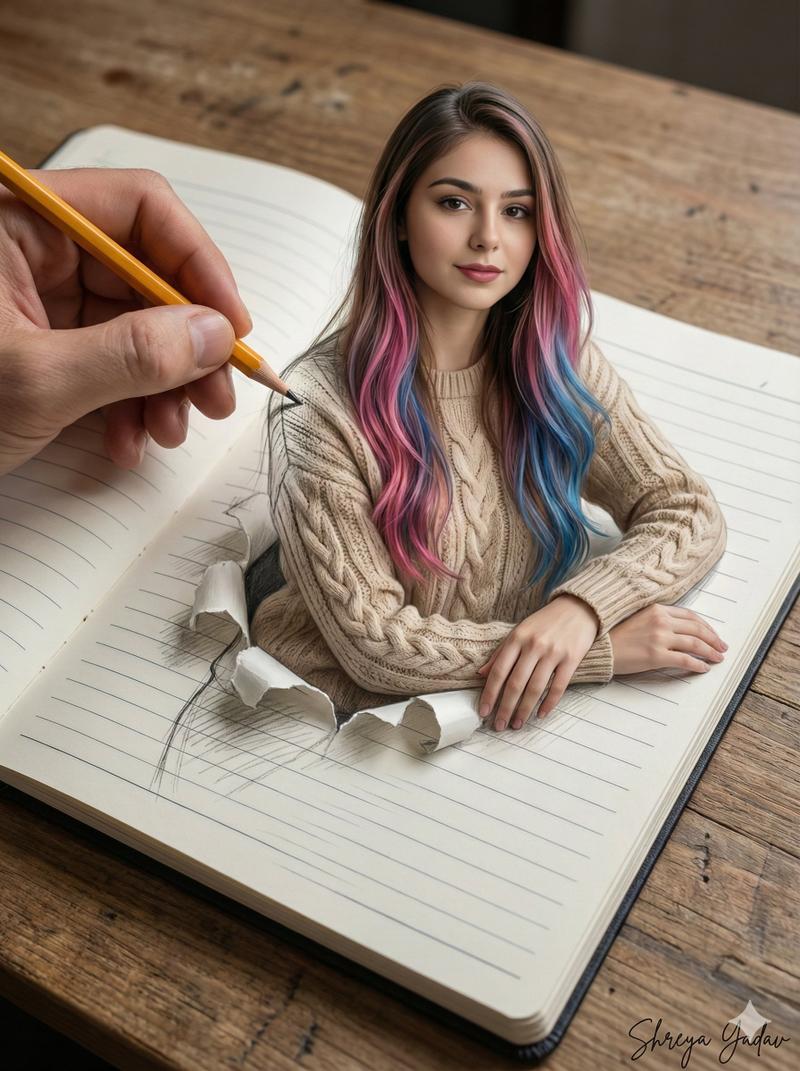
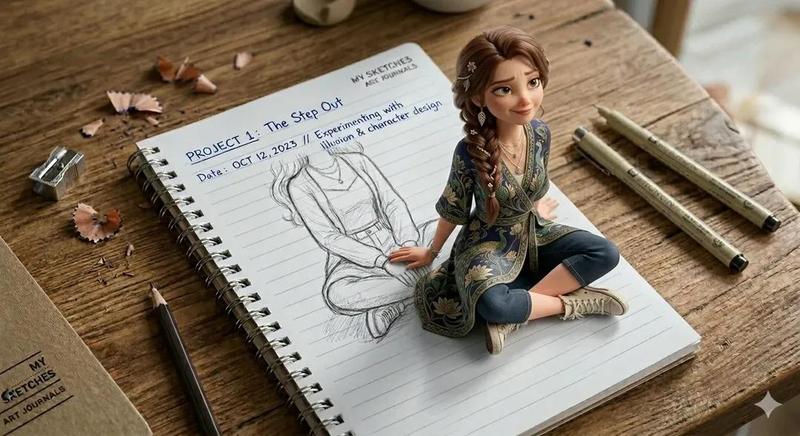
A hyper-realistic trompe l'oeil image of a spiral-bound sketchbook resting on a wooden surface. On the sketchbook page is a highly detailed graphite pencil drawing of a {argument name="subject description" default="young Asian woman with straight dark hair and bangs"}, looking down thoughtfully as she holds a {argument name="object held" default="Rubik's cube"} in both hands. From the bottom right, a photorealistic human hand holding a wooden pencil enters the frame, appearing to actively draw the sketch. Resting on the top left corner of the textured paper are 1 rectangular white eraser, 1 small blue metal pencil sharpener, and scattered pencil shavings. The transition between the photorealistic hand and the graphite sketch creates a seamless optical illusion.
Category
Charts & Infographics
Model
GPT Image 2
Creator
Views3
Source ID
13603
Published
Apr 13, 2026

Guide

About "错视画风格速写绘图"

What is this prompt for?

"错视画风格速写绘图" AI image prompt for GPT Image 2 (Charts & Infographics). 生成一张超写实的视觉错觉图,展示一只手正在笔记本上绘制精细的铅笔素描,并配有绘图工具。 Copy it on Picva and recreate the look in one…

The full copyable prompt and example visuals above are ready for AI image generation or one-click recreate in Picva.

How to use this prompt

  1. Step 1

    Open the prompt detail

    Review the example visuals, category, and full prompt text for "错视画风格速写绘图".

  2. Step 2

    Copy the prompt

    Copy the prompt body from this page, or load it directly in Studio.

  3. Step 3

    Pick a model (GPT Image 2)

    Prefer GPT Image 2. If you switch models, keep subject and composition and tweak style terms.

  4. Step 4

    Generate and export

    Recreate the look in Picva, or export into your workflow for editing and publishing.

FAQ

What is the "错视画风格速写绘图" prompt?
It is an AI image-generation prompt for GPT Image 2 in the Charts & Infographics category. This page includes the full prompt text, example visuals, and a one-click recreate path in Picva.
How do I use this prompt to generate an image?
Copy the prompt from this page, or use Generate / Studio. Paste it into a compatible image model, or recreate the look in Picva with optional reference images.
Which model is this prompt for?
This page lists GPT Image 2. Most descriptive prompts also transfer to nearby image models such as GPT Image, Flux, or Midjourney with light style tweaks.
Can I use the result commercially?
You can usually copy the prompt for creation, but commercial use of the final image depends on the model terms, reference-image rights, and the generated content. Follow the source author and platform rules.