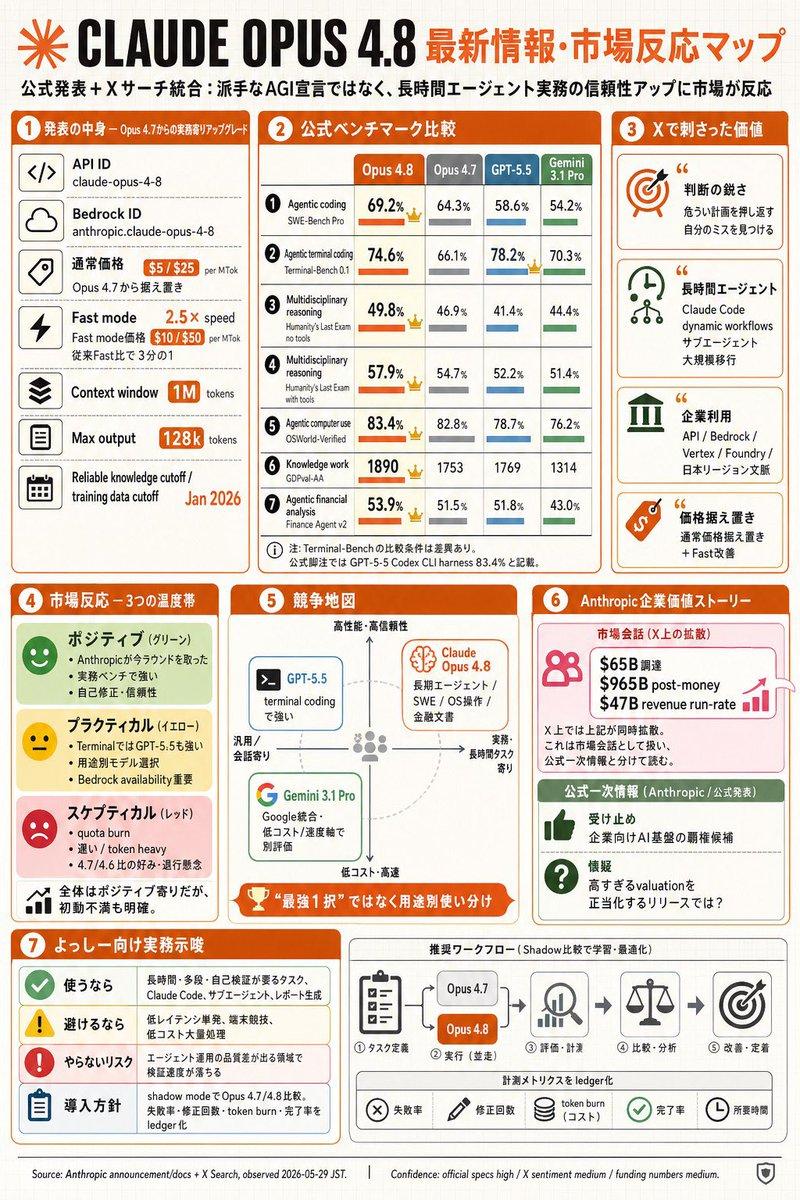
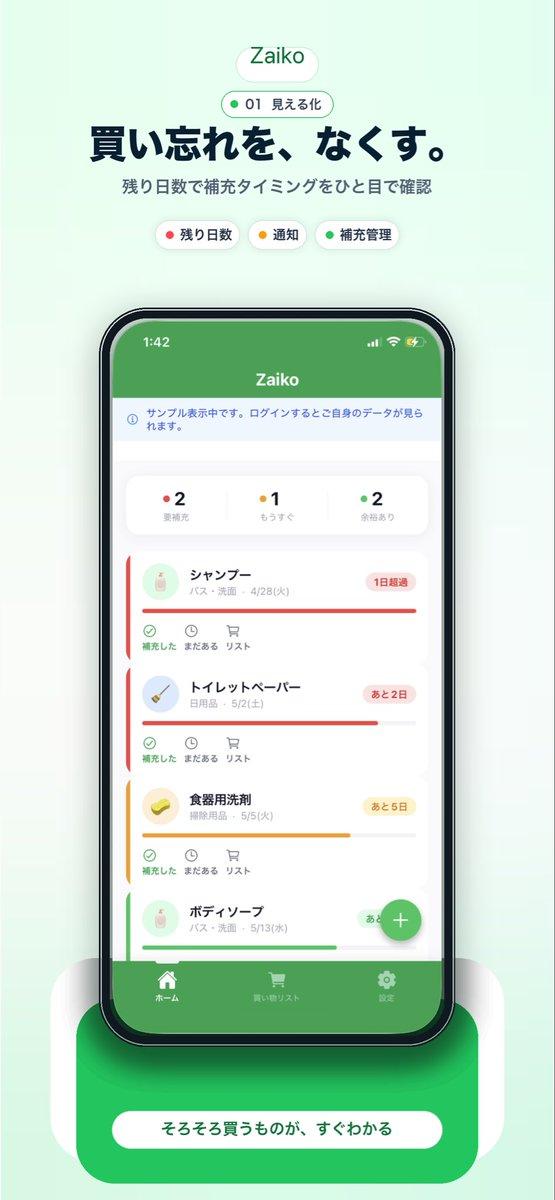
日本公司设立落地页
Prompt
{"type":"full-page Japanese landing page design mockup","format":"tall mobile-first web page screenshot","brand":{"name":"{argument name=\"brand name\" default=\"カケル スタジオ\"}","romanized_subtitle":"KAKERU STUDIO","logo":"simple blue abstract K mark at top left"},"theme":{"service":"online company incorporation support service","visual_style":"clean modern SaaS landing page, friendly Japanese startup aesthetic, rounded cards, soft shadows, white background with bright blue accents, yellow highlight accents, small confetti shapes, pale city skyline silhouette in the hero background","palette":"royal blue, sky blue, white, pale gray, yellow, coral pink","typography":"bold rounded Japanese sans-serif headings, readable compact body text"},"layout":{"sections":[{"title":"Header","position":"top","count":3,"elements":["brand logo and name at top left","hamburger menu icon at top right","small blue pill badge reading 完全オンラインで完結!"]},{"title":"Hero","position":"top main area","count":2,"elements":["large Japanese headline: {argument name=\"headline text\" default=\"会社設立を、もっとカンタンに、もっとワクワクに!\"}","right-side flat illustration of a faceless businessman in blue jacket and yellow pants running while holding a smartphone and laptop"]},{"title":"Hero benefit cards","position":"under hero","count":3,"labels":["完全オンライン","安心・安全","最短3日で設立"],"details":["desktop monitor icon, says document preparation can be completed online","blue shield check icon, says handled by expert staff with solid support","yellow clock icon, says speedy company setup from as fast as 3 days"]},{"title":"Introduction card","position":"upper middle","count":1,"elements":["heading: はじめての会社設立でも迷わず完了!","body copy explaining that entering information step by step makes documents easy to create","large laptop and smartphone UI mockup on the right","small potted plant illustration"]},{"title":"Metrics row","position":"inside introduction card bottom","count":4,"labels":["累計利用者数 10,000社以上","お客様満足度 98.6%","最短設立スピード 最短3日で登記完了","対応エリア 全国対応"]},{"title":"ご利用の流れ","position":"middle","count":3,"labels":["STEP 1 会社情報の入力","STEP 2 書類の作成・確認","STEP 3 申請・完了"],"details":["form document icon with check mark","document and pen icon","paper airplane icon"]},{"title":"カケル スタジオが選ばれる理由","position":"middle lower","count":3,"labels":["完全オンラインで完結","専門家がサポート","最短3日で設立"],"details":["woman using laptop illustration","male specialist holding documents illustration","calendar and clock illustration"]},{"title":"お客様の声","position":"below reasons","count":1,"elements":["testimonial card with circular blurred male portrait","large blue quotation mark","Japanese review text about being nervous about doing everything online but support was careful and incorporation finished quickly","customer name and title line"]},{"title":"Primary CTA banner","position":"lower middle","count":1,"elements":["large blue rounded rectangle with confetti","headline: {argument name=\"cta headline\" default=\"まずは無料で相談してみませんか?\"}","subtext: 専門スタッフが丁寧にサポートします!","wide coral-pink button reading 無料で相談する with right arrow","small yellow pill reading 平日 10:00〜18:00","woman at laptop illustration on the right"]},{"title":"Input form sample","position":"lower","count":5,"labels":["テキスト入力(デフォルト)","テキスト入力(フォーカス)","セレクトボックス","チェックボックス","ラジオボタン"],"details":["white rounded form panel","blue focused input border","checked square checkbox","two radio buttons with one selected","blue next button labeled 次へ進む with arrow"]},{"title":"UI component kit","position":"near bottom","count":3,"labels":["チップ","アイコン","ボタン"],"details":["8 pastel rounded chips including 人気No.1, 無料3日, オンライン完結, 合同会社, 株式会社, 個人事業主OK, 全国対応","18 thin-line blue icons arranged in a grid, including monitor, smartphone, home, shield, document, bar chart, user, globe, check marks, calendar, yen, paper airplane, lock","4 button styles: Primary, Icon Button, Ghost Button, and secondary arrow/download variations"]},{"title":"Service feature cards","position":"bottom above footer","count":3,"labels":["完全オンラインで完結","専門家がサポート","全国どこでも対応"],"details":["three compact rounded cards with small illustrations and text"]},{"title":"Footer","position":"bottom","count":4,"elements":["blue footer with logo and company information","three columns of footer links","social media icons","yellow mini CTA box on the right with pink consultation button and business hours"]}],"total_distinct_sections":13},"composition":"single continuous long-scroll landing page captured as one vertical screenshot, centered content column with generous rounded white cards and consistent spacing, all text in Japanese, no browser chrome, high fidelity polished UI mockup","image_quality":"crisp vector-style interface, clean alignment, soft gradients and shadows, professional conversion-focused LP design","customization_notes":"Keep the overall Japanese text-heavy landing page structure and exact counted section organization while allowing the brand, headline, CTA headline, and service focus to be customized.","service_focus":"{argument name=\"service focus\" default=\"online company incorporation support\"}"}- Category
- Charts & Infographics
- Model
- GPT Image 2
- Creator
- 池田龍太|高卒司法書士イケダくん
- Source ID
- 17911
- Published
- May 2, 2026
Views2