15

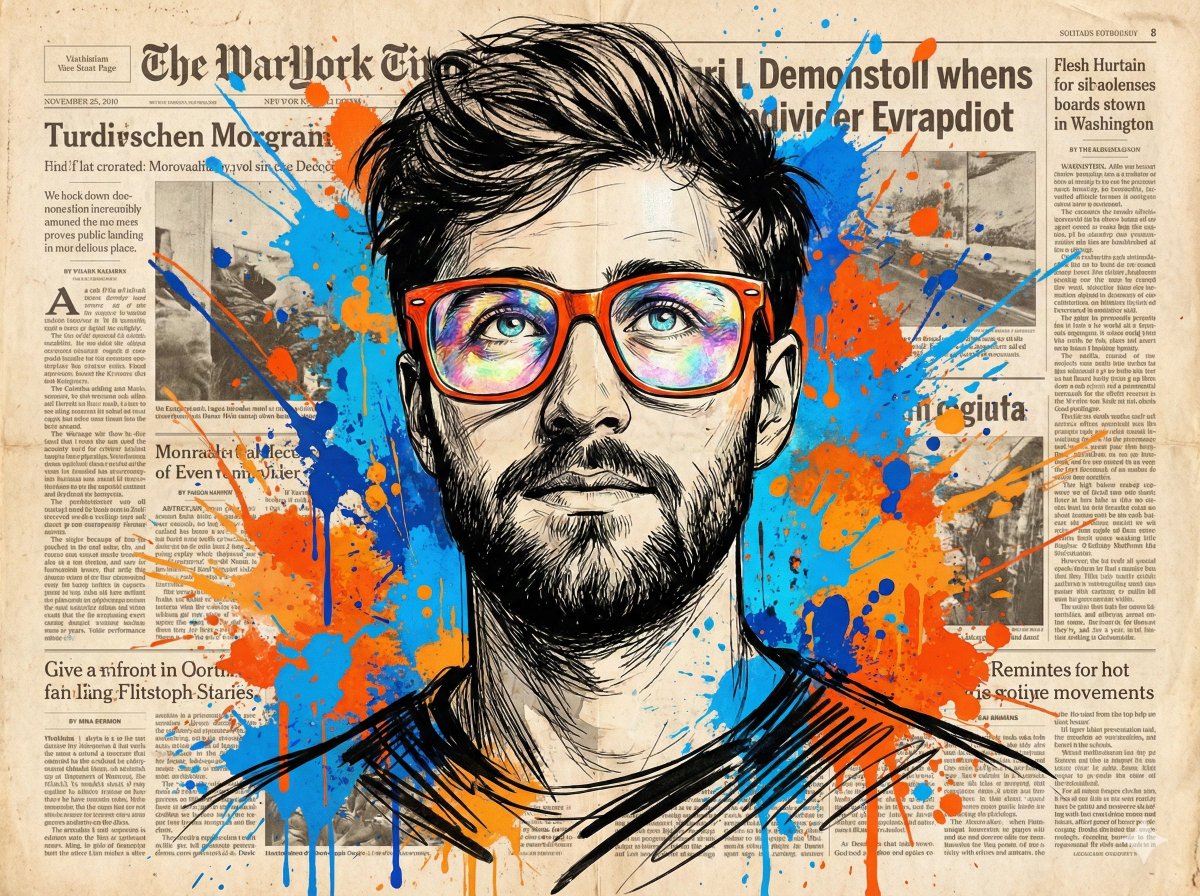
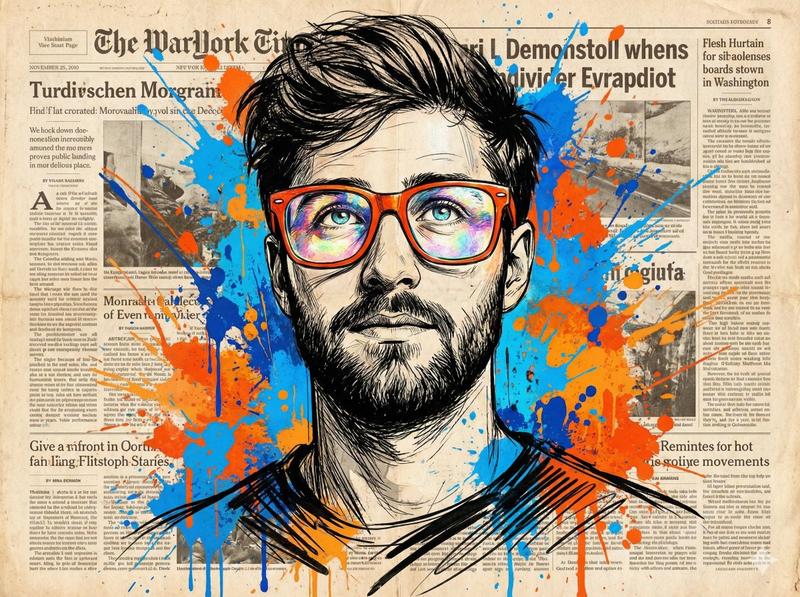
复古报纸水墨素描
Enlarge

复古报纸水墨素描

Prompt
ultra-detailed {argument name="subject" default="ink sketch style portrait of a young man with curly hair, beard, and wearing orange-tinted sunglasses and a denim jacket"}, looking slightly upward with a confident expression
art style: {argument name="style" default="black and white pen illustration with cross-hatching and fine line shading, high detail engraving style"}
background: {argument name="background" default="layered vintage newspaper collage with readable textures and headlines"}
graphic elements: bold orange and blue paint splashes behind the subject, dynamic
compositioncolor style: mostly monochrome with selective color accents (orange glasses
and paint splashes, blue splashes)
lighting: flat studio-style illustration lighting, no shadows from real light sources
composition: centered portrait, poster design layout, clean hierarchy, sharp facial details
no depth blur, no bokeh, crisp edges, high contrast ink texture
aspect ratio 4:6
Category
Charts & Infographics
Model
GPT Image 2
Creator
Harboris
Views7
Source ID
19031
Published
May 8, 2026

Guide

About "复古报纸水墨素描"

What is this prompt for?

"复古报纸水墨素描" AI image prompt for GPT Image 2 (Charts & Infographics). 一幅细节丰富的水墨素描风格人像,背景为复古报纸拼贴,并带有局部色彩点缀。 Copy it on Picva and recreate the look in one click.

The full copyable prompt and example visuals above are ready for AI image generation or one-click recreate in Picva.

How to use this prompt

  1. Step 1

    Open the prompt detail

    Review the example visuals, category, and full prompt text for "复古报纸水墨素描".

  2. Step 2

    Copy the prompt

    Copy the prompt body from this page, or load it directly in Studio.

  3. Step 3

    Pick a model (GPT Image 2)

    Prefer GPT Image 2. If you switch models, keep subject and composition and tweak style terms.

  4. Step 4

    Generate and export

    Recreate the look in Picva, or export into your workflow for editing and publishing.

FAQ

What is the "复古报纸水墨素描" prompt?
It is an AI image-generation prompt for GPT Image 2 in the Charts & Infographics category. This page includes the full prompt text, example visuals, and a one-click recreate path in Picva.
How do I use this prompt to generate an image?
Copy the prompt from this page, or use Generate / Studio. Paste it into a compatible image model, or recreate the look in Picva with optional reference images.
Which model is this prompt for?
This page lists GPT Image 2. Most descriptive prompts also transfer to nearby image models such as GPT Image, Flux, or Midjourney with light style tweaks.
Can I use the result commercially?
You can usually copy the prompt for creation, but commercial use of the final image depends on the model terms, reference-image rights, and the generated content. Follow the source author and platform rules.