20

丛林遗迹中的龙狼
Enlarge

丛林遗迹中的龙狼

Prompt
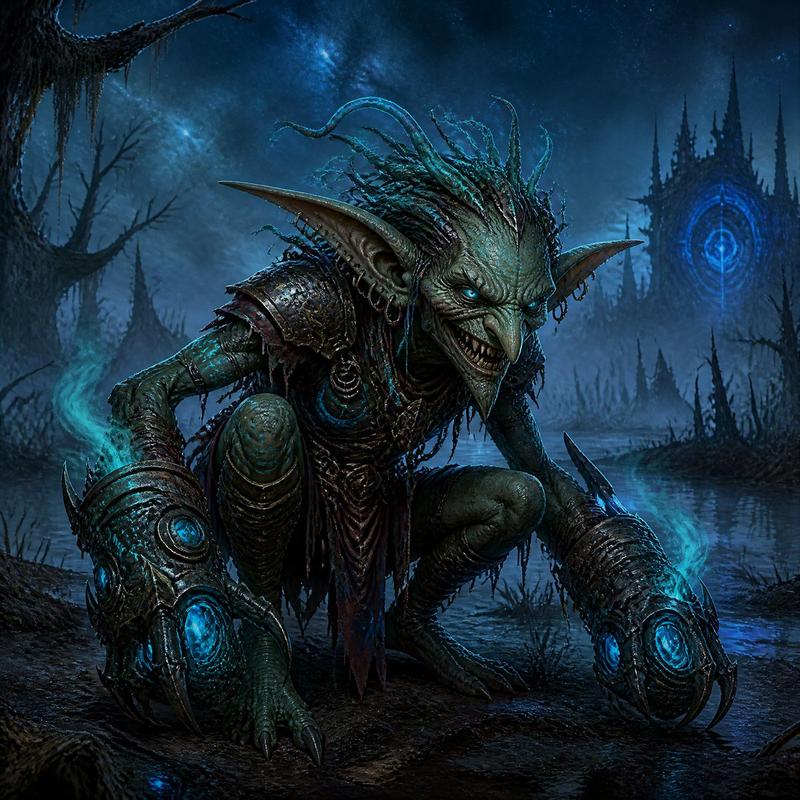
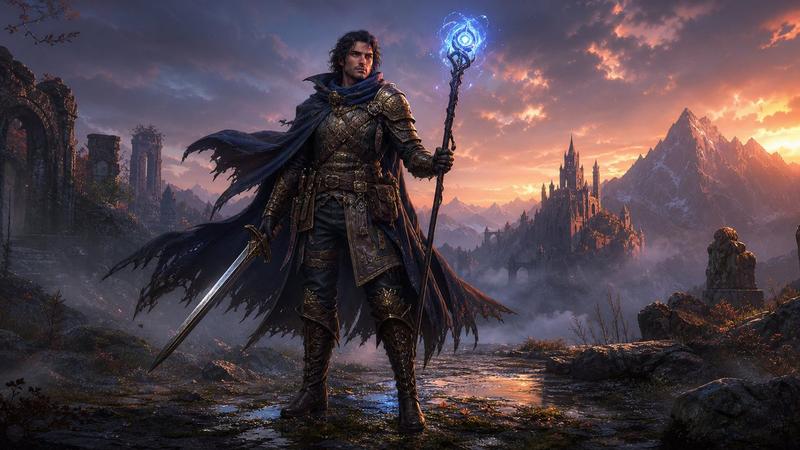
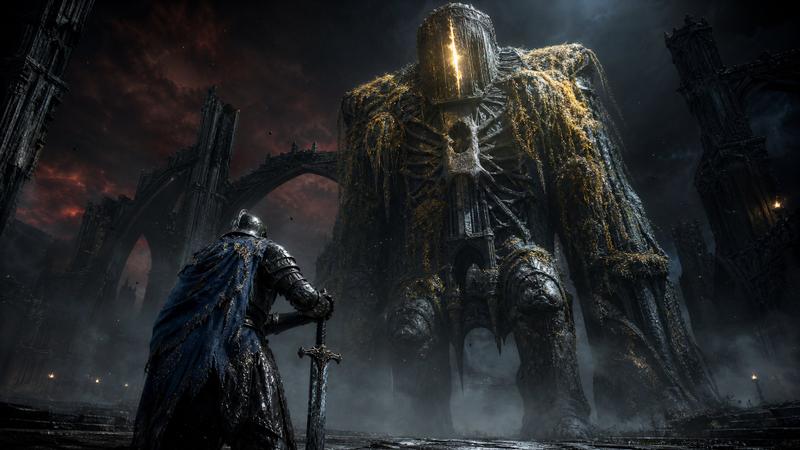
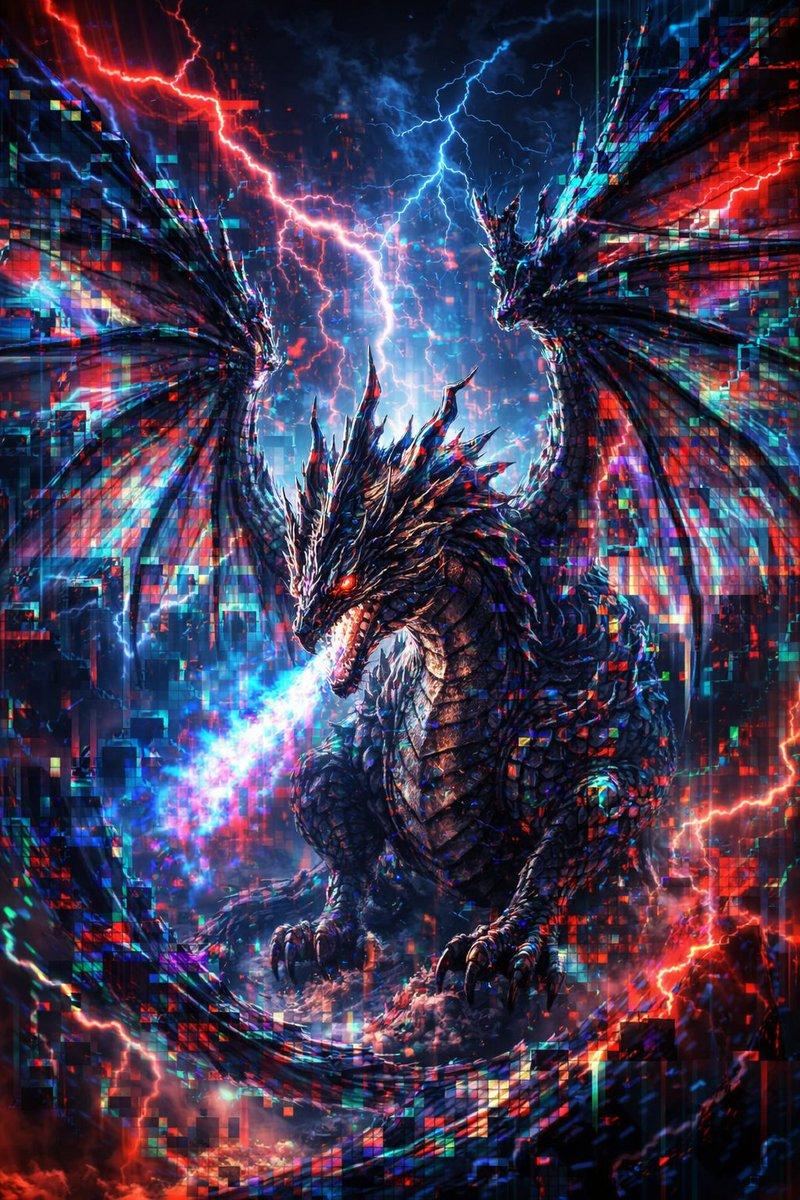
Create a cinematic dark fantasy concept-art scene in a dense ancient jungle ruin. A colossal dragon-wolf chimera dominates the frame, crouched low and prowling from left to right, with a snarling reptilian dragon head, glowing green eyes, sharp teeth, twisted black horns, a long scaled tail, huge clawed forelegs, and layered emerald-black armor-like scales. Give the creature a wild mane of long {argument name="mane color" default="silver-white"} hair flowing over its head, neck, shoulders, and back, with jagged dorsal spines and thorn-like spikes along its limbs and tail. Set it among mossy stone ruins, broken pillars, tangled roots, hanging vines, wet forest floor, small candle-like glows, and teal mist. Use dramatic sunbeams breaking through the high canopy, volumetric fog, backlighting, rim light on the fur and scales, deep shadows, rich green and turquoise color grading, highly detailed textures, epic scale, ultra-realistic fantasy illustration, wide landscape composition, no text, no watermark.
Category
Charts & Infographics
Model
GPT Image 2
Views4
Source ID
22937
Published
May 27, 2026

Guide

About "丛林遗迹中的龙狼"

What is this prompt for?

"丛林遗迹中的龙狼" AI image prompt for GPT Image 2 (Charts & Infographics). 一个电影级的暗黑奇幻提示词,用于生成一只在雾气缭绕的古老丛林遗迹中潜行的巨型龙狼嵌合体。 Copy it on Picva and recreate the look in one…

The full copyable prompt and example visuals above are ready for AI image generation or one-click recreate in Picva.

How to use this prompt

  1. Step 1

    Open the prompt detail

    Review the example visuals, category, and full prompt text for "丛林遗迹中的龙狼".

  2. Step 2

    Copy the prompt

    Copy the prompt body from this page, or load it directly in Studio.

  3. Step 3

    Pick a model (GPT Image 2)

    Prefer GPT Image 2. If you switch models, keep subject and composition and tweak style terms.

  4. Step 4

    Generate and export

    Recreate the look in Picva, or export into your workflow for editing and publishing.

FAQ

What is the "丛林遗迹中的龙狼" prompt?
It is an AI image-generation prompt for GPT Image 2 in the Charts & Infographics category. This page includes the full prompt text, example visuals, and a one-click recreate path in Picva.
How do I use this prompt to generate an image?
Copy the prompt from this page, or use Generate / Studio. Paste it into a compatible image model, or recreate the look in Picva with optional reference images.
Which model is this prompt for?
This page lists GPT Image 2. Most descriptive prompts also transfer to nearby image models such as GPT Image, Flux, or Midjourney with light style tweaks.
Can I use the result commercially?
You can usually copy the prompt for creation, but commercial use of the final image depends on the model terms, reference-image rights, and the generated content. Follow the source author and platform rules.