20

将展示架移至露台上
Enlarge

将展示架移至露台上

Prompt
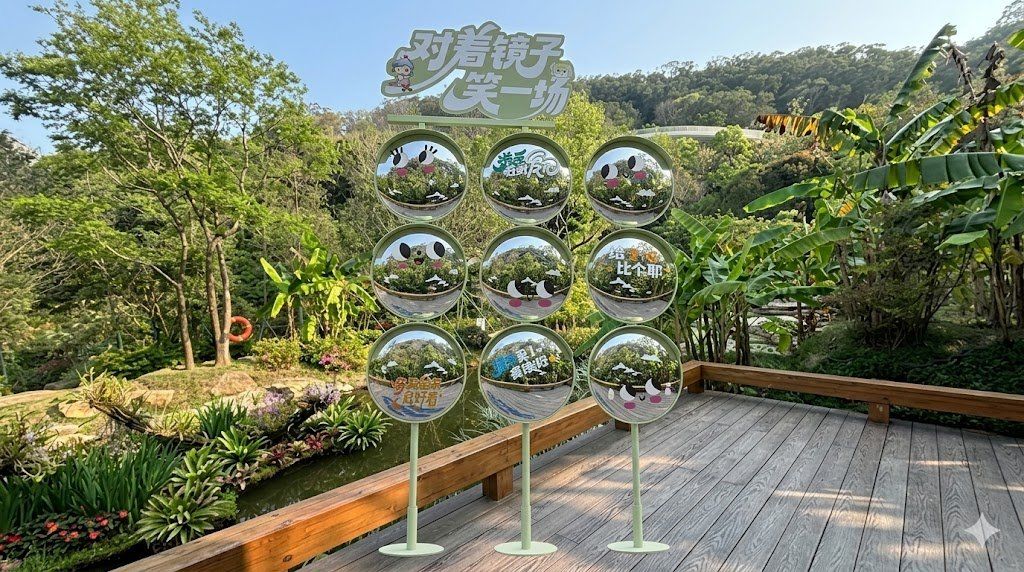
Using the provided reference image, keep the same garden, pond, trees, hillside, and wooden deck viewpoint, but reposition the decorative sign installation so it stands on the wooden deck in the foreground instead of in the water. Enlarge it and center it more prominently in front of the camera while preserving a believable outdoor perspective, natural daylight, and consistent shadows. Keep the installation structure as a 3-column by 3-row set of 9 circular sign panels on slim green stands with the top header sign reading “对着镜子笑一场”. Make the panels look more reflective and mirror-like, showing realistic reflections of the surrounding greenery, while retaining the cute face graphics and Chinese text on the circles. The result should look like a realistic ad mockup/composite photo of the same display placed correctly in the scene.
Category
Charts & Infographics
Model
GPT Image 2
Creator
肖师傅
Views3
Source ID
14487
Published
Apr 21, 2026

Guide

About "将展示架移至露台上"

What is this prompt for?

"将展示架移至露台上" AI image prompt for GPT Image 2 (Charts & Infographics). 此提示词旨在将参考促销展示架放置在同一户外场景的木质露台上,以制作逼真的环境广告样机。 Copy it on Picva and recreate the look in one…

The full copyable prompt and example visuals above are ready for AI image generation or one-click recreate in Picva.

How to use this prompt

  1. Step 1

    Open the prompt detail

    Review the example visuals, category, and full prompt text for "将展示架移至露台上".

  2. Step 2

    Copy the prompt

    Copy the prompt body from this page, or load it directly in Studio.

  3. Step 3

    Pick a model (GPT Image 2)

    Prefer GPT Image 2. If you switch models, keep subject and composition and tweak style terms.

  4. Step 4

    Generate and export

    Recreate the look in Picva, or export into your workflow for editing and publishing.

FAQ

What is the "将展示架移至露台上" prompt?
It is an AI image-generation prompt for GPT Image 2 in the Charts & Infographics category. This page includes the full prompt text, example visuals, and a one-click recreate path in Picva.
How do I use this prompt to generate an image?
Copy the prompt from this page, or use Generate / Studio. Paste it into a compatible image model, or recreate the look in Picva with optional reference images.
Which model is this prompt for?
This page lists GPT Image 2. Most descriptive prompts also transfer to nearby image models such as GPT Image, Flux, or Midjourney with light style tweaks.
Can I use the result commercially?
You can usually copy the prompt for creation, but commercial use of the final image depends on the model terms, reference-image rights, and the generated content. Follow the source author and platform rules.