16

带遮挡的摄影棚肖像
Enlarge

带遮挡的摄影棚肖像

Prompt
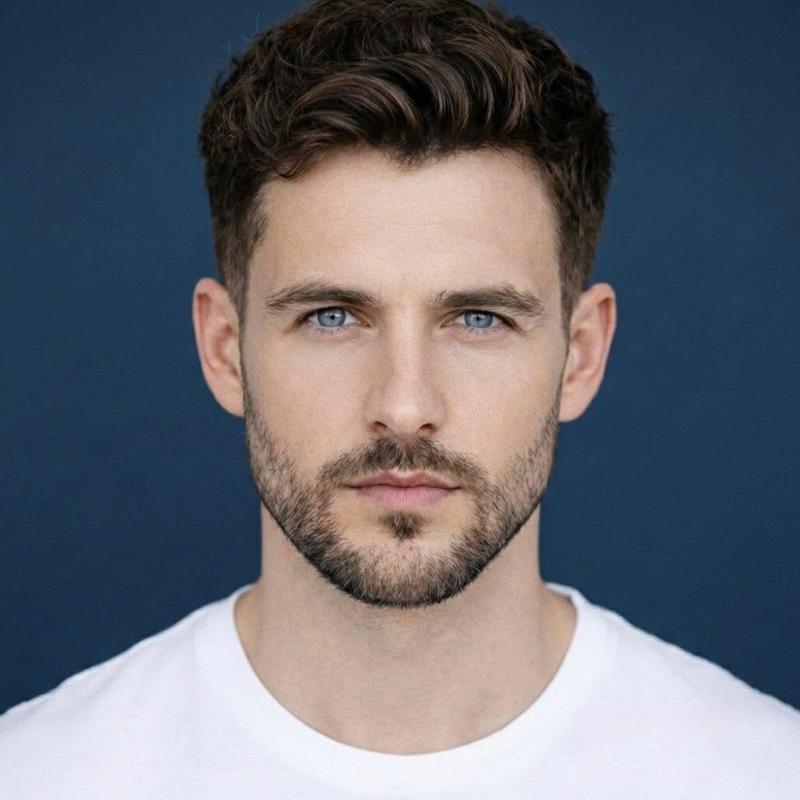
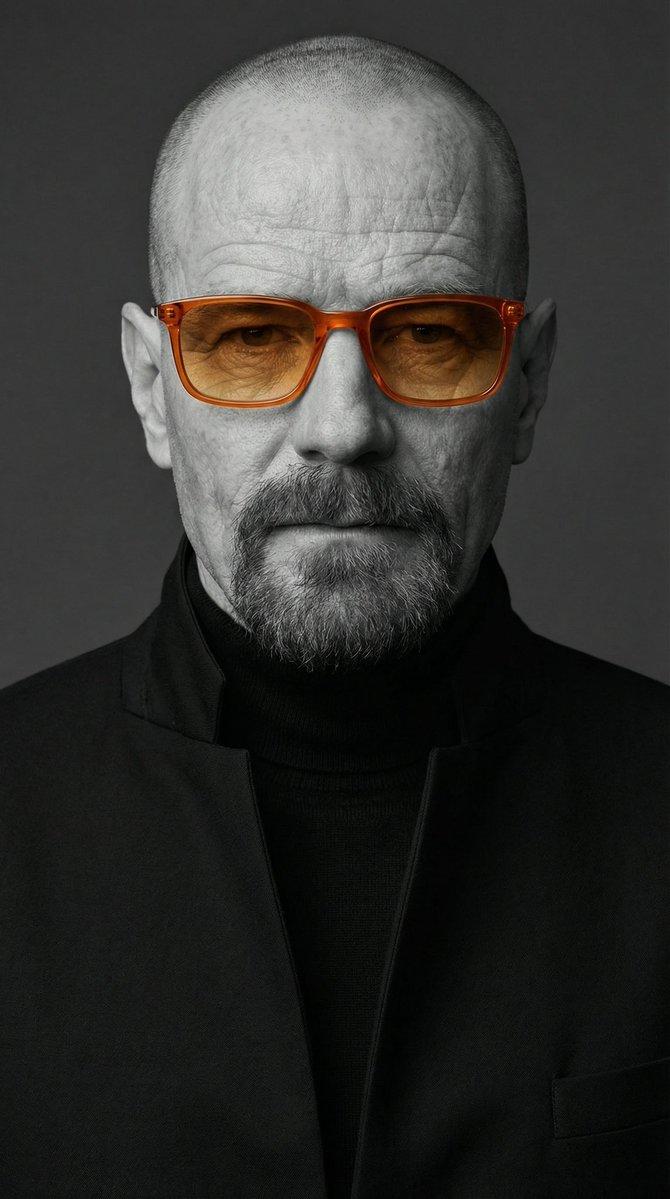
A centered studio portrait photo of a single adult man from upper chest to top of head, facing straight toward the camera against a smooth deep navy-blue backdrop. He has a very closely shaved buzz cut, visible ears on both sides, medium tan skin, and short dark facial hair concentrated along the chin and jawline with a faint mustache. Dress him in a plain off-white or cream crewneck sweatshirt with no logo. Use soft professional studio lighting with gentle highlights on the scalp, ears, neck, and sweatshirt, realistic skin texture, shallow depth of field, and a clean photographic look. Compose it symmetrically with the head near the top of frame and broad shoulders filling the lower half, in a vertical portrait orientation. Overlay 1 large opaque rectangular censor block centered over the face, covering from forehead to below the nose area and spanning most of the facial width; make the block a flat muted brown tone with slightly soft edges so the facial features are completely hidden.
Category
Charts & Infographics
Model
GPT Image 2
Views3
Source ID
15028
Published
Apr 22, 2026

Guide

About "带遮挡的摄影棚肖像"

What is this prompt for?

"带遮挡的摄影棚肖像" AI image prompt for GPT Image 2 (Charts & Infographics). 此提示词可生成一张逼真的摄影棚半身肖像,画面中的男性面部被一个巨大的遮挡块覆盖,适用于隐私主题的视觉效果或匿名头像。 Copy it on Picva and recreate t…

The full copyable prompt and example visuals above are ready for AI image generation or one-click recreate in Picva.

How to use this prompt

  1. Step 1

    Open the prompt detail

    Review the example visuals, category, and full prompt text for "带遮挡的摄影棚肖像".

  2. Step 2

    Copy the prompt

    Copy the prompt body from this page, or load it directly in Studio.

  3. Step 3

    Pick a model (GPT Image 2)

    Prefer GPT Image 2. If you switch models, keep subject and composition and tweak style terms.

  4. Step 4

    Generate and export

    Recreate the look in Picva, or export into your workflow for editing and publishing.

FAQ

What is the "带遮挡的摄影棚肖像" prompt?
It is an AI image-generation prompt for GPT Image 2 in the Charts & Infographics category. This page includes the full prompt text, example visuals, and a one-click recreate path in Picva.
How do I use this prompt to generate an image?
Copy the prompt from this page, or use Generate / Studio. Paste it into a compatible image model, or recreate the look in Picva with optional reference images.
Which model is this prompt for?
This page lists GPT Image 2. Most descriptive prompts also transfer to nearby image models such as GPT Image, Flux, or Midjourney with light style tweaks.
Can I use the result commercially?
You can usually copy the prompt for creation, but commercial use of the final image depends on the model terms, reference-image rights, and the generated content. Follow the source author and platform rules.