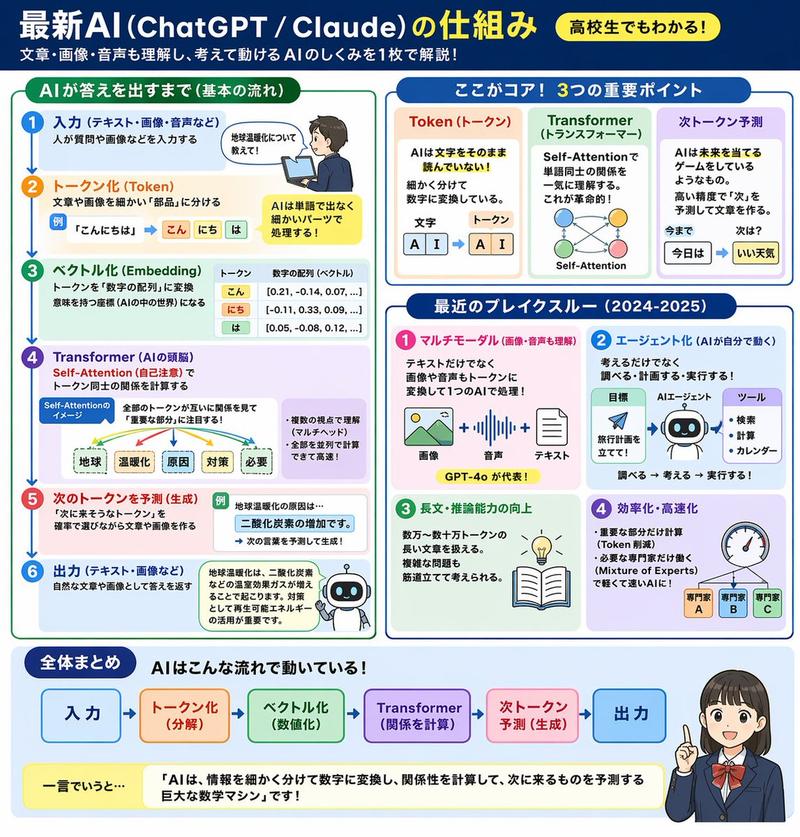
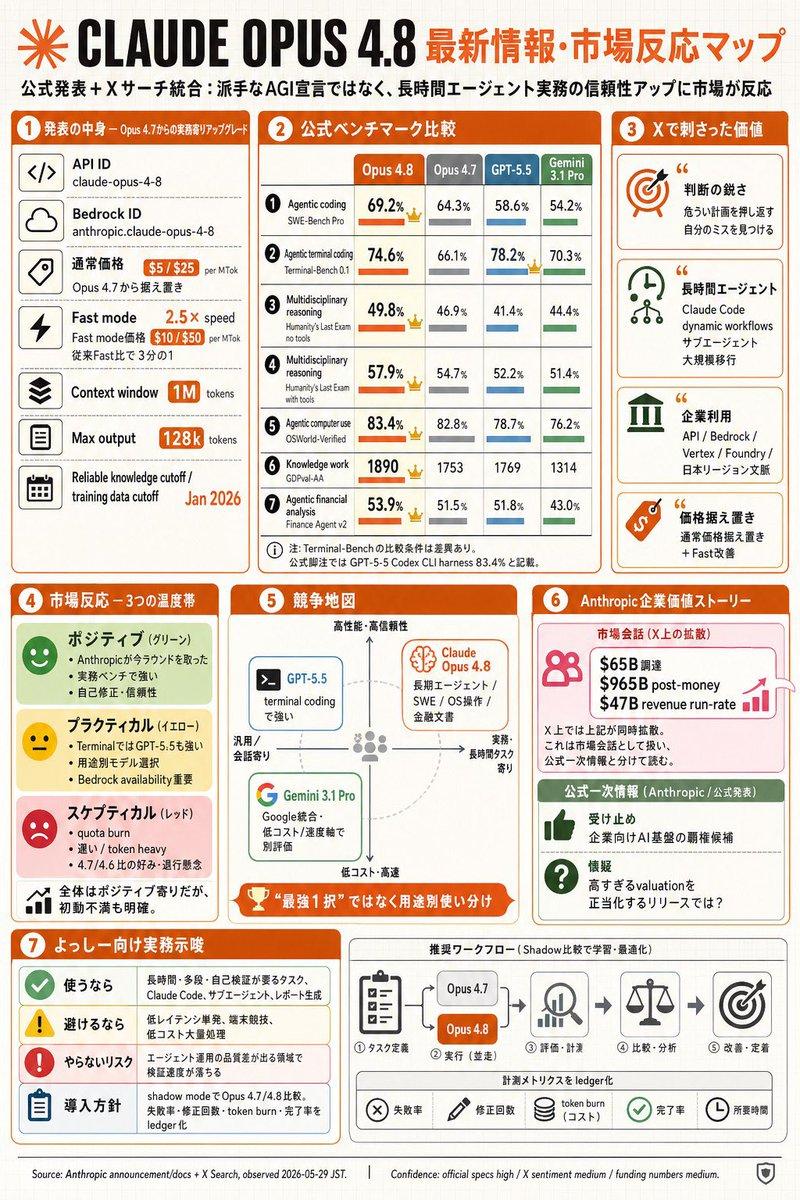
7-Eleven 网络打印操作指南
Prompt
Goal: Create a friendly Japanese step-by-step instruction sheet for printing two reserved net-print documents at a 7-Eleven multifunction copier, designed so an elderly parent can understand it just by looking.

Canvas: Square 1:1 infographic, white background with teal borders and rounded cards, bold teal section headers, red emphasis text, simple flat vector icons. Overall style is clean, high-contrast, large readable Japanese typography, like a laminated how-to guide.

Main header: At the top, a dark teal banner with a circular 7-Eleven storefront icon on the left and a printer icon on the right. Center the large white headline {argument name="headline text" default="セブンで印刷する手順"}. Under it place a pale yellow rounded pill subtitle {argument name="subtitle text" default="この画像を見ながら操作すればOK!"}.

Section 1, top left card, title {argument name="section one title" default="① まず覚えること"}: Include exactly 4 teal bullet points and 1 yellow warning box. The bullets say, in Japanese, that there are 2 things to print, enter reservation numbers one at a time, the size is A4 black-and-white one copy each, and the expiration deadline is 2026/05/16 23:59. Emphasize the numbers 2, 1, A4, black-and-white, one copy each, and the date in red. The warning box contains a teal exclamation icon and text warning that printing becomes unavailable after the expiration date, so print early.

Section 2, top right card, title {argument name="section two title" default="② 予約番号"}: Show exactly 2 large reservation-number rows with teal circled numbers: row 1 is {argument name="first reservation number" default="ABCD1234"}, row 2 is {argument name="second reservation number" default="EFGH5678"}. Each row is inside a white rounded rectangle with teal outline. Add a red note below: print these two in order.

Section 3, middle full-width card, title in Japanese meaning store workflow: Show exactly 6 numbered vertical steps separated by thin teal lines, each with a teal circle number at the top. Step 1: go to 7-Eleven, with storefront icon. Step 2: on the multifunction copier screen choose “Net Print,” with copier touchscreen icon and pointing hand. Step 3: enter the reservation number, with keypad screen showing ABCD1234 and a pointing hand pressing confirm. Step 4: confirm A4 black-and-white and print, with settings panel and printer output icon. Step 5: after the first one finishes, enter the second reservation number the same way, with circular repeat arrows and text indicating print 1 then 2 in order. Step 6: insert money and receive the printout, with banknote, coins, downward arrow, paper sheet, and sparkle icons.

Section 4, lower card, title in Japanese meaning print contents: Show exactly 2 contents items. Item 1: teal circled 1, large text “A4 black-and-white 1 copy,” small paper icon. Item 2: teal circled 2, large text “A4 black-and-white 1 copy,” small paper icon. Separate the two items with a dotted teal divider.

Bottom help strip: Pale yellow rounded rectangle with two friendly elderly people icons on the left, faces intentionally blurred or simplified. Add a teal headline saying that if they are confused, they only need to look at these two numbers. Show exactly 2 large bordered boxes containing ABCD1234 and EFGH5678.

Constraints: Use exactly 4 major numbered sections plus the bottom help strip, exactly 2 reservation numbers, exactly 6 workflow steps, exactly 2 print-content items, exactly 4 bullet points in Section 1, and no extra logos except the simplified 7-Eleven storefront motif. Keep all Japanese text large, readable, and neatly aligned.- Category
- Charts & Infographics
- Model
- GPT Image 2
- Creator
- 中崎工房 | AIで1時間の仕事を5分で終わらせる人
- Source ID
- 20278
- Published
- May 14, 2026
Views5