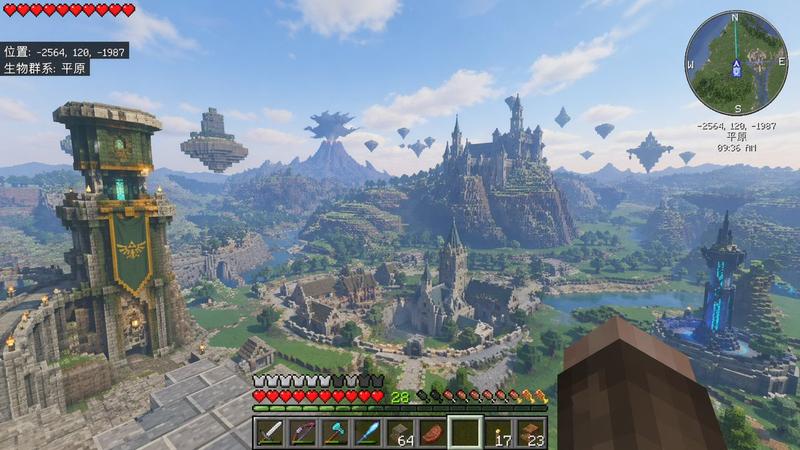
AI 生成器界面中的 Minecraft 游戏画面
Prompt
Goal: Create a square screenshot of a dark AI image-generation web interface showing a generated Minecraft gameplay screenshot. The interface should look like someone typed {argument name="user prompt" default="Generate a screenshot as if I'm playing Minecraft."} and received a rendered game image below it.

Canvas: Square 1:1 image, approximately 576 by 576 pixels, dark black background, with the content aligned near the top-left and a large empty black margin on the right and bottom.

Top UI layout: At the very top-left, show the white prompt text: “Generate a screenshot as if I'm playing Minecraft.” Beneath it, show a small blue label “Model” with a vertical three-dot menu icon beside it. Below that, draw a wide dark rounded rectangle dropdown bar containing the blue text “Thinking” and a small downward chevron. The UI should feel like a minimal web app in dark mode.

Generated image panel: Under the dropdown, place a large square Minecraft-style gameplay screenshot with slightly rounded corners. The screenshot should be first-person perspective in a bright blocky village scene.

Minecraft scene details: Show a sunny daytime village with a blue sky and exactly 8 visible white blocky cloud clusters. On the left foreground, include a partially visible wooden-and-cobblestone house with a wooden door, plank roof, cobblestone wall, and a lit torch. In the center distance, show a gray stone church/tower with narrow yellow-lit windows. Around it, include a small village house, a leafy green tree, grass blocks, a dirt path, and a fenced crop field. The crop field should contain golden wheat, green crops, a wooden fence border, and exactly 6 visible torch posts with yellow flames around the village/farm area. Keep the Minecraft aesthetic authentic: cubic blocks, pixelated textures, low-resolution game rendering, no photorealism.

First-person HUD and equipment: In the lower left foreground, show a raised shield. In the lower right foreground, show the player holding an iron sword. Along the bottom, draw the Minecraft HUD with exactly 10 red hearts, exactly 10 hunger drumsticks, a green experience level number “18,” and a 9-slot hotbar. The hotbar should contain these 9 visible slots from left to right: shield icon, iron sword, pickaxe, axe, shovel, empty or dark slot, stack of 64 blocks, stack of 23 torches/items, stack of 17 items, plus a water bucket icon visible at the far right edge if space permits. Make the HUD slightly pixelated and game-accurate.

Visual style: The whole image should look like an actual screenshot of a browser-based AI generator displaying a generated Minecraft gameplay image, not a clean standalone render. Use dark UI chrome, small crisp text, and a blocky game screenshot embedded inside it. No watermark, no extra captions, no logos.- Category
- UI & Interfaces
- Model
- GPT Image 2
- Creator
- maloy
- Source ID
- 23345
- Published
- May 30, 2026
Views6