15

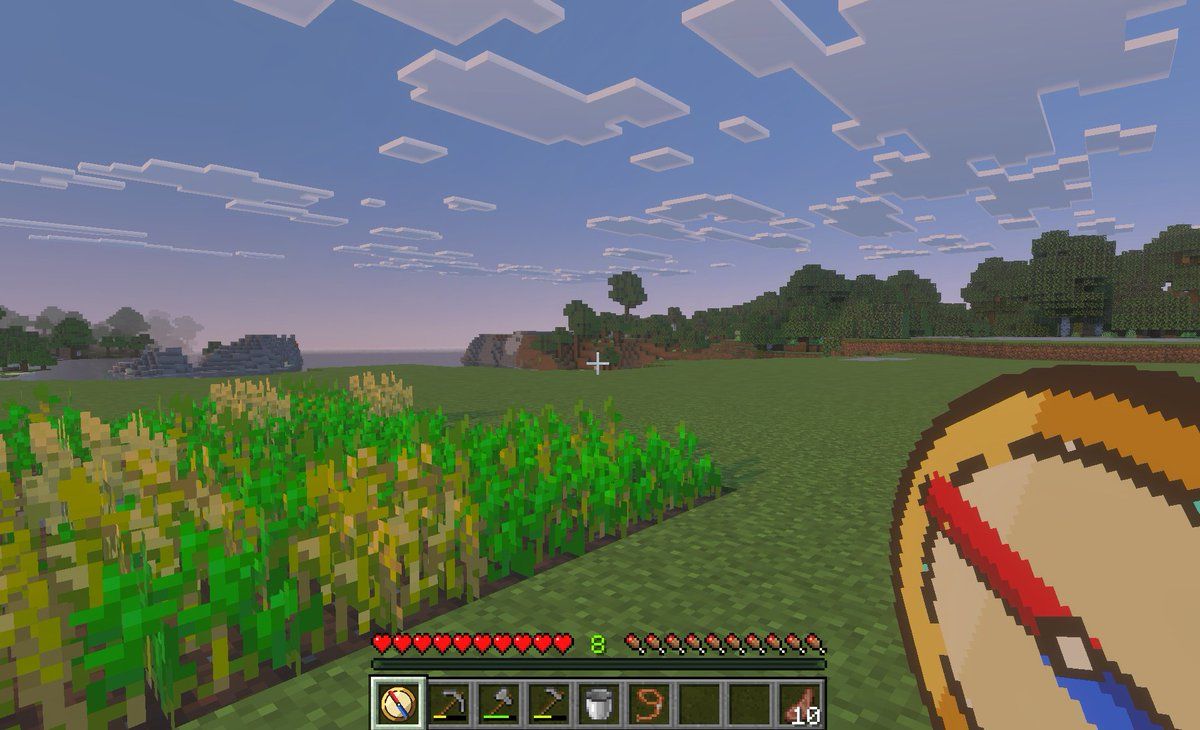
Minecraft 传送指南针截图
Enlarge

Minecraft 传送指南针截图

Prompt
A first-person gameplay screenshot in the style of Minecraft Bedrock Edition at dusk, showing a peaceful grassy plains biome with a small rectangular wheat farm in the left foreground, some crops fully grown and some still green, an open grass field in the center, and a tree line and low blocky hills in the distance under a pale blue-to-pink evening sky filled with flat square clouds. Place a small white crosshair exactly near the center of the frame. Show the full survival HUD along the bottom: 10 red hearts, 10 hunger drumsticks, green experience level {argument name="experience level" default="8"}, and a 9-slot hotbar. The hotbar must contain exactly 9 slots, with these visible items from left to right: 1 custom compass icon selected, 1 hoe tool, 1 pickaxe, 1 axe, 1 bucket, 1 lead or rope item, 2 empty slots, and 1 stack of cooked meat labeled {argument name="item stack count" default="10"}. In the lower-right foreground, overlay an oversized custom item graphic of a {argument name="tool name" default="teleport compass"} held in hand, drawn as a clean pixel-art compass with a tan face, dark brown rim, cream center, and a bold red-and-blue needle angled diagonally. The selected hotbar slot should also display the same custom compass icon. Make the image feel like an in-game screenshot captured on a tablet or PC, with soft atmospheric haze, authentic voxel textures, and a child-friendly utility-mod vibe for fast travel and saved-location navigation.
Category
Charts & Infographics
Model
GPT Image 2
Views0
Source ID
16433
Published
Apr 26, 2026

Guide

About "Minecraft 传送指南针截图"

What is this prompt for?

"Minecraft 传送指南针截图" AI image prompt for GPT Image 2 (Charts & Infographics). 此提示词可生成一张 Minecraft 风格的第一人称游戏截图,展示一款自定义传送指南针工具,适用于演示 Bedrock 版快速旅行或位置保存模组的概念。 Copy…

The full copyable prompt and example visuals above are ready for AI image generation or one-click recreate in Picva.

How to use this prompt

  1. Step 1

    Open the prompt detail

    Review the example visuals, category, and full prompt text for "Minecraft 传送指南针截图".

  2. Step 2

    Copy the prompt

    Copy the prompt body from this page, or load it directly in Studio.

  3. Step 3

    Pick a model (GPT Image 2)

    Prefer GPT Image 2. If you switch models, keep subject and composition and tweak style terms.

  4. Step 4

    Generate and export

    Recreate the look in Picva, or export into your workflow for editing and publishing.

FAQ

What is the "Minecraft 传送指南针截图" prompt?
It is an AI image-generation prompt for GPT Image 2 in the Charts & Infographics category. This page includes the full prompt text, example visuals, and a one-click recreate path in Picva.
How do I use this prompt to generate an image?
Copy the prompt from this page, or use Generate / Studio. Paste it into a compatible image model, or recreate the look in Picva with optional reference images.
Which model is this prompt for?
This page lists GPT Image 2. Most descriptive prompts also transfer to nearby image models such as GPT Image, Flux, or Midjourney with light style tweaks.
Can I use the result commercially?
You can usually copy the prompt for creation, but commercial use of the final image depends on the model terms, reference-image rights, and the generated content. Follow the source author and platform rules.