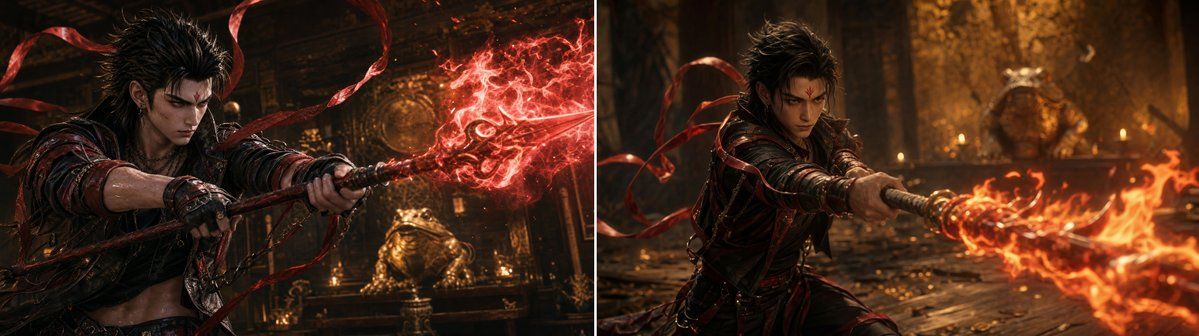
哪吒火尖枪画面对比
Prompt
Goal: Create a wide side-by-side comparison image showing two cinematic generations of the same mythic punk warrior, demonstrating an over-sharpened raw look on the left versus a softer refined film look on the right.

Canvas: Extra-wide horizontal frame, about 2.7:1 aspect ratio, split into exactly 2 equal panels with a thin vertical white divider line at the center. No captions, no labels, no watermark.

Subject: In both panels, show {argument name="character name" default="Nezha"} as a fierce young adult East Asian warrior with spiky black hair, dark red and black leather-and-metal armor, bare midriff, wrist wraps, belts, and long red silk ribbons swirling around him. His face should be obscured by a simple square blur/mosaic block, matching the source image. He grips a long spear or staff with both hands, thrusting it diagonally toward the viewer, emitting supernatural fire.

Setting: A dark ancient temple or shrine interior with carved wooden architecture, gold statues, candles, smoke, worn floorboards, and warm amber torchlight. Background details include exactly 1 large gold seated statue centered deep in the left panel and exactly 1 gold guardian-like statue in the rear right panel. The environment should feel like a mythic action scene in a Tokyo-inspired NEZHA fantasy series.

Left panel: Raw GPT-style output look. Tight action close-up from the waist up, warrior angled left-to-right, spear crossing the frame horizontally. Red magical flame blooms from the spear tip near the upper right. Make the image intentionally over-sharpened and hyper-detailed: glossy skin, oily highlights, high micro-contrast, razor-sharp edges, wet-looking armor, exaggerated sweat, crunchy texture, CGI-like red flame, dramatic but slightly artificial HDR finish.

Right panel: Refined final-film look of the same scene. Slightly wider composition, warrior crouched or lunging in a lower stance, spear thrusting from center toward the right foreground with orange fire streaming out. Use softer lens rendering, natural motion blur, warmer orange flame, less glossy skin, less plastic texture, more atmospheric haze, shallow depth of field, cinematic grain, painterly realism, and believable physical lighting. Keep the right panel noticeably less sharp and less oily than the left.

Visual style: Dark fantasy action cinema, high-budget live-action concept art, warm amber and crimson palette, volumetric smoke, temple dust, ember particles, dynamic ribbons. The two panels should clearly contrast two visual treatments of the same {argument name="scene concept" default="Nezha fire spear attack inside a temple"}: left is over-rendered and artificial, right is cinematic and natural.

Constraints: Include exactly 2 panels, exactly 1 center divider, exactly 1 warrior in each panel, exactly 1 spear in each panel, and exactly 1 visible flame attack in each panel. Avoid text, logos, UI elements, extra characters, and additional split-screen sections.- Category
- UI & Interfaces
- Model
- GPT Image 2
- Creator
- Mr.Iancu
- Source ID
- 23499
- Published
- May 31, 2026
Views2