18

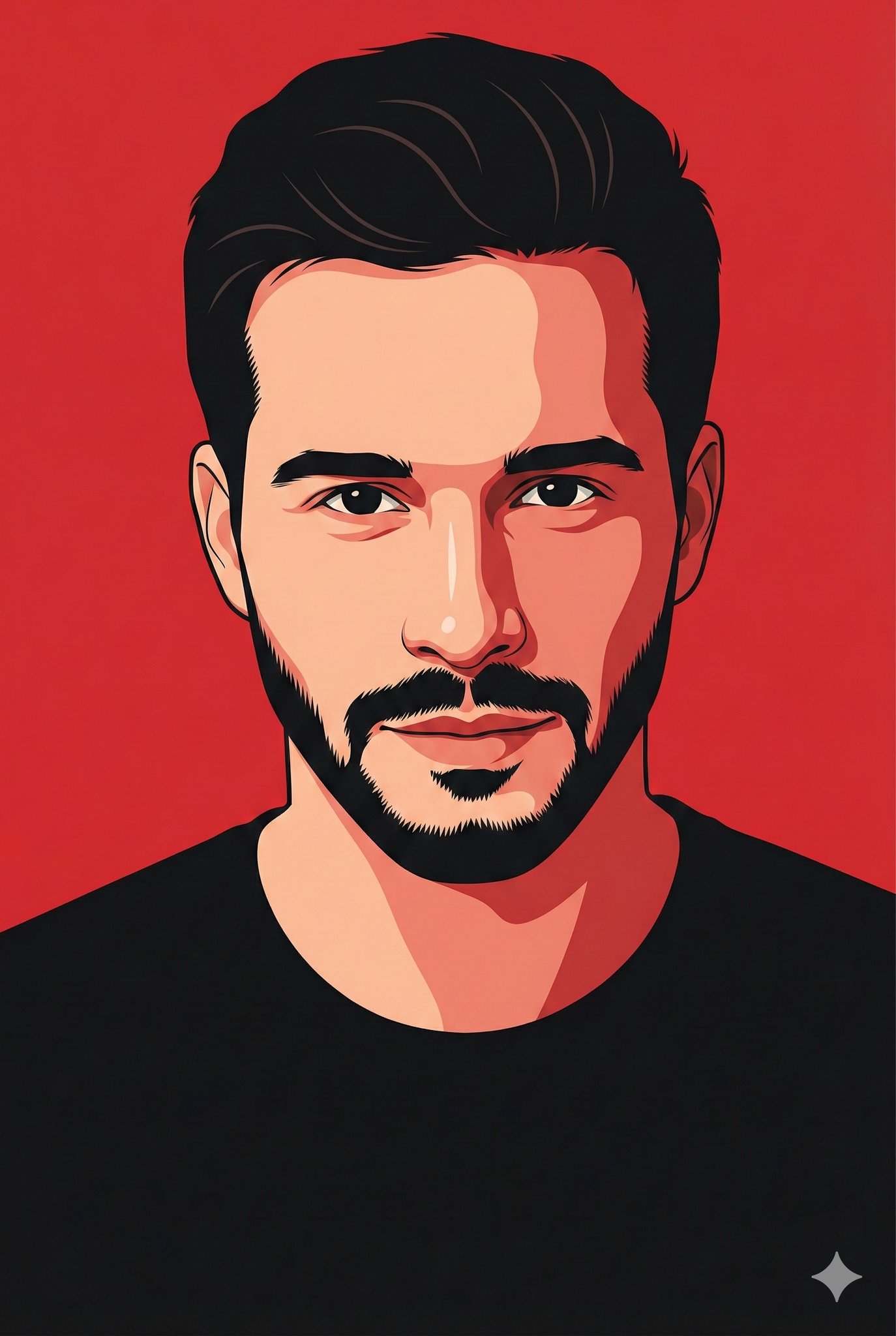
经典雕版肖像插画
Enlarge

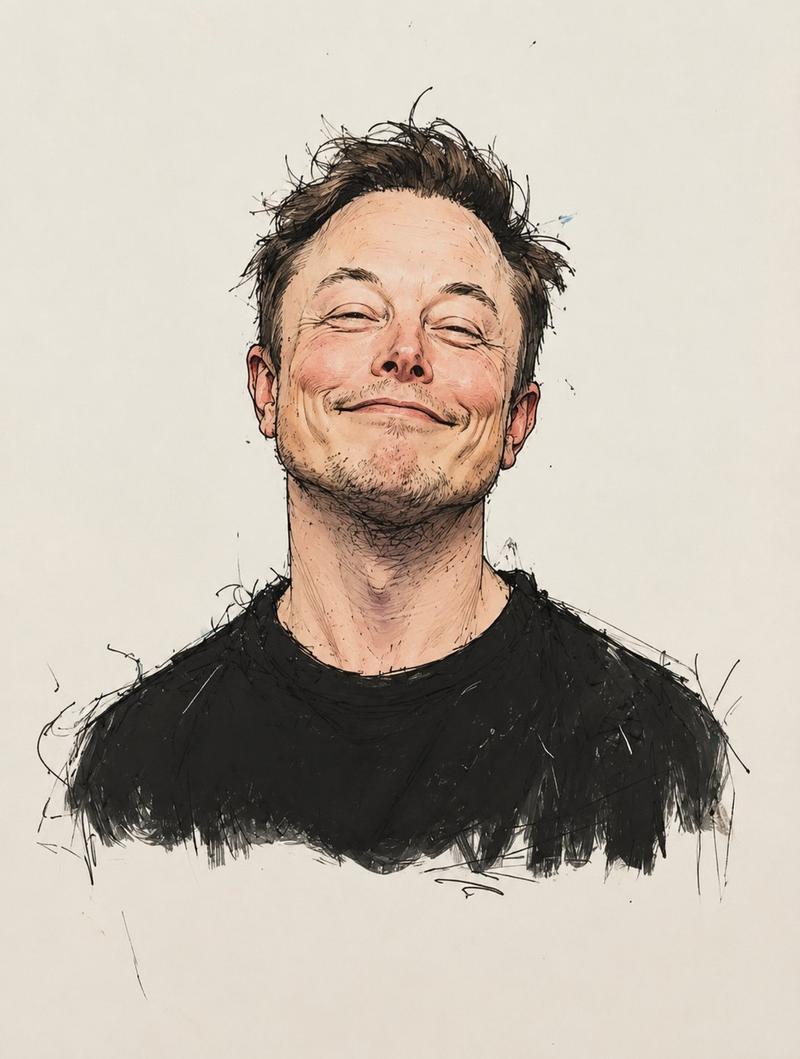
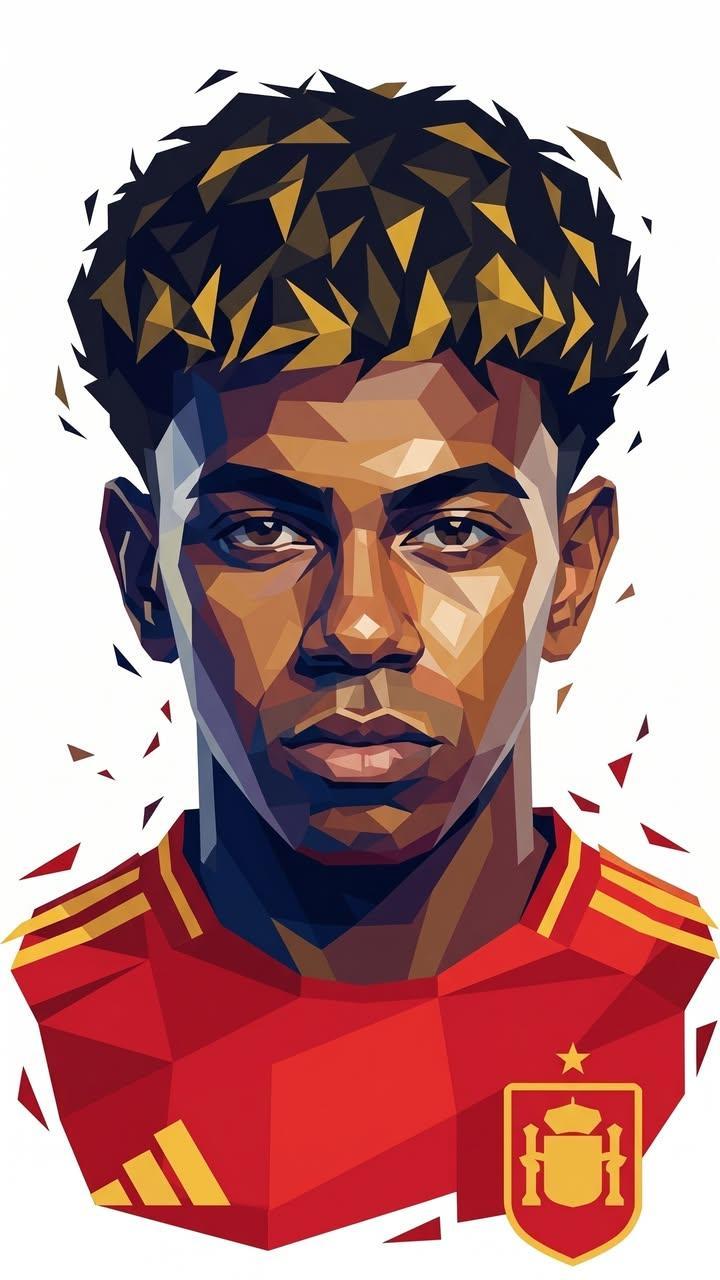
Example images

经典雕版肖像插画

Prompt
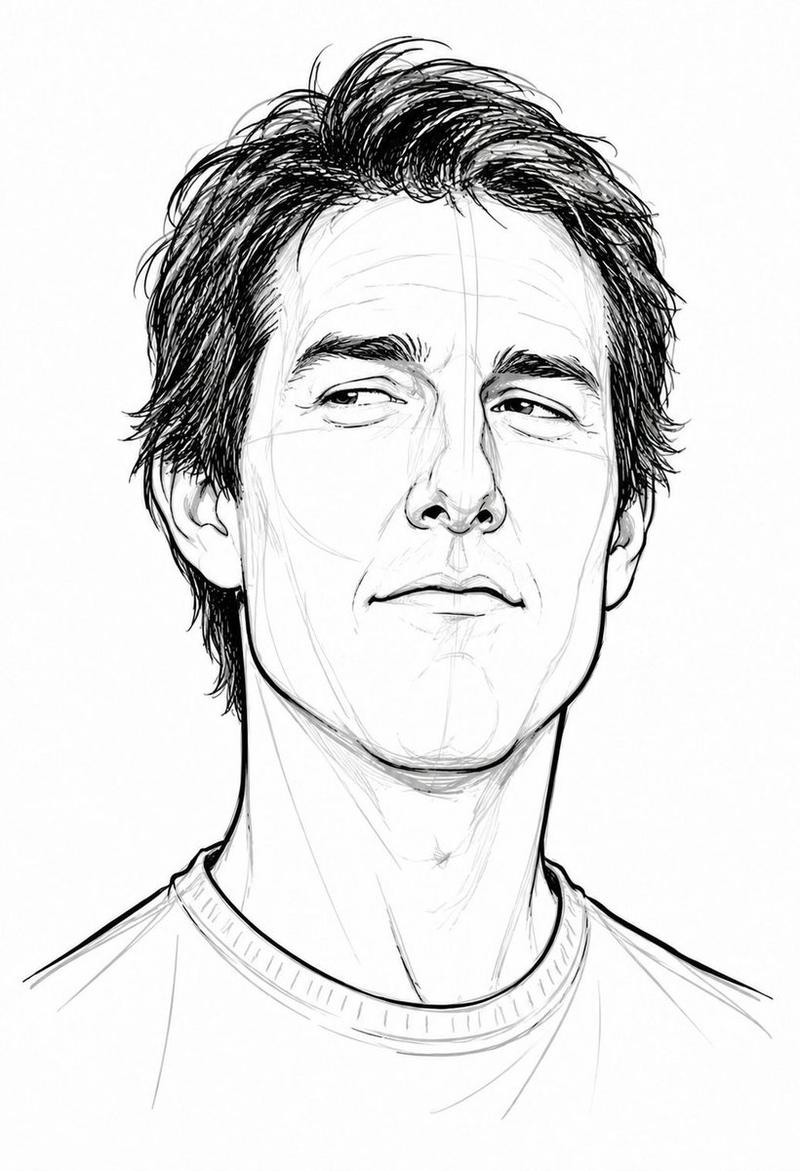
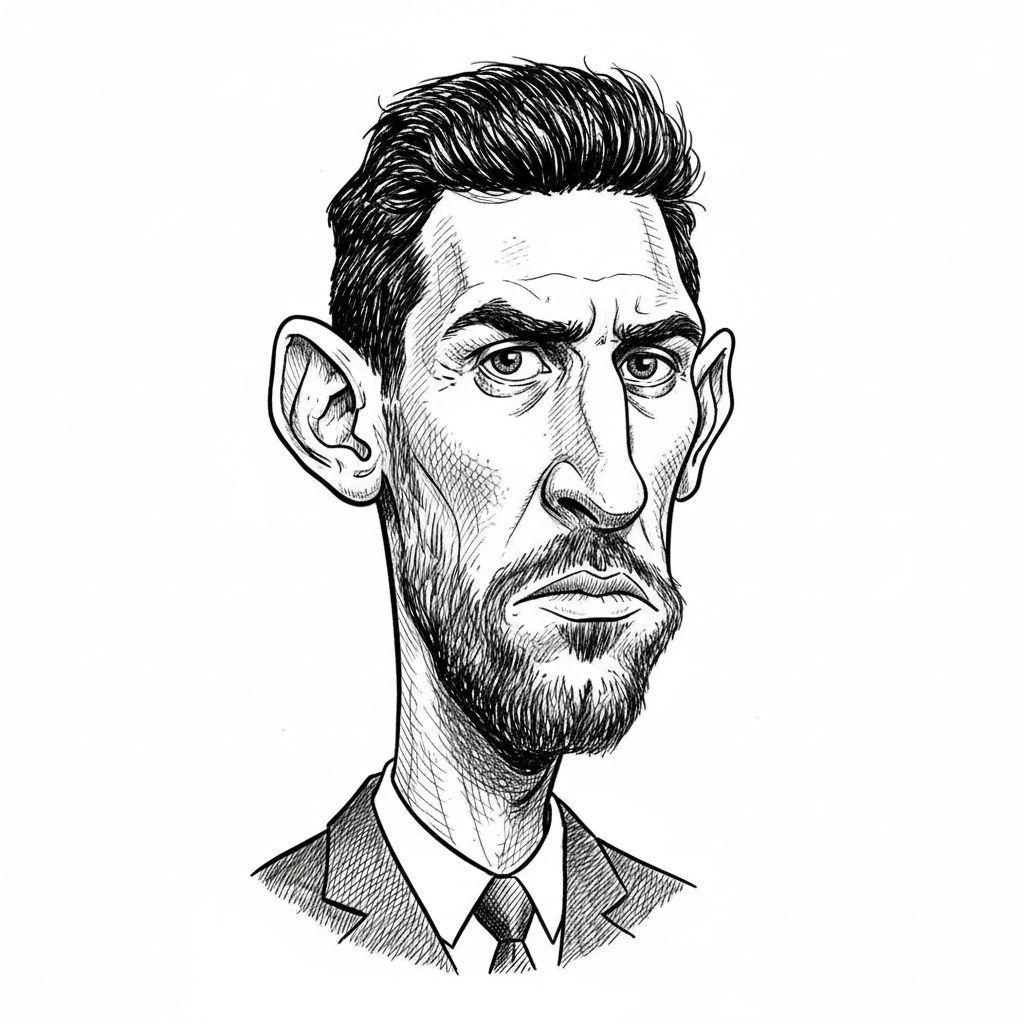
Black and white engraved portrait illustration of a person.
Classic woodcut / linocut engraving style, high-contrast black ink on textured off-white paper. Cross-hatching and line shading for depth and shadow, strong ink shadows under chin and around hair, bold contour lines, traditional printmaking aesthetic.
Centered portrait, no body visible, minimal composition, clean negative space, vintage editorial illustration style, ultra-detailed linework, sharp crisp ink strokes, professional vector-ready engraving, monochrome palette, dramatic contrast.
Negative Prompt:
color, watercolor, soft shading, blurred lines, low contrast, realistic photography, 3D render, anime, cartoon, messy sketch, thick uneven strokes, background objects, noisy texture, pixelated, distorted face, extra eyes, extra ears, bad anatomy, modern digital painting, glossy skin, overexposed highlights
Category
Charts & Infographics
Model
GPT Image 2
Creator
PromptLab
Views10
Source ID
23639
Published
Jun 1, 2026

Guide

About "经典雕版肖像插画"

What is this prompt for?

"经典雕版肖像插画" AI image prompt for GPT Image 2 (Charts & Infographics). 一种高对比度的木刻或油毡版画风格提示词,用于创作具有锐利线条的精细单色肖像。 Copy it on Picva and recreate the look in one click.

The full copyable prompt and example visuals above are ready for AI image generation or one-click recreate in Picva.

How to use this prompt

  1. Step 1

    Open the prompt detail

    Review the example visuals, category, and full prompt text for "经典雕版肖像插画".

  2. Step 2

    Copy the prompt

    Copy the prompt body from this page, or load it directly in Studio.

  3. Step 3

    Pick a model (GPT Image 2)

    Prefer GPT Image 2. If you switch models, keep subject and composition and tweak style terms.

  4. Step 4

    Generate and export

    Recreate the look in Picva, or export into your workflow for editing and publishing.

FAQ

What is the "经典雕版肖像插画" prompt?
It is an AI image-generation prompt for GPT Image 2 in the Charts & Infographics category. This page includes the full prompt text, example visuals, and a one-click recreate path in Picva.
How do I use this prompt to generate an image?
Copy the prompt from this page, or use Generate / Studio. Paste it into a compatible image model, or recreate the look in Picva with optional reference images.
Which model is this prompt for?
This page lists GPT Image 2. Most descriptive prompts also transfer to nearby image models such as GPT Image, Flux, or Midjourney with light style tweaks.
Can I use the result commercially?
You can usually copy the prompt for creation, but commercial use of the final image depends on the model terms, reference-image rights, and the generated content. Follow the source author and platform rules.