
超现实无线耳机海报
Prompt
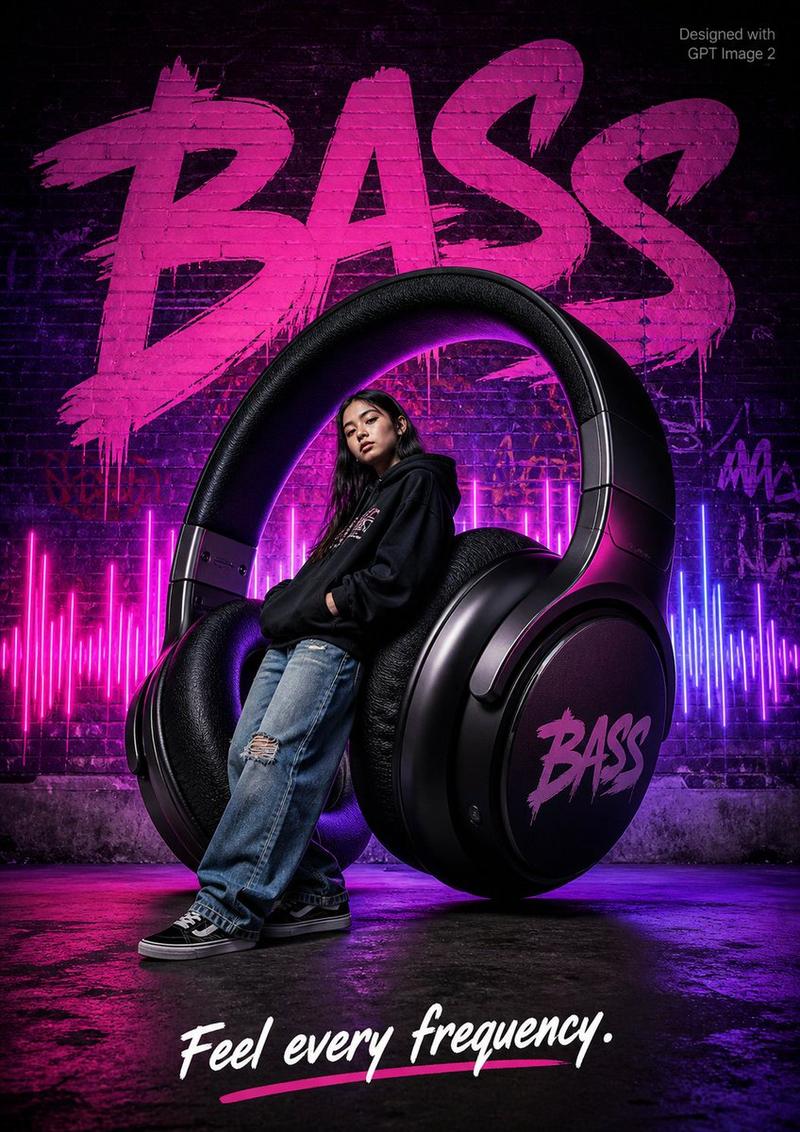
A high-fashion surrealist advertising poster for {argument name="product" default="premium wireless headphones"}. The scene is set in a {argument name="background" default="monochromatic charcoal-gray studio with a glossy reflective surface"}. The focal point is a gigantic pair of over-ear headphones resting upright like futuristic architecture. A model dressed in sleek black streetwear leans comfortably inside one ear cup as though it were a modern lounge chair. The background features the word "{argument name="main text" default="SOUND"}" in enormous white condensed sans-serif letters, partially hidden behind the headphones. At the top right, "Designed with CHATGPT". At the bottom center, white typography reads: "Silence the noise. Amplify yourself." Soft cinematic lighting creates realistic reflections and subtle shadows, producing a premium editorial aesthetic.

Aspect Ratio: 3:4- Category
- Charts & Infographics
- Model
- GPT Image 2
- Creator
- VireonixArt
- Source ID
- 23779
- Published
- Jun 2, 2026
Views4









![PROMPT TO ART [PRODUCT] suspended mid-air, glowing sparks swirling around, drama](https://cdn.pixshop.app/prompt-library/tweet-2004298915001389518/preview-0-1768180070905-1qrz1hrl.jpeg)


![Create a premium advertising poster for [BRAND] featuring [PRODUCT]](https://i.pixshop.app/storage/v1/render/image/public/prompt-source-media/promptsref/work-38059/image-1-b176c3dbd3311ae4.png?width=800&quality=75&resize=contain)
