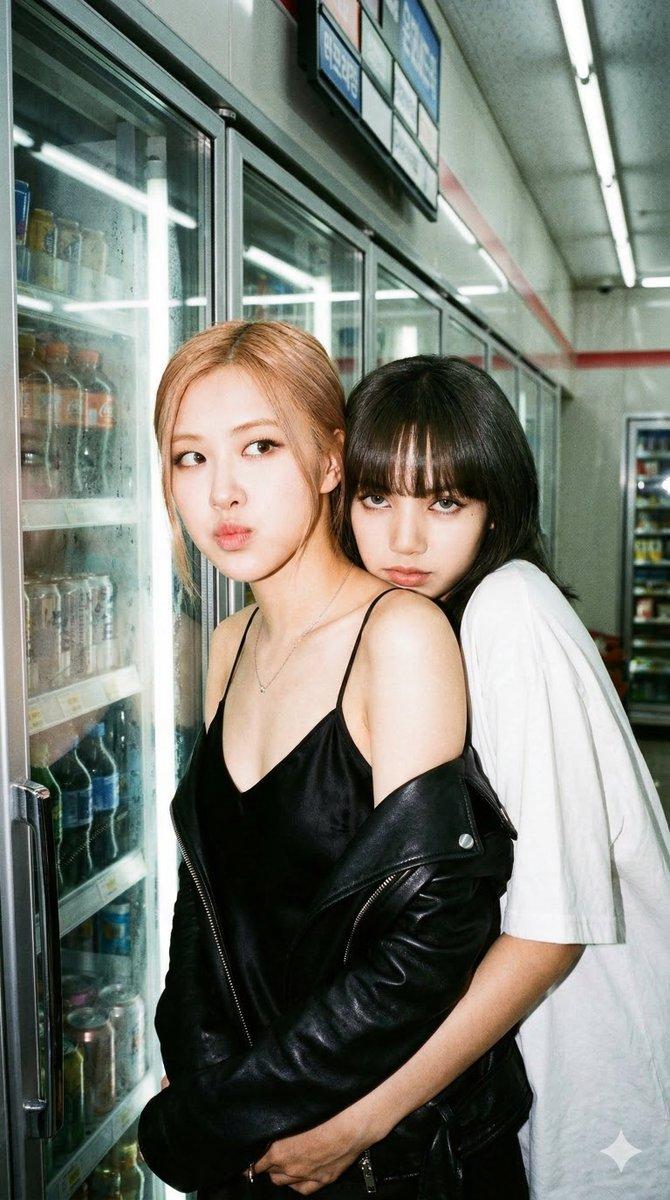
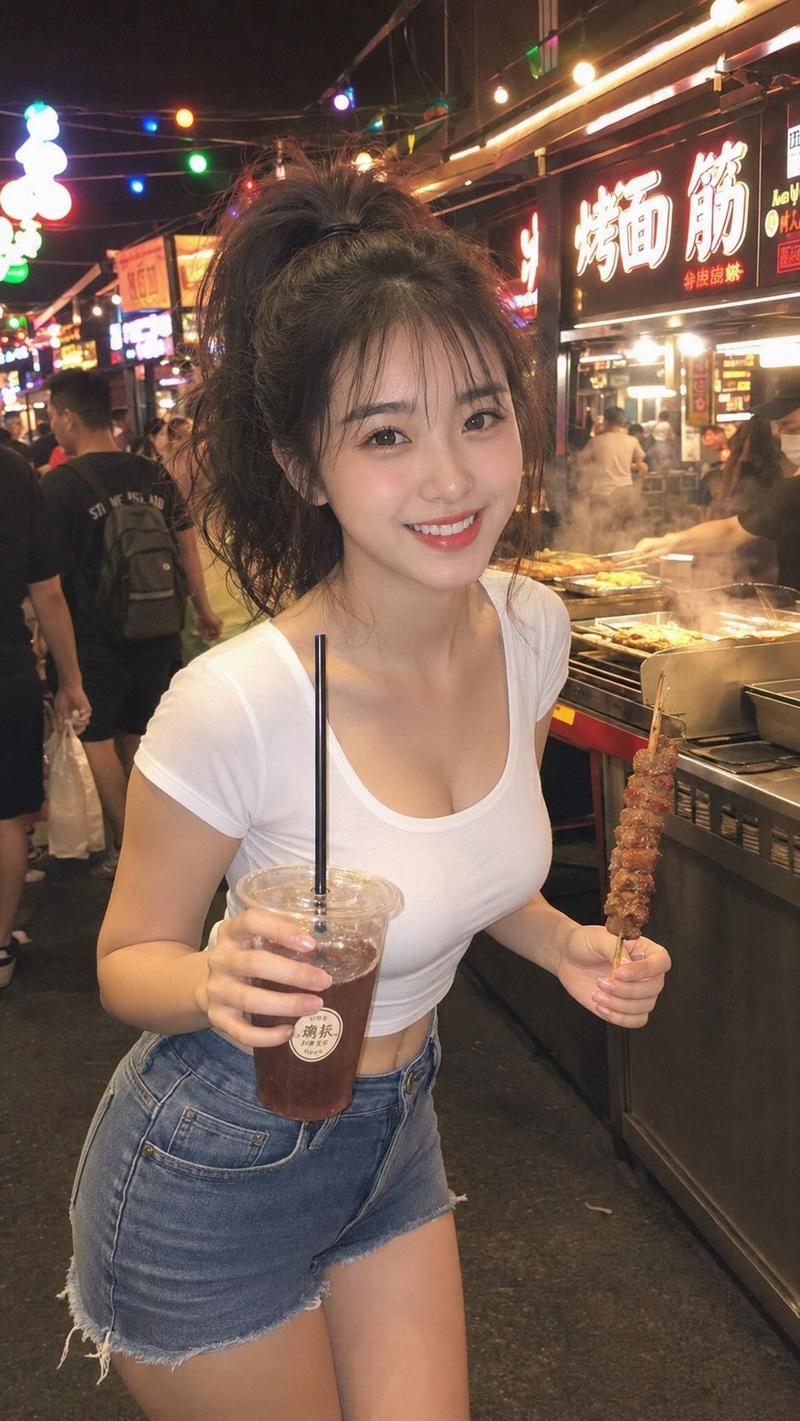
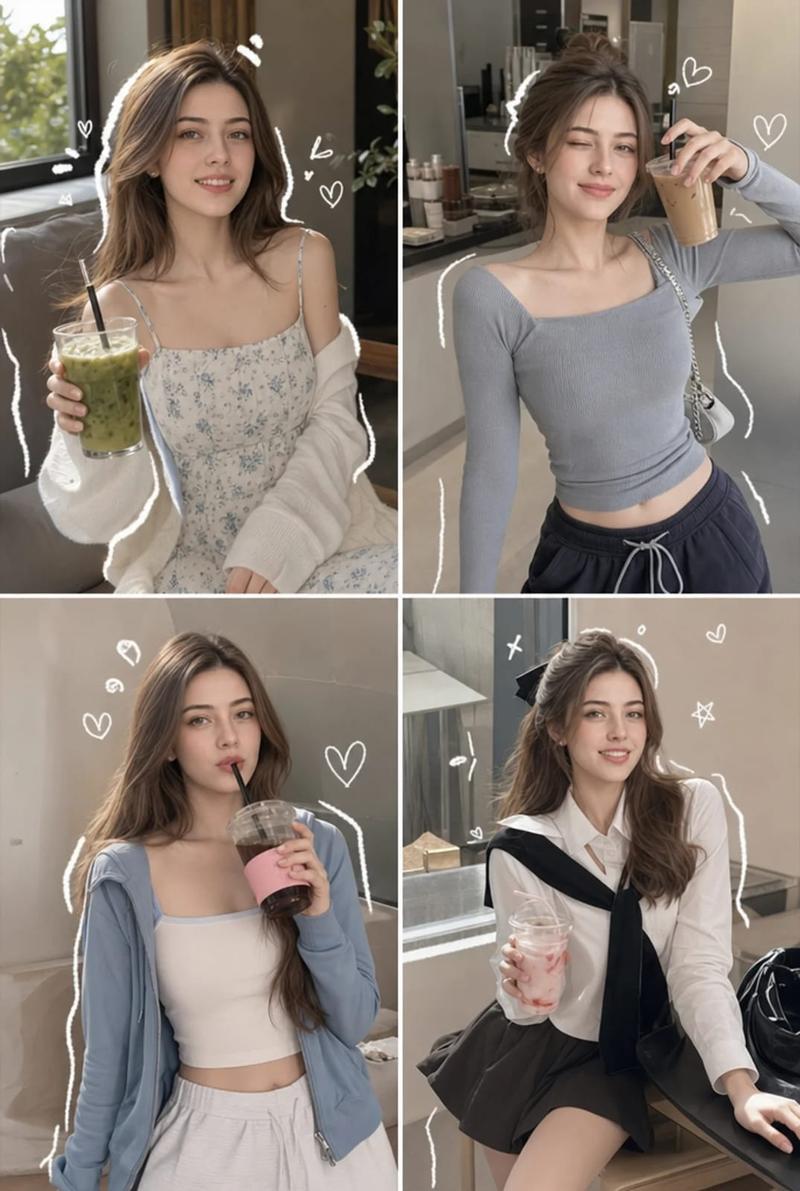
深色聊天 UI 与失败的 4 图拼贴效果
Prompt
Goal: Create a dark-mode mobile chat screenshot showing an AI image generator response that incorrectly combines four requested images into one 2x2 collage.

Canvas: Square screenshot, approximately 768×768 px, black background, cropped like a smartphone app interface in dark mode.

Top prompt card: Near the top center, place a wide dark gray rounded rectangle message card. Inside it, show the Chinese prompt text {argument name="prompt text" default="生成4张独立的图片"} in white, with a thick red underline beneath it. Below that, show smaller gray text {argument name="collapse label" default="收起 ^"}. The card has a rounded lower-right corner and sits against empty black space.

Status line: On the left below the prompt card, add a small gray status label {argument name="status text" default="已停止思考 ›"}.

Main generated image area: Under the status line on the left, show exactly 1 rounded-corner generated image panel containing exactly 4 photo tiles arranged in a 2×2 grid, separated by thin white dividers. Each tile shows the same young woman in a bright beverage shop setting, but with slightly different pose and drink:
1. Top-left tile: smiling young woman with double-bun hairstyle, pink sleeveless crop top and white pleated skirt, leaning forward and holding a red iced drink with a straw, menu board behind her.
2. Top-right tile: same woman holding an amber bubble tea or juice drink, neon sign behind her, night street-shop lighting.
3. Bottom-left tile: same woman holding a large orange drink with both hands, colorful drink menu and neon lights behind her.
4. Bottom-right tile: same woman holding a pale pink drink, refrigerated display case behind her.
The woman should have fair skin, soft glam makeup, brown hair in two messy buns with small hair accessories, a cheerful expression, and a cute influencer-style pose. The photo style is glossy, overexposed, saturated, and slightly unrealistic, like an AI-generated social media portrait collage.

Overlay controls: Add one small circular download button with a downward arrow at the lower-right corner of the collage image.

Bottom input bar: Across the bottom, draw a long dark gray rounded input bar. It contains exactly 5 visible elements: a plus icon on the far left, placeholder text {argument name="input placeholder" default="有问题,尽管问"}, a speed mode label {argument name="speed mode label" default="极速⌄"}, a microphone icon, and a white circular voice-wave button on the far right.

Visual style: Preserve the look of a real mobile app screenshot: black empty negative space on the right, subtle gray UI text, rounded rectangles, clean sans-serif font, and slightly compressed screenshot quality. Do not create four separate files; the visual joke is that the four images are fused into one collage.- Category
- UI & Interfaces
- Model
- GPT Image 2
- Creator
- 李岳
- Source ID
- 26787
- Published
- Jun 26, 2026
Views2