20

照片转 Q 版涂鸦
Enlarge

照片转 Q 版涂鸦

Prompt
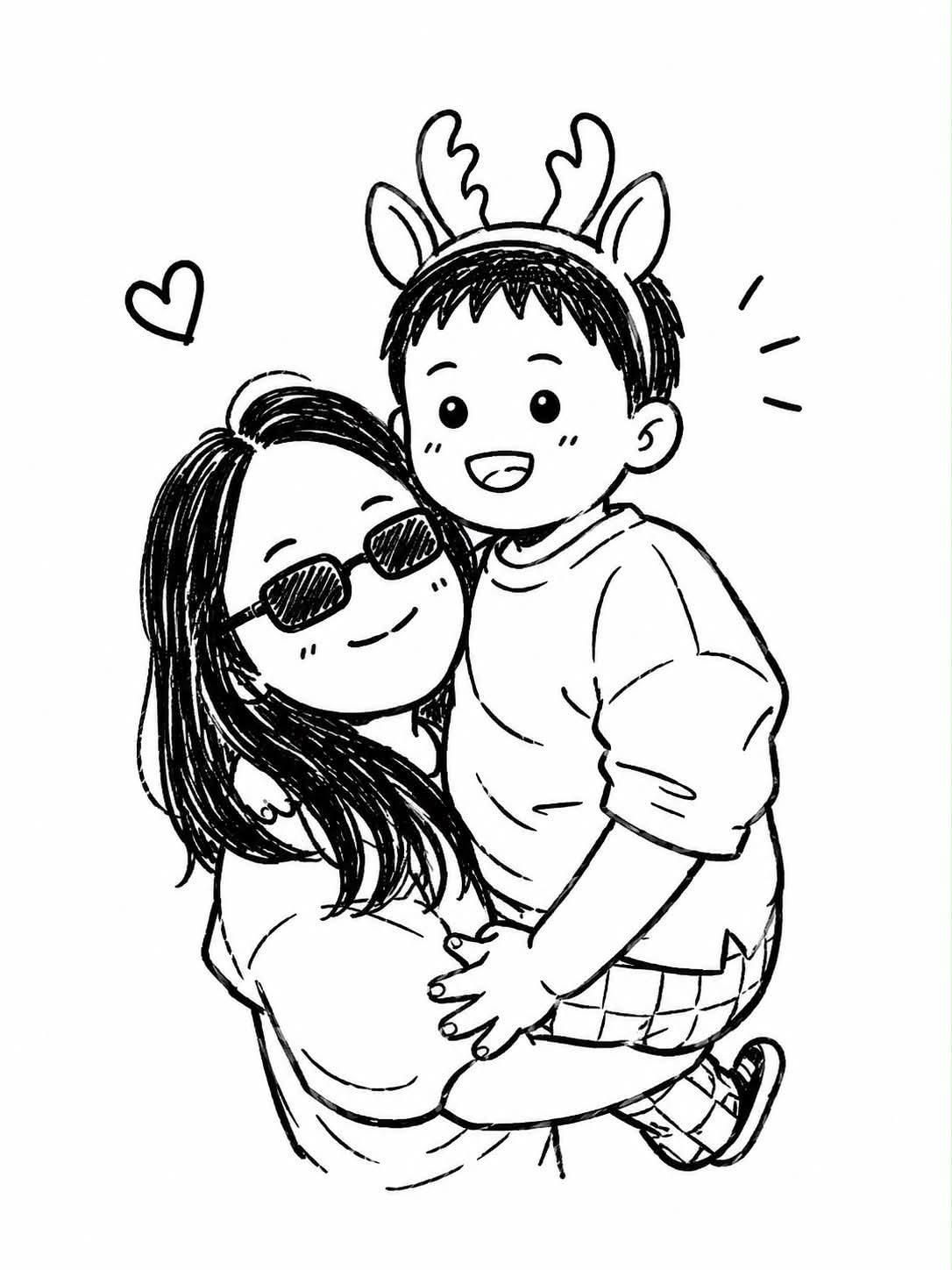
Transform the uploaded photo into a cute black-and-white hand-drawn chibi doodle illustration. Preserve the exact pose, composition, facial expressions, clothing, sunglasses, and antler headband while converting {argument name="subjects" default="the mother and child"} into adorable cartoon characters with oversized heads, tiny bodies, round eyes, soft smiles, and simplified features. Use clean black ink linework on a pure white background with subtle sketch hatching, playful hand-drawn texture, tiny hearts, sparkles, and cute doodle accents around them. Maintain the warm hug, joyful family connection, and candid photo-booth perspective. Kawaii manga-inspired art style, minimalist monochrome palette, sticker-pack aesthetic, wholesome children's storybook illustration, charming sketchbook drawing, expressive faces, soft rounded shapes, cozy and heartwarming mood, highly detailed line art, cute social media avatar style, masterpiece quality.
Category
Brand & Logos
Model
GPT Image 2
Creator
Taaruk
Views0
Source ID
26513
Published
Jun 22, 2026

Guide

About "照片转 Q 版涂鸦"

What is this prompt for?

"照片转 Q 版涂鸦" AI image prompt for GPT Image 2 (Brand & Logos). 一个温馨的提示词,可将真实的家庭照片转换为可爱的黑白手绘 Q 版插画。 Copy it on Picva and recreate the look in one click.

The full copyable prompt and example visuals above are ready for AI image generation or one-click recreate in Picva.

How to use this prompt

  1. Step 1

    Open the prompt detail

    Review the example visuals, category, and full prompt text for "照片转 Q 版涂鸦".

  2. Step 2

    Copy the prompt

    Copy the prompt body from this page, or load it directly in Studio.

  3. Step 3

    Pick a model (GPT Image 2)

    Prefer GPT Image 2. If you switch models, keep subject and composition and tweak style terms.

  4. Step 4

    Generate and export

    Recreate the look in Picva, or export into your workflow for editing and publishing.

FAQ

What is the "照片转 Q 版涂鸦" prompt?
It is an AI image-generation prompt for GPT Image 2 in the Brand & Logos category. This page includes the full prompt text, example visuals, and a one-click recreate path in Picva.
How do I use this prompt to generate an image?
Copy the prompt from this page, or use Generate / Studio. Paste it into a compatible image model, or recreate the look in Picva with optional reference images.
Which model is this prompt for?
This page lists GPT Image 2. Most descriptive prompts also transfer to nearby image models such as GPT Image, Flux, or Midjourney with light style tweaks.
Can I use the result commercially?
You can usually copy the prompt for creation, but commercial use of the final image depends on the model terms, reference-image rights, and the generated content. Follow the source author and platform rules.