15

情感表达表现网格
Enlarge

情感表达表现网格

Prompt
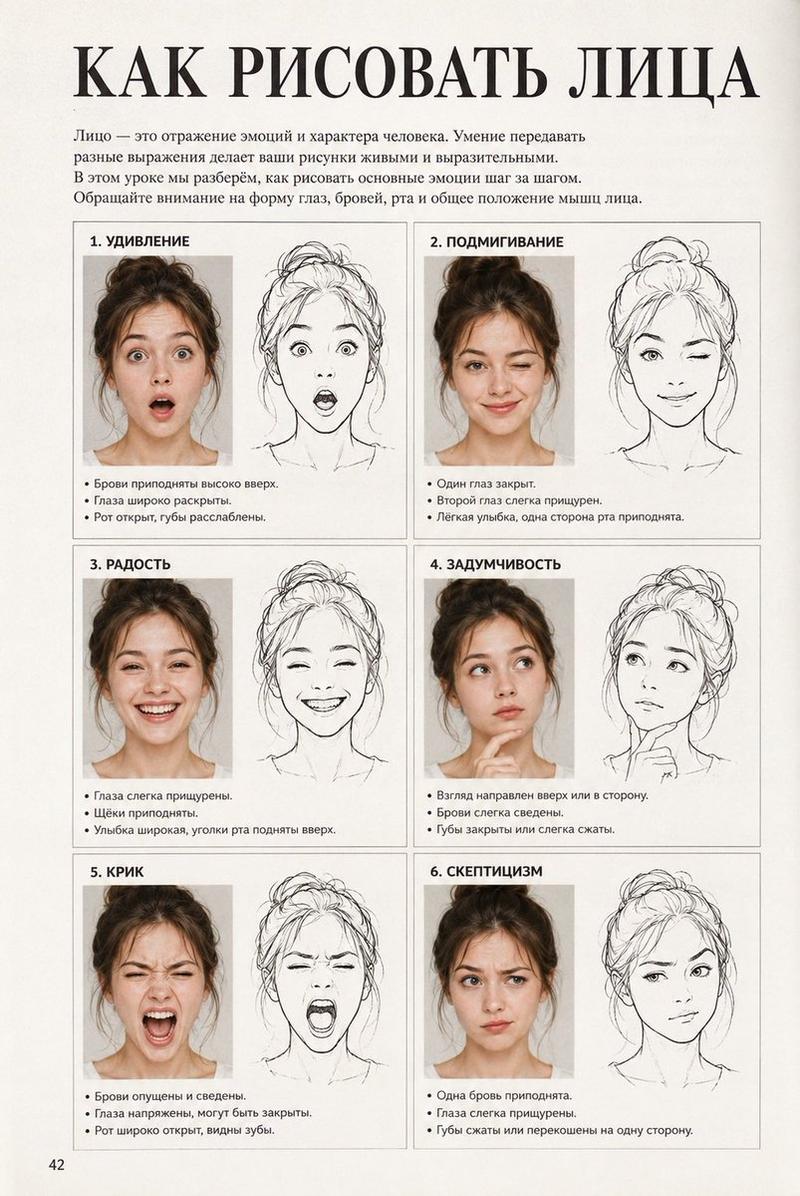
Create a clean 4x4 emotional performance grid using the provided character as the fixed identity reference. Visual style: Clean modern graphic design layout. Elegant serif header at the top, soft off-white background, even spacing, small readable handwritten-style labels centered below each panel. Header text: “Couple's CUTE ↔ CRAZY SCALE” Preserve strict facial identity consistency across all 16 panels. Follow the exact emotional progression from top-left to bottom-right. Do not randomize expressions or intensity. GRID ORDER: Row 1: 1. soft innocent cute 2. shy cute 3. playful cute 4. teasing cute Row 2: 5. energetic cute 6. chaotic playful 7. emotionally intense 8. unstable smile Row 3: 9. overly excited 10. wild eyes 11. manic happiness 12. emotionally unhinged Row 4: 13. chaotic stare 14. dangerous excitement 15. beautiful insanity 16. fully crazy Format: 4x4 grid, cinematic portrait photography style, neutral background, tight close-up framing, shallow depth of field, no watermark.
Category
Charts & Infographics
Model
GPT Image 2
Views3
Source ID
21028
Published
May 17, 2026

Guide

About "情感表达表现网格"

What is this prompt for?

"情感表达表现网格" AI image prompt for GPT Image 2 (Charts & Infographics). 创建一个结构化的 4x4 网格,展示同一个角色从温柔纯真到混乱疯狂的演变过程。 Copy it on Picva and recreate the look in one click.

The full copyable prompt and example visuals above are ready for AI image generation or one-click recreate in Picva.

How to use this prompt

  1. Step 1

    Open the prompt detail

    Review the example visuals, category, and full prompt text for "情感表达表现网格".

  2. Step 2

    Copy the prompt

    Copy the prompt body from this page, or load it directly in Studio.

  3. Step 3

    Pick a model (GPT Image 2)

    Prefer GPT Image 2. If you switch models, keep subject and composition and tweak style terms.

  4. Step 4

    Generate and export

    Recreate the look in Picva, or export into your workflow for editing and publishing.

FAQ

What is the "情感表达表现网格" prompt?
It is an AI image-generation prompt for GPT Image 2 in the Charts & Infographics category. This page includes the full prompt text, example visuals, and a one-click recreate path in Picva.
How do I use this prompt to generate an image?
Copy the prompt from this page, or use Generate / Studio. Paste it into a compatible image model, or recreate the look in Picva with optional reference images.
Which model is this prompt for?
This page lists GPT Image 2. Most descriptive prompts also transfer to nearby image models such as GPT Image, Flux, or Midjourney with light style tweaks.
Can I use the result commercially?
You can usually copy the prompt for creation, but commercial use of the final image depends on the model terms, reference-image rights, and the generated content. Follow the source author and platform rules.